Revision Control
Image revisions
In Paligo, every image uploaded to the platform is automatically versioned, allowing users to maintain a comprehensive history of modifications. This means that any changes made to images can be tracked, with the ability to view and use previous iterations seamlessly.
The image revision interface allows for effortless navigation through image revisions. Writers can view different versions and select their preferred one with just a few clicks.
Learn more about image revisions:
Image details interface overview
The interface provides a comprehensive overview of all properties, revisions and language variants associated with an image.
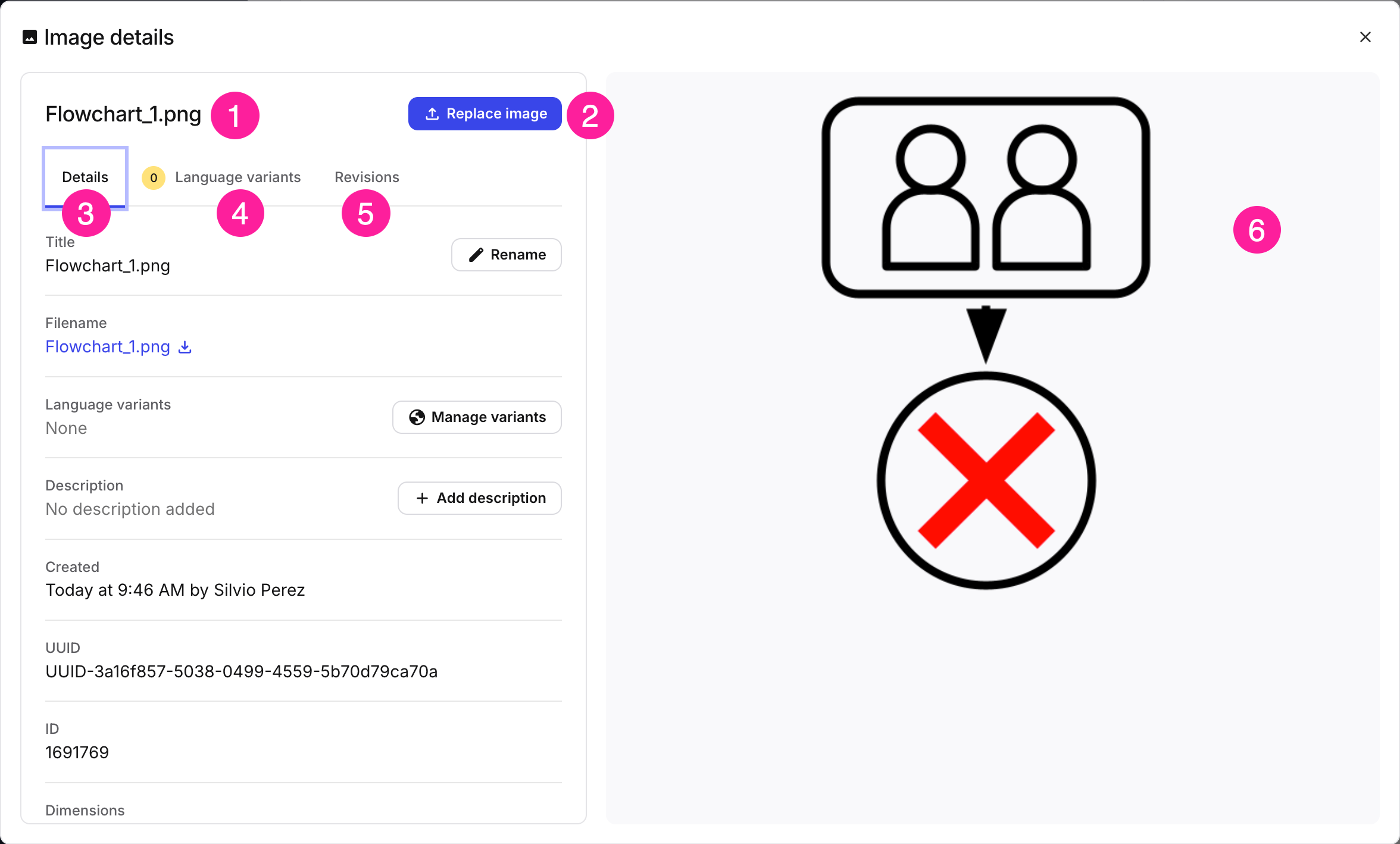
Overview of the Image details window
Image details
The Details tab shows all properties associated with the image:
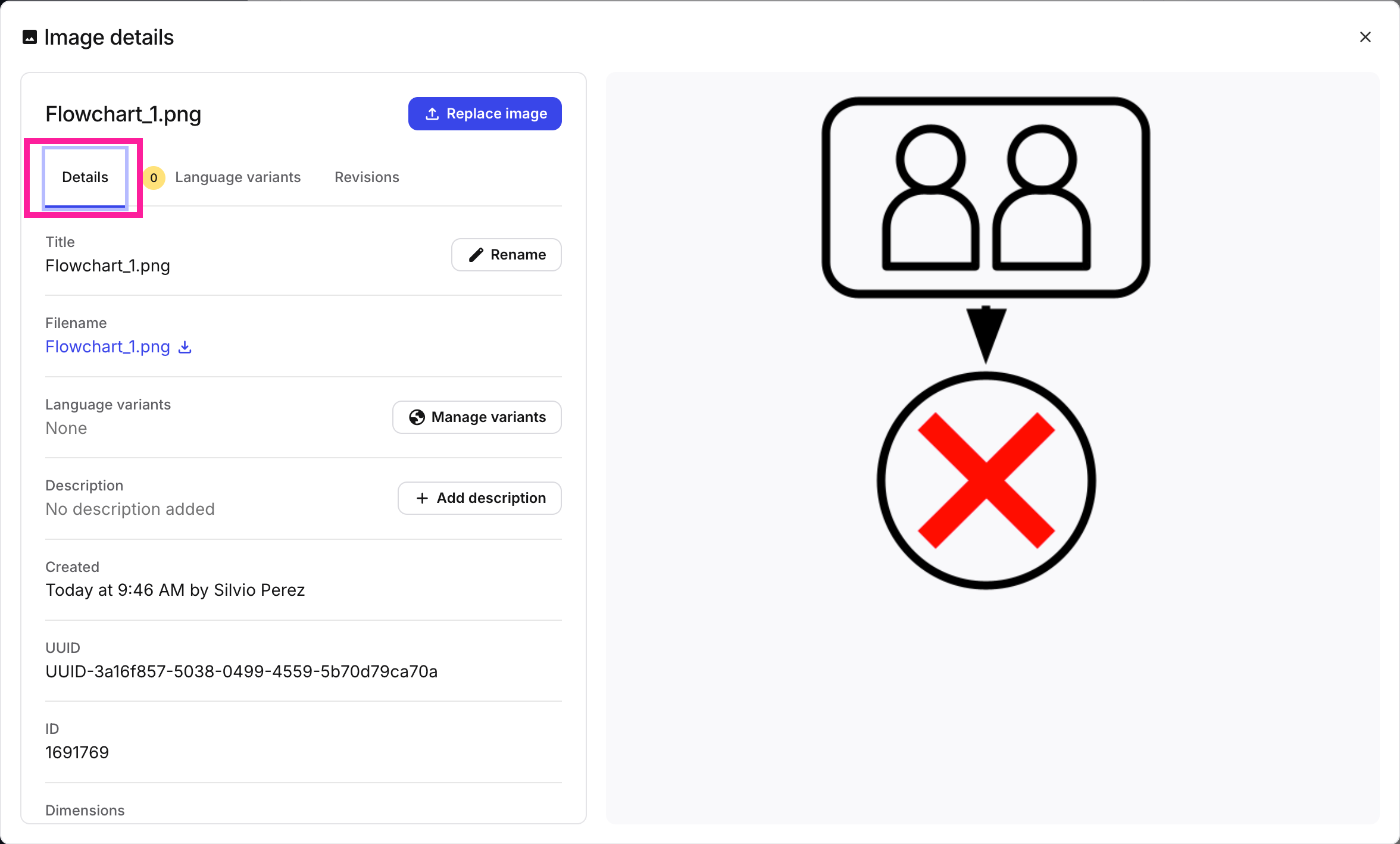
The Details tab shows metadata associated with the image and its revisions.
Title: the name of the image (editable)
NoteNote that the image title represents the name for the image resource as a whole, while each individual revisions of that image can be assigned its own name.
Filename: the name of the file that was uploaded.
NoteSelecting the filename will download the image.
Language variants: list of all language variants associated with the image.
Description: a description of the image (editable)
Created: timestamp when the image was uploaded.
UUID: unique Iidentifier used to reference the image in Paligo.
ID: resource ID.
Dimensions: image dimensions in pixels (px) as well as the image's color space.
Taxonomies: list of taxonomies that have been applied to this image.
Located in: where the image is located in the Content Manager.
Reused in: list of components where this image is used.
Image and revision names
By default, the image name (title) will be the same as the filename. This name can be changed.
If your image filename contains spaces, these will be converted to underscores.
Change image title
Select the image in the Media library.
NoteAlternatively, you can select an image inside a topic:
Right-click on the image.
Select Edit properties
Select the image
From the Image toolbar, select Edit image details
Select the Details tab.
Select the Rename button
Select Update.
Revision names
The title of the first revision of an image (root) will be the same as the filename. Subsequent revisions will be automatically named with the timestamp of when the revision was uploaded.
If you wish, you can rename the revisions.
Select the image in the Media library.
NoteAlternatively, you can select an image inside a topic:
Right-click on the image.
Select Edit properties
Select the image
From the Image toolbar, select Edit image details
Select the Revisions tab.
Select More options

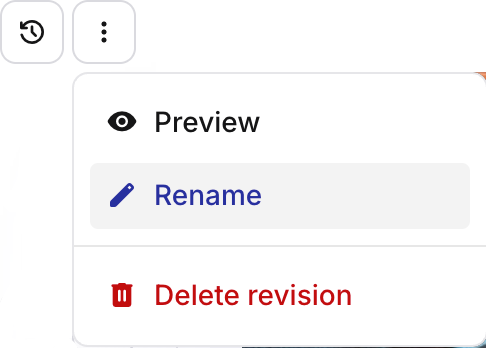
Select Rename.
Enter the name of the revision in the text field, and select Enter.
Pease see Add a new image revision for more information about revisions.
Add an image description
You can add a description to an image to provide more information for authors using the resource.
Select the image in the Media library.
NoteAlternatively, you can select an image inside a topic:
Right-click on the image.
Select Edit properties
Select the image
From the Image toolbar, select Edit image details
Select the Details tab.
Select Add description

Select Update .
View image revisions
To view all existing revisions of a particular image:
Select the image in the Media library.
NoteAlternatively, you can select an image inside a topic:
Right-click on the image.
Select Edit properties
Select the image
From the Image toolbar, select Edit image details
In the Image details window, select the Revisions tab. All revisions of the image are listed, with the current revision at the top, labeled Current.
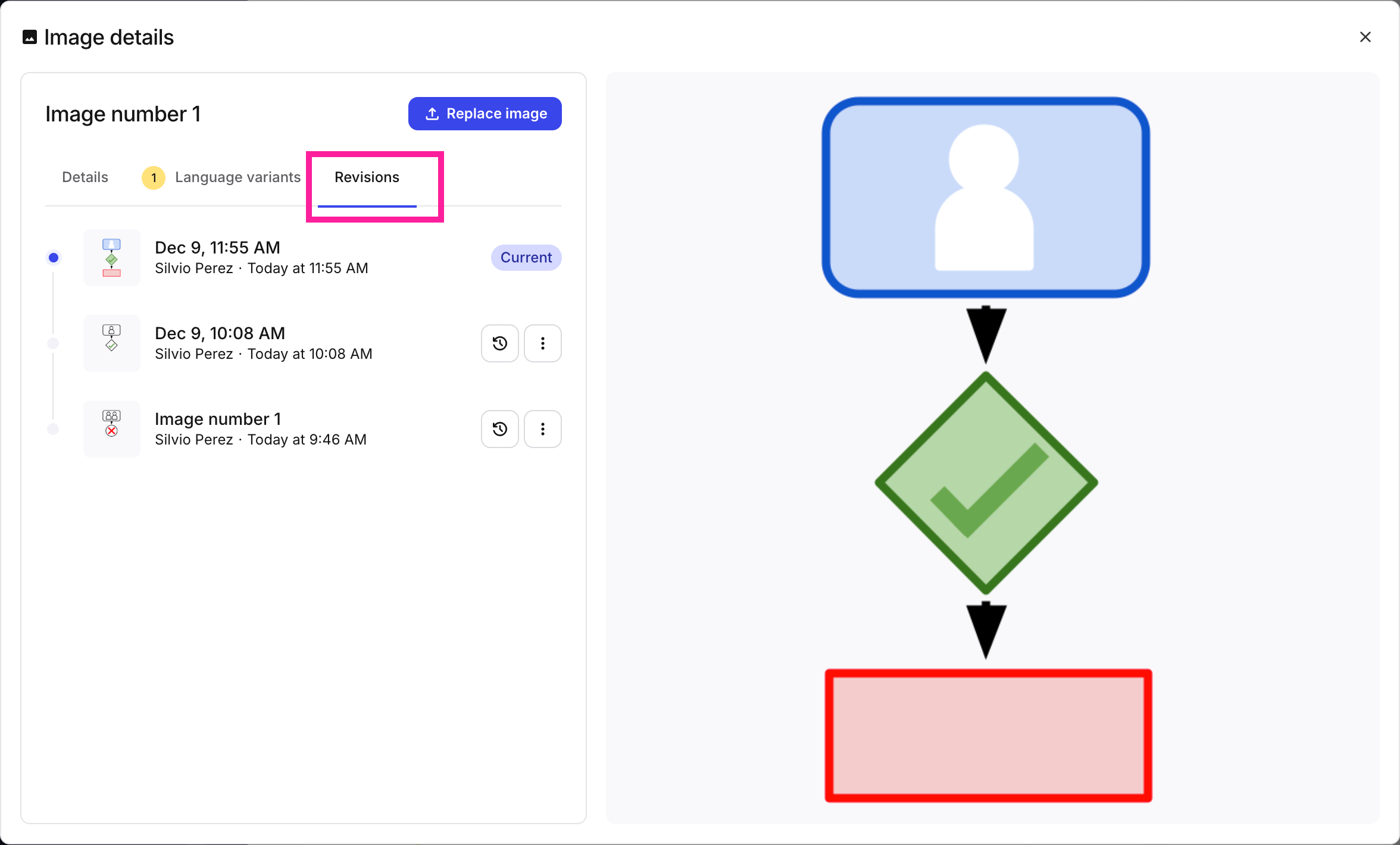
The Revisions tab shows the current revision at the top of the list
View a specific revision
Since it is sometimes hard to discern details in a revision's thumbnail, it is always possible to view image revisions in a separate window.
You can enlarge the image in the preview pane by clicking the Expand image button 
Select the image in the Media library.
NoteAlternatively, you can select an image inside a topic:
Right-click on the image.
Select Edit properties
Select the image
From the Image toolbar, select Edit image details
Select More options
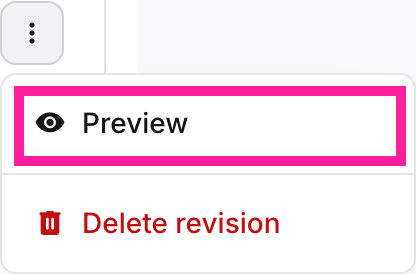
Select Preview. The image will open in a modal window.
Language variants can be viewed in the same way.
Add a new image revision
Every time you replace an image (through the Image details window), the newly uploaded image automatically becomes the latest (current) revision of that image. To add an image revision:
Select the image in the Media library.
NoteAlternatively, you can select an image inside a topic:
Right-click on the image.
Select Edit properties
Select the image
From the Image toolbar, select Edit image details
Select the Replace image button.
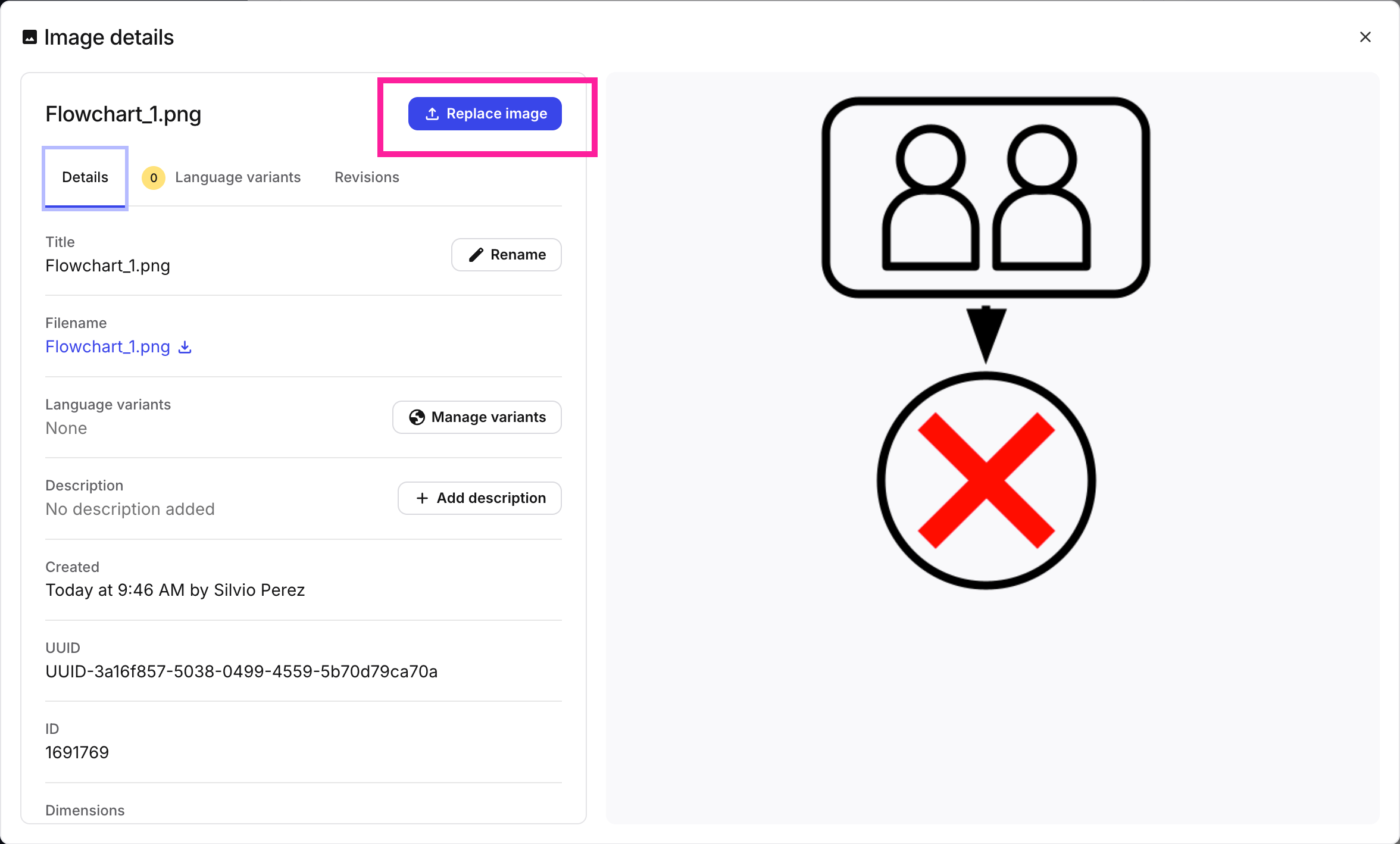
Adding an image revision
Upload the new image by:
Dragging and dropping it onto the Replace image window.
Selecting Click to add file and browsing to the new image.
Choose whether or not to keep the existing language variants.

Keep variants: this will associate the current language variant images with the new revision (unless you replace the language variant image later on).
Remove variants: this will remove all language variants from the new revision (current). All languages will revert to the main image. If you want to associate new language variants with the current image, you have to upload them.
Please see Image language variants for more information.
Select the Replace image button. The new image will now appear at the top of the list in the Revisions tab, and will be labeled Current.
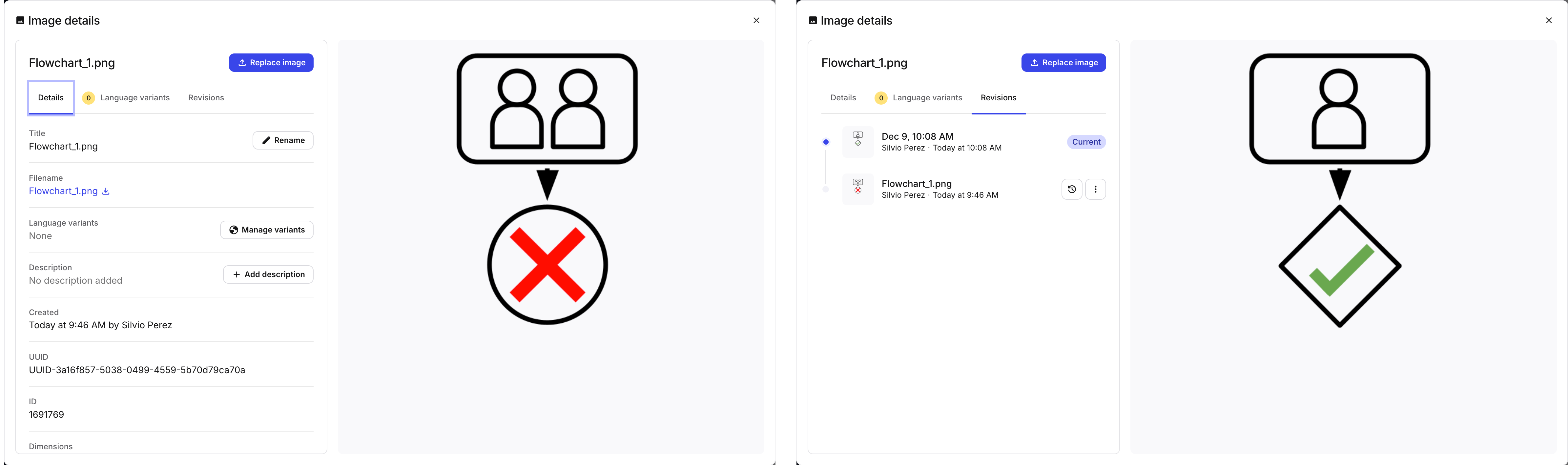
The image on the right shows the new image revision (indicated by the Current label
Revert to previous image revision
If you want to revert to an image's previous revision, do the following:
Select the image in the Media library.
NoteAlternatively, you can select an image inside a topic:
Right-click on the image.
Select Edit properties
Select the image
From the Image toolbar, select Edit image details
Select the Revisions tab.
The Revisions tab shows all revisions of the image
Select the Restore this revision button
 Warning
Restoring a revision will update that image in all topics where that image is used.
Select Restore revision in the pop-up window
 Note
The revision entry will be duplicated at the top of the list and labeled Current to indicate that it is now the revision that is being used in all topics.
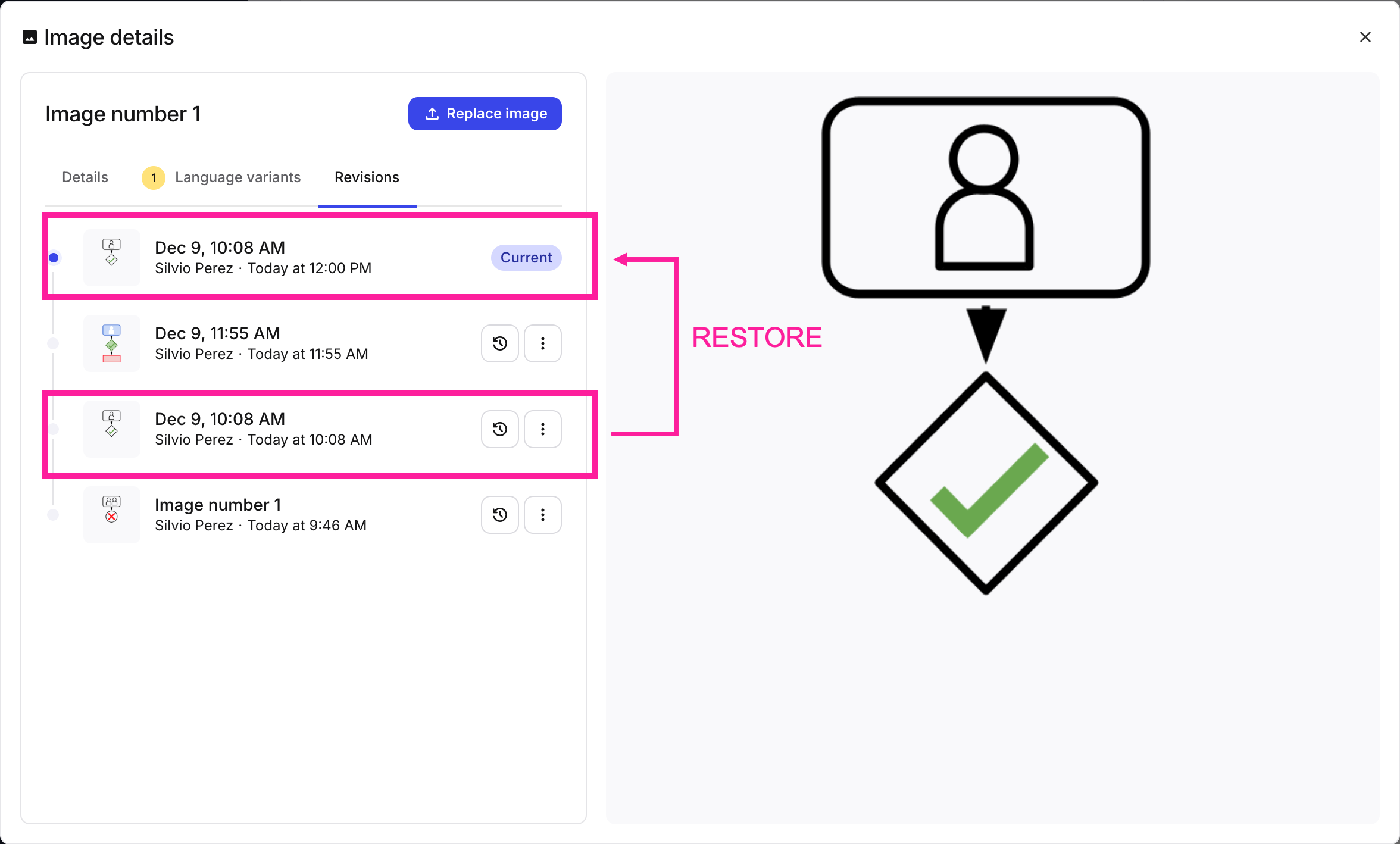
After restoring a previous revision, that revision will be listed twice in the list since the current revision is always displayed at the top.
Close the window.
For more information on image revisions, please refer to Add a new image revision.
Replace an image (reset history)
In cases where you are already using an image (with revisions) in a topic and you want to start with a new revision history, you can just insert a new image.
Delete the image you want to replace from the topic.
Insert an image and upload a new image.
NoteThis can be an entirely new image, or an existing image you wish to insert with a blank revision history.
TipYou can download any image in Paligo by accessing the image from the Media folder and selecting the file name in the Details tab.
Image language variants
Image language variants can be used to provide separate variants of an image for different languages. This can be useful if you have country-specific versions of a product, screenshots in different languages, or text callouts in the picture that need to be language-specific.
Note that although language variant images do not have formal revisions, the main revision and the language variant are linked. This means that if you revert an image to a previous revision, it will also revert to the language variant that was current when that revision was created.
For more information about using language variants, please see Translate images
Add a language variant
Select the image in the Media library.
NoteAlternatively, you can select an image inside a topic:
Right-click on the image.
Select Edit properties
Select the image
From the Image toolbar, select Edit image details
Select the Language variants tab.
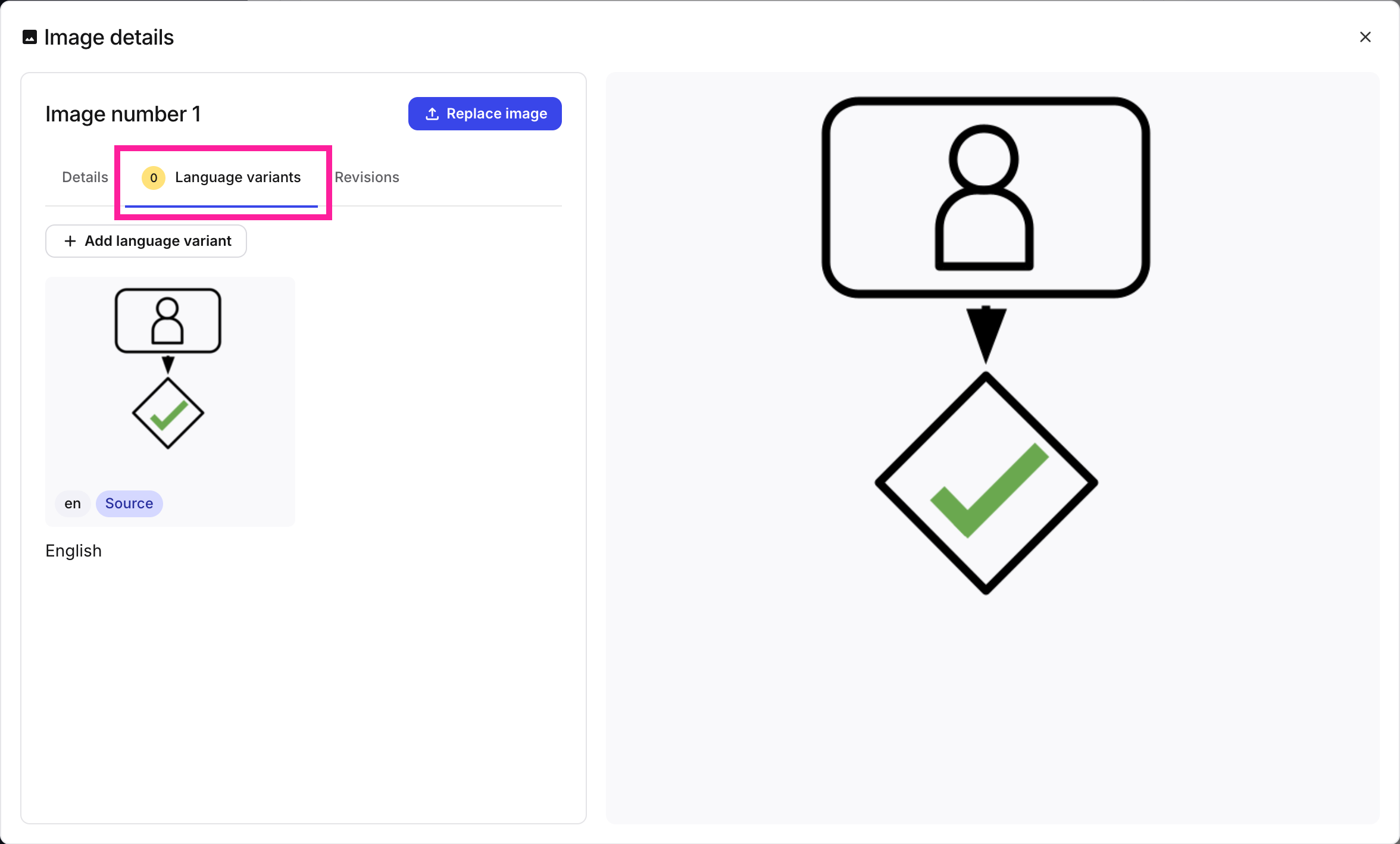
The Language variants tab shows the images associated with each language.
Select the Add language variant button

Upload the new image by:
Dragging and dropping it onto the Replace image window.
Selecting Click to add file and browsing to the new image.
Select the Select a language dropdown and select the language you want to associate with the image.
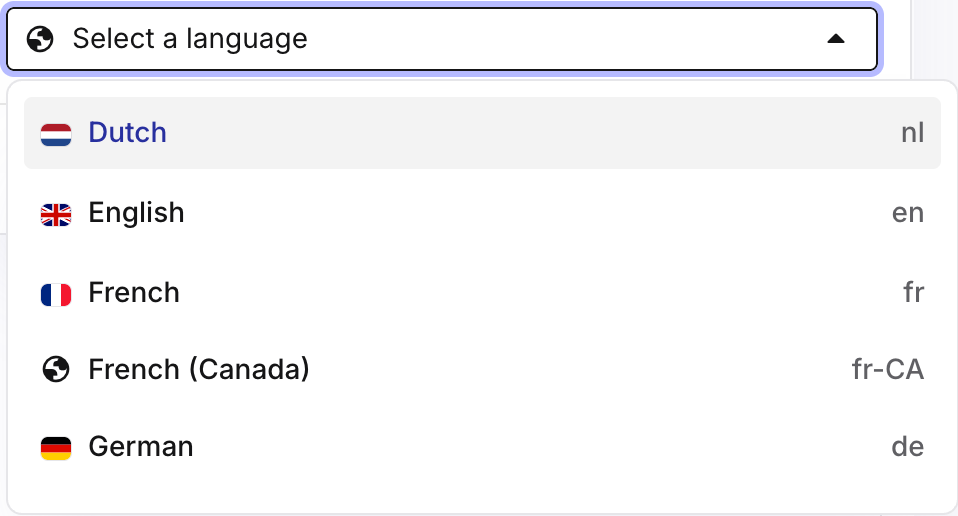
The language dropdown will only list the languages that have been configured in Settings
NoteIf the language you want to add is not in the list, it has to be activated in Settings. See Activate Languages on the Paligo Docs website for more information.
NoteIf you choose a language for which a language variant already exists, this will replace that language variant with the selected image.
Select Upload variant
 Note
This language variant will now be associated with the current revision of the main image.
Update a language variant
Select the image in the Media library.
NoteAlternatively, you can select an image inside a topic:
Right-click on the image.
Select Edit properties
Select the image
From the Image toolbar, select Edit image details
Select the Language variants tab.
Locate the language variant you want to update and select the More options icon
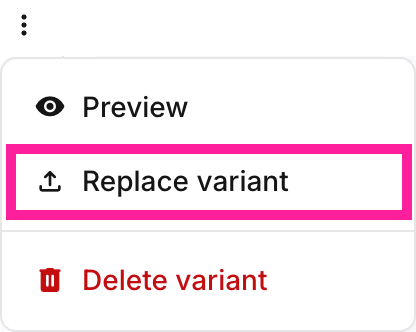
Select Replace variant.
Upload the new image by:
Dragging and dropping it onto the Replace image window.
Selecting Click to add file and browsing to the new image.
Select Upload variant
Remove a language variant
Select the image in the Media library.
NoteAlternatively, you can select an image inside a topic:
Right-click on the image.
Select Edit properties
Select the image
From the Image toolbar, select Edit image details
Select the Language variants tab.
Locate the language variant you want to remove and select the More options icon
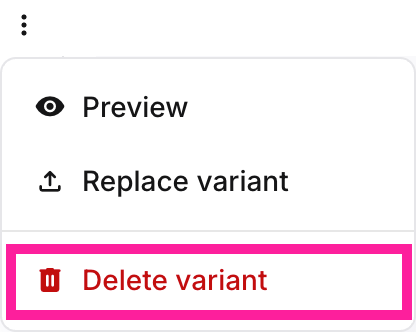
Select Delete variant.
WarningThe removal of language variants cannot be undone. Please be sure to check if you can remove a language variant before permanently deleting it.
NoteIf no language variant exists for a particular language, the main image will be used for that language.