Subsections
Accordions (Collapsible Sections)
Accordions are sections of content that can be expanded or collapsed for HTML5 or Zendesk output. They are useful when you have a lot of subsections that make it hard to overview the topic. The reader can then expand or collapse each section in turn.
You can use accordions on sidebar elements and section elements. But for sections, the accordion only appears when that topic is inserted into another topic as a subsection, see Insert Component.

Create Accordions
Paligo supports accordions (collapsible sections) for HTML5 and Zendesk output. In other output formats, the content will appear as regular text. You can create accordions for topics (section elements) and informal topics (sidebar elements).
There are two ways to create an accordion. Use the way that matches what you want to achieve:
Set a topic to display as an accordion, but only when it is included inside another specific topic as an imported component.
If you are unfamiliar with inserting topics as components, see Insert Component.
When creating an accordion, use Preview to test that it works, see Test your Accordions.
Set an Accordion on a Section Element
Since you may want to use a topic as a main topic (without the accordion), it is not recommended to set accordions on a top-level section.
When accordions are applied to top-level sections, they will not be shown in the output's (HTML5) side navigation when added to the publication structure. Instead, they will appear as an accordion section in the parent topic.
If you want a topic to use an accordion wherever that topic appears, give the topic's section element a role attribute with value set to accordion:
In the Content Manager, find the topic (or informal topic) and select it to open it in the editor.
In the Element Structure Menu, select a
sectionelement orsidebarelement and then select Go to element.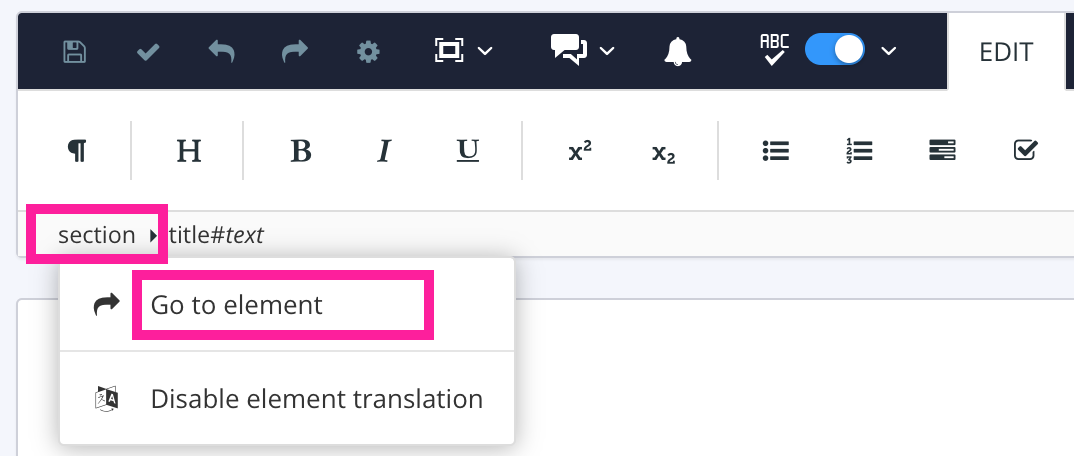 Note
It is possible to have multiple
sectionelements in a topic. The first (leftmost)sectionrepresents the topic as a whole. Any othersectionelements are for subsections inside the topic. We recommend that you create subsections by inserting a topic as a component inside another topic rather than create asectioninside asection.Select Add attribute in the Element Attributes Panel.
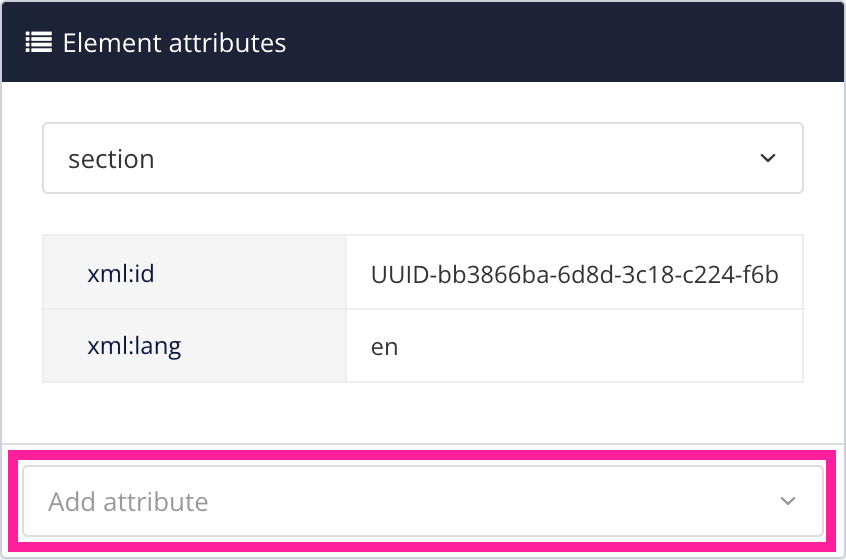
Enter
Roleand select it from the menu.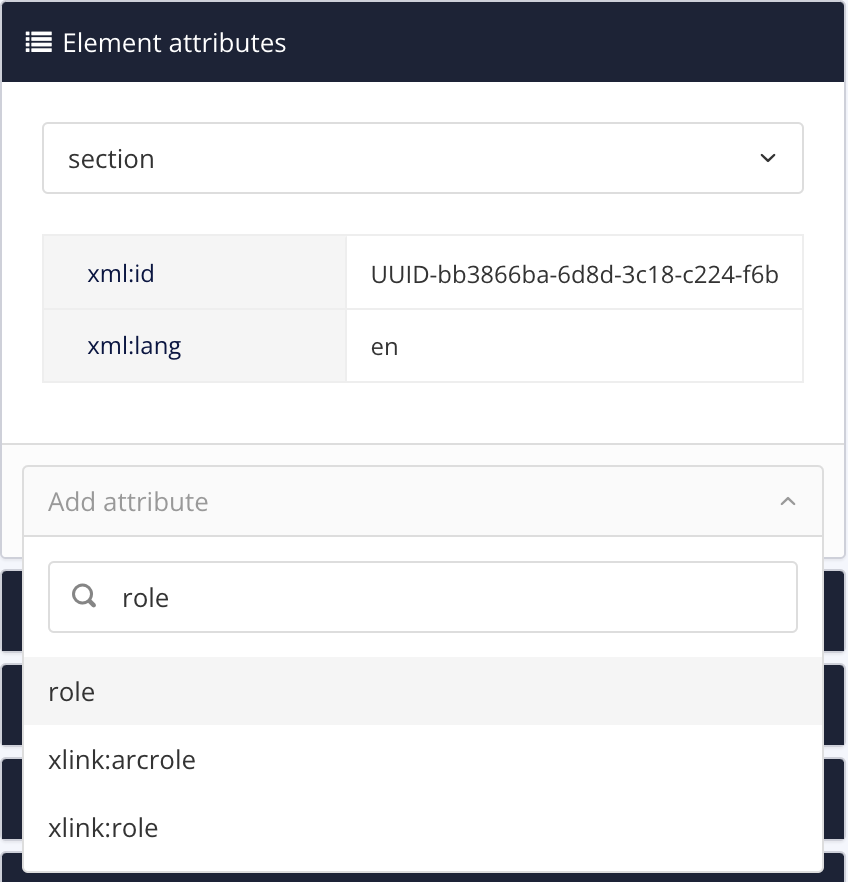
Enter
accordionas theroleattribute value.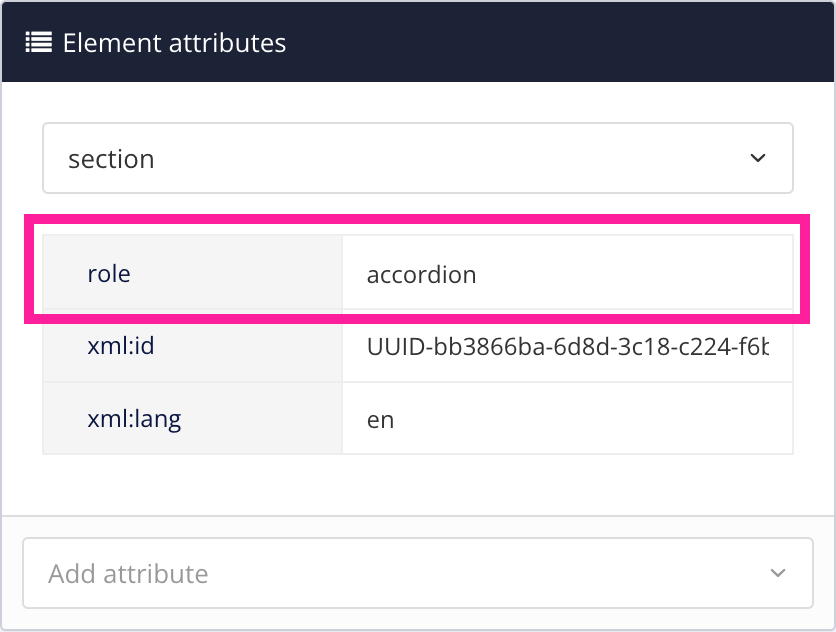
Select Save.

Select Layout and then select the Layout you are going to use for publishing. Make sure that the Output role attribute as class names setting is enabled (for details, see Enable Output Role Attribute as Class Names). Accordions will not work if this setting is disabled.
When you publish to HTML5 or Zendesk, the section or sidebar will appear as an accordion (when it is a subsection of another topic).
You can style the accordion by using custom CSS.
For example, if you want a background color for the header, create a CSS file (or edit an existing one) and use:
.panel-default > .panel-heading { background-color: #fafafa; padding: 1em; }You can then upload the CSS to your Layout (see Upload Customized CSS).
Set an Accordion on an Imported Subsection Topic
If you create subsections by inserting a topic inside another topic, you can set the subsections to display as an accordion. There are two ways to do this:
Set the subsection topic to have
role:accordionon itssectionelement. This makes the topic display as an accordion wherever it is used (see Set an Accordion on a Section Element).Set the container topic to have
xlink:role=accordionon thexi:includeelement.This makes the subsection topic display as an accordion, but only when it is used as a subsection in this particular "parent" topic. If the subsection topic is also used elsewhere, it will not display as an accordion in those other locations (unless you set it up to have an accordion in those places too).
To edit the source code for the "parent" topic and make an imported subsection display as an accordion:
In the Content Manager, find the "parent" topic that contains the subsection ("child" topic). Select the "parent" topic to open it in the editor.
Click on the subsection ("child" topic) and then look in the Element Structure Menu at the top. Make sure that the subsection is represented by an
importelement in the structure of the topic.
A topic containing another topic as a subsection. The subsection topic has been inserted as a component and is shown as an import element.
If you do not see an
importelement, it is likely that the subsection has been created in another way. For example, added as asectionelement inside the "parent" topic. You can convert it into an inserted component by selecting itssectionelement and then choosing Convert to reusable component. Paligo will convert thesectioninto a separate topic and add animportelement in its place.Select the Import element in the Element Structure Menu and then select Go to element.
In the Element attributes panel, select the section element and choose the xi:include element instead.
 Note
If your "parent" topic contains many imported subsections, it will have an
xi:includeelement for each one. They are shown in the order they appear in the "parent" topic. Make sure that you are looking at thexi:includefor the subsection you want to edit.Use Add attribute to give the
xi:includeelement thexlink:roleattribute. Set the value of thexlink:roleattribute toaccordion.
Select Save.
When you publish your content, or preview it as HTML5, the subsection will display as an accordion. If you use the subsection topic elsewhere, it will not display as an accordion (unless it is also set to have xlink:role="accordion" in the other locations).
Test your Accordions
When you set up a new accordion, it is a good idea to test it works as expected before you publish. You may find that you have made a mistake and the accordion is not working or that you have included information in the accordion that needs to be elsewhere.
To test an accordion:
In the Content Manager, select the "parent" topic that contains the subsection topic that has the accordion. Paligo opens the topic in the editor.
Select Preview and then HTML5.

Paligo opens a preview in an new tab.
Select HTML5.
If you have set up the accordion correctly, the subsection topic is displayed as an accordion. You can only see its title and there is an arrow icon next to it.

If you select the subsection topic's title or the arrow icon, it should expand the accordion, revealing the content in the topic.

If the accordion is not working as expected, check that you have set up the accordion correctly (see Set an Accordion on a Section Element or Set an Accordion on an Imported Subsection Topic). Look out for typing mistakes in the
roleattribute values and make sure you have applied the role to the correct element.
Expand All Accordions
If you want all accordions to expand when a page in the HTML5 Helper Center output is loaded, add the following code to your custom JavaScript:
// Expand accordions$(document).ready(function () {$('.accordion .collapse').collapse('show');$('.accordion .panel-heading').addClass('active');// Uncomment below if you're using AJAX/* $(document).ajaxComplete(function() {$('.accordion .collapse').collapse('show');$('.accordion .panel-heading').addClass('active');}); */});
This script will apply to accordions on any page and will only work for HTML5 Helper Center output.