Connect Slack to Nexus Answers
The Nexus Answers Slack app answers questions in Slack, from a Nexus project's published content. You connect a Slack workspace to one project, and the app passes each question to Nexus Answers for that project and posts the answer back. The app doesn't read your content itself, and it doesn't decide what an answer says.
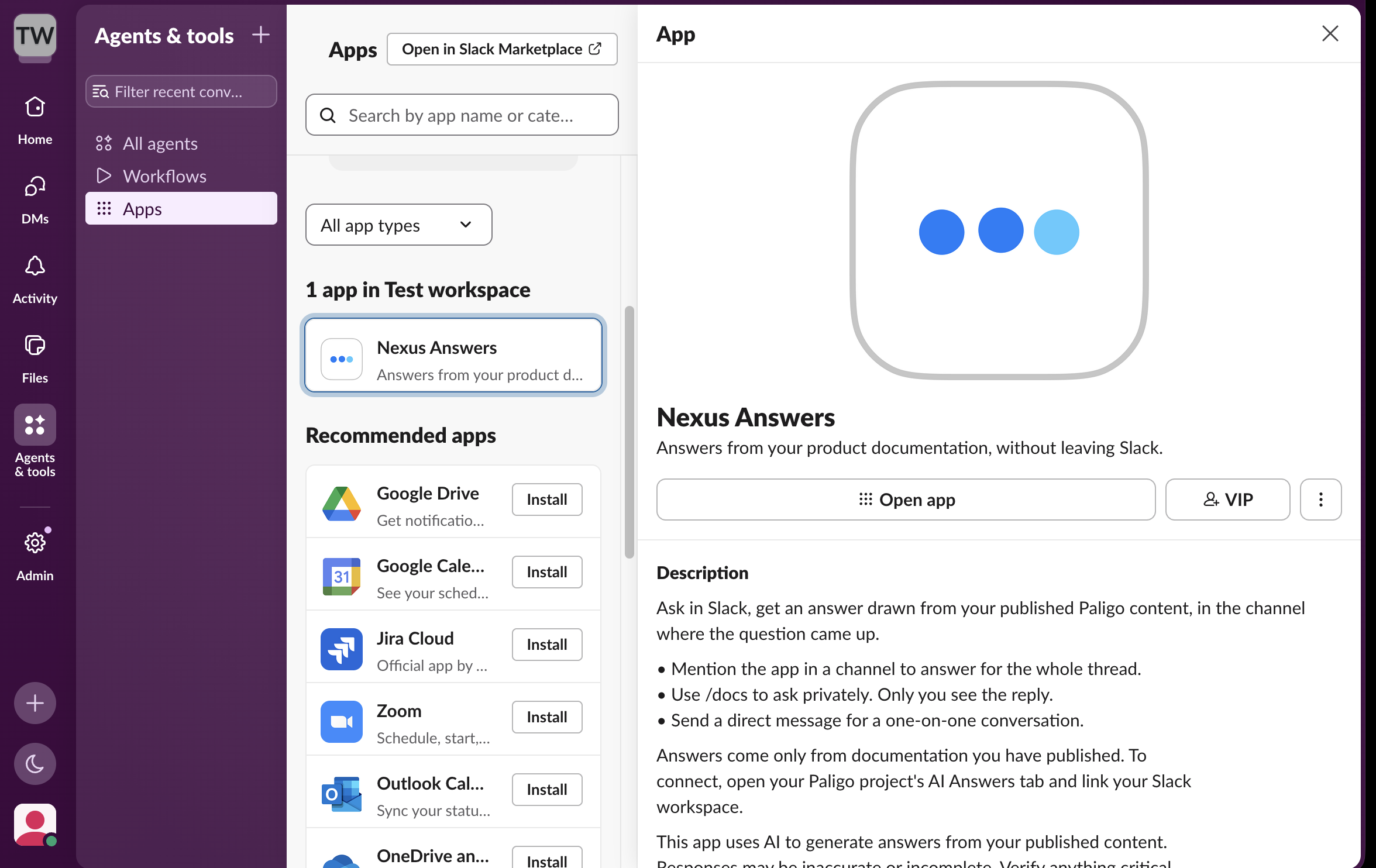
People in the workspace can ask the app a question in three ways:
Mention the app: in a channel the app has been invited to, mention it followed by the question. The answer appears in a thread under the question.
The /nexus command: type
/nexus [your question]. Only the person who asked sees the answer.A direct message: the answer appears in that conversation.
Any project that has the Nexus Answers API turned on can be connected. Nothing else is checked: not the portal, how the content is published, or reader permissions. If the API is set to Public, anyone who can reach it can already ask questions. If it's set to API key required, connecting Slack creates a key for the connection. To turn the API on, see Set up API access for Nexus Answers.
You also need:
The Slack app turned on for your Paligo account. If the AI Answers tab has no Connect Slack button, contact Paligo support.
Administrator access to the project in Paligo.
Permission to add apps to your Slack workspace, or a Slack administrator to approve the request.
Important
Anyone in a connected Slack workspace can ask your documentation questions. Only connect a workspace whose members you're happy to give that access to.
To connect a Slack workspace:
Select Nexus in the top menu. You are presented with the list of current Nexus projects.

Access the project you want to configure by selecting it in the list.
Select the AI Answers tab.
In the Integrations section, select Connect Slack in the Slack row.
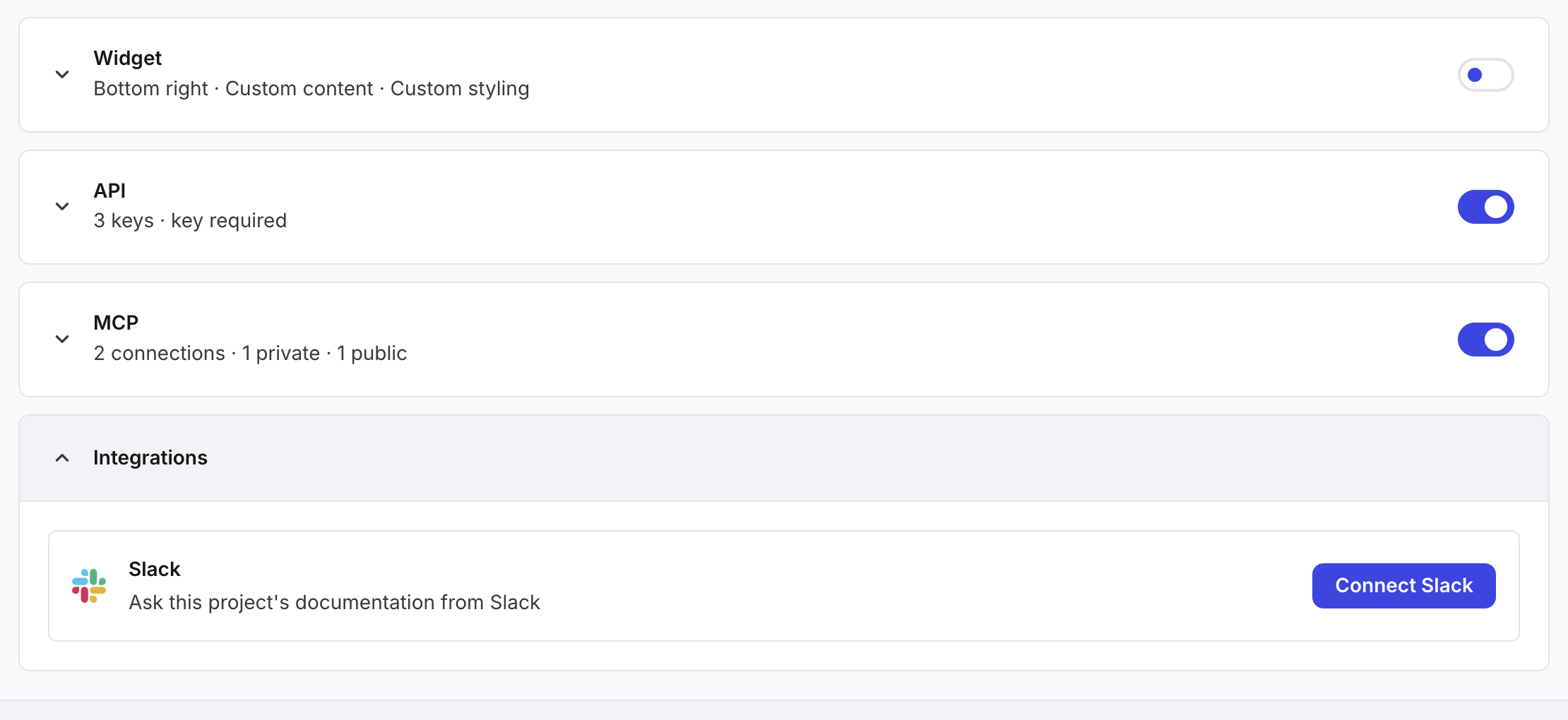
In Slack, choose the workspace, check the permissions, and select Allow.
Slack returns you to the AI Answers tab. The Slack row shows Connected, and the language the app answers in.

In Slack, invite Nexus Answers to the channels where it should answer.
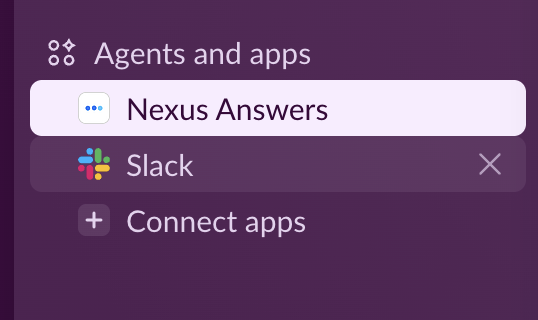
Direct messages and /nexus work without an invitation. To send a direct message, find Nexus Answers under Apps in the Slack sidebar.
Before saving the connection, Paligo sends the project a test question, and the connection is only saved if the project answers. If the API is set to API key required, Paligo adds a key called Slack · workspace name on the API keys tab. Keep it, because revoking it stops the app from answering. The app answers in your Paligo instance's default language.
Each workspace answers from one project, but one project can be connected to several workspaces. If you use Slack Enterprise Grid, connect each workspace separately.
The app asks Slack for four permissions:
See who mentions it: to know a question was addressed to it.
Post messages: to reply.
Run its slash command: so that /nexus works.
Read direct messages sent to it: to answer them.
It only reads messages addressed to it. To ask a follow-up question in a thread, mention the app again. Each question is answered on its own, so include enough detail for it to make sense without the earlier question.
If connecting fails, the AI Answers tab explains why. Nothing is left half-connected. If a key was created, it's revoked again.
Message | What to do |
|---|---|
Turn on the Answers API for this project before connecting Slack. | Select Go to Answers API, turn the API on, and then connect again. |
Workspace already answers from project. A workspace can answer from one project at a time. | Nothing was changed. To move the workspace to this project, disconnect it from the other project first. |
Slack was installed, but this project did not answer. Check that the project is deployed, then connect again. | Check that the project has content deployed to Nexus Answers. |
Slack was not connected: the install was cancelled. | Connect again when you're ready. |
Slack could not be connected. Please try again. | The problem is on Paligo's side. Try again. |
A page titled "This link has expired" | Go back to the AI Answers tab and select Connect Slack again. |
Connecting Slack is not set up on this instance yet. | Contact Paligo support. |
Reply | What it means |
|---|---|
An answer, followed by a note | The answer was found in your documentation. |
The documentation has nothing on that. | Your documentation doesn't cover the question. Try asking it differently. |
I can't help with that. | The question is outside what Nexus Answers answers. |
The documentation service is busy or unavailable right now. | The problem is on Paligo's side. Try again shortly. |
Something went wrong on our side, not in the documentation. | The problem is on Paligo's side. Your documentation is fine. |
The documentation is not available right now. | Nexus Answers is turned off for the project, nothing is deployed, or the connection's key no longer works. See If the app stops answering in this topic. |
This Slack workspace is not connected to a documentation project yet. | The app is installed, but no project is connected to it. |
Answers are generated by AI and can be wrong. For anything important, check the documentation itself. To see the three ways to ask, send the app help.
When you disconnect a workspace, the app stops answering there but stays installed in Slack. To disconnect a workspace:
Select Nexus in the top menu. You are presented with the list of current Nexus projects.
Access the project you want to configure by selecting it in the list.
Select the AI Answers tab.
In the Slack row, select Disconnect.
In the confirmation dialog, select Disconnect.

If the connection used a key, Paligo revokes it. To remove the app completely, also remove it in Slack. To change the key, disconnect and connect again. The workspace doesn't answer in between.
If people are told that the documentation is not available, check the project:
Nexus Answers is turned off, or nothing is deployed: turn it on or deploy, and the app starts answering again straight away.
The API was changed from Public to API key required, or the key was revoked: disconnect and connect again to get a new key.
Nothing is deleted in either case, and you don't need to reinstall the app.
You're responsible for telling people in your Slack workspace that their questions go to Nexus Answers. If question recording is turned on for the project, tell them that their questions are recorded too.
You also decide which channels the app is in. A channel can include guests, or members of another organization through Slack Connect. Anyone who can post in a channel that the app has joined can ask it questions.