Nexus themes
Choose the theme for a layout
Each theme layout uses either Paligo Base or a custom theme that has been uploaded to it. To choose the theme:
Select Layout in the top menu.
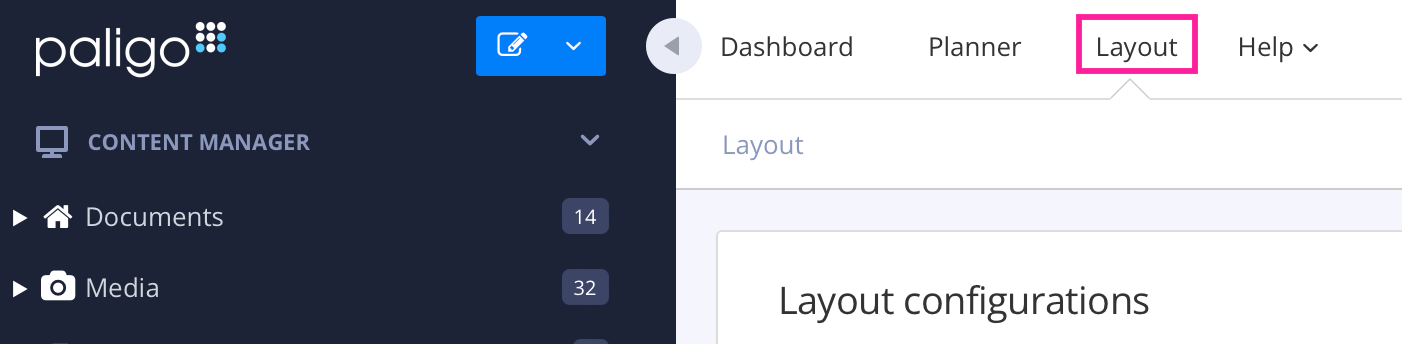
Paligo displays a list of Layouts. The list is empty if there are no custom Layouts in your Paligo instance.
Select the Layout you want to update or Create a Layout.
TipYou can copy the URL of the Layout Editor and paste it into a new tab in your browser. This can be useful if you frequently switch between your Paligo content and the Layout settings.
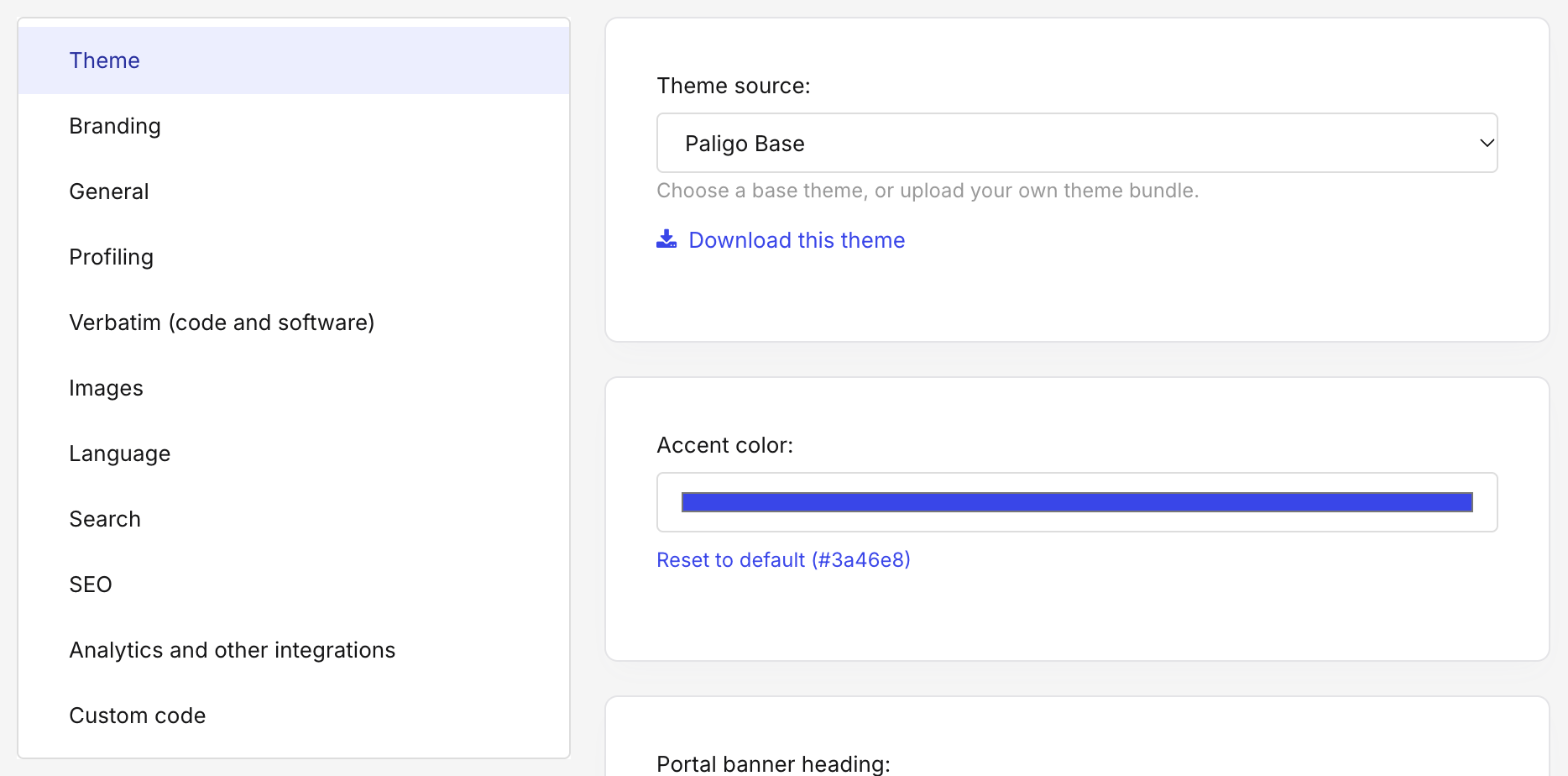
Select Theme in the list of categories.
In Theme source, choose the theme:
Paligo Base: the built-in theme. The settings below show Paligo Base's own theme options.
Custom — upload your own: a theme uploaded as a ZIP file. If none has been uploaded to this layout yet, upload one now, as described in Upload a custom theme.
Select Save.
The new theme is used the next time you publish with the layout.
If you switch from a custom theme to Paligo Base and back again before you save, the custom theme you uploaded is still there. When you save with Paligo Base selected, the layout stops using the custom theme.