Authentication
You can choose who can see your project's published content. There are three authentication modes:
No authentication: anyone can access the content, without having to authenticate.
Basic authentication: content is protected by a single username and password combination.
Single sign-on (SSO): users can sign in with your own preferred identity provider.
Note
Nexus supports the OpenID Connect (OIDC) identity verification protocol for Single sign-on. SAML is not supported.
Note
By default, all published content is set to No authentication.
Select Nexus in the top menu. You are presented with the list of current Nexus projects.

Access the project you want to configure by selecting it in the list.
Select the Authentication tab.
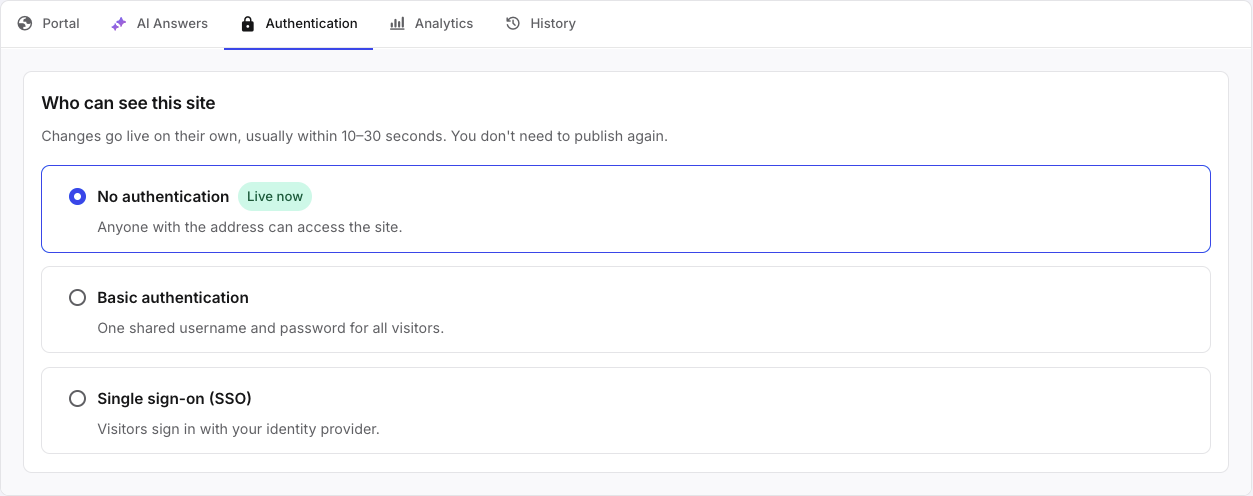
Select the Basic authentication radio button.
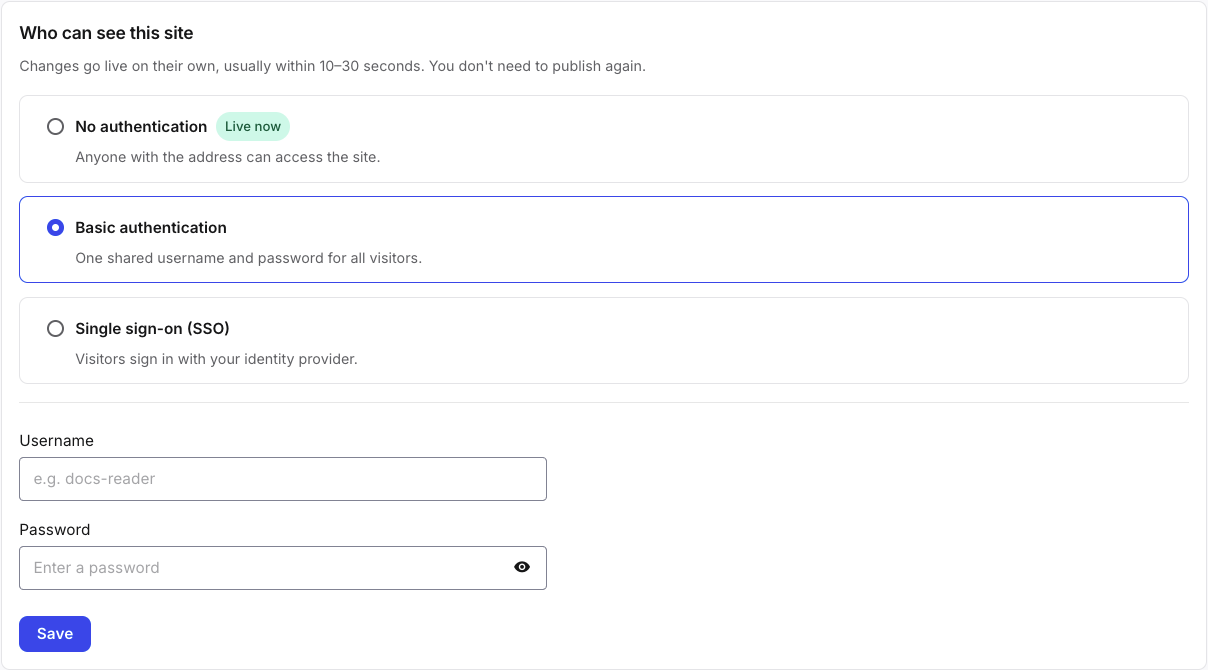
In the Username field, enter a username.
In the Password field, enter a password.
Select Save
 .
.
Configure single sign-on for Nexus
Note
In order to configure single sign-on, you must have access to your authentication provider's configuration page.
Select Nexus in the top menu. You are presented with the list of current Nexus projects.
Access the project you want to configure by selecting it in the list.
Select the Authentication tab.
Select the Single sign-on (SSO) radio button.
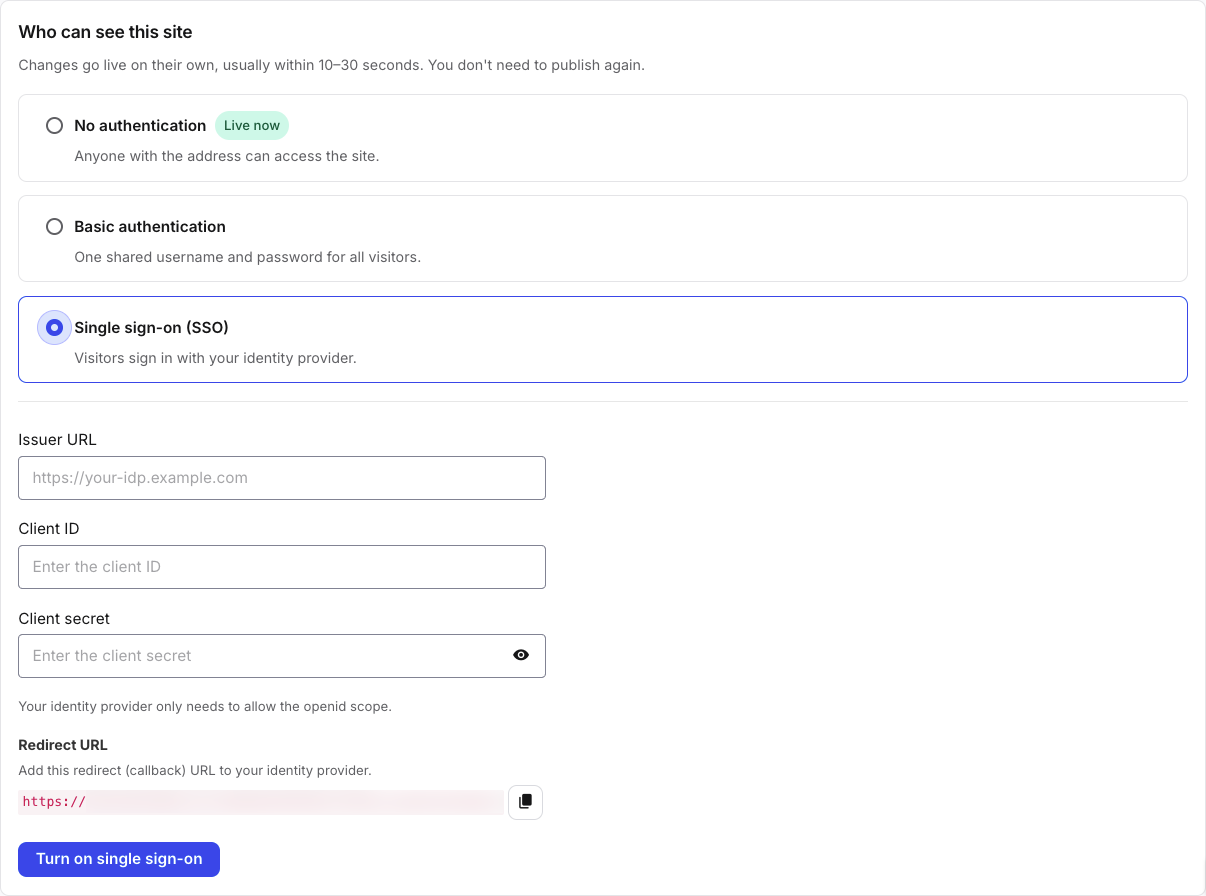
From your authentication provider, copy the following information into the fields:
Issuer URL
Note
The URL has to start with https:// and end with a forward slash (/).
Client ID
Client secret
Copy the Redirect URL to your authentication provider's configuration page.
Select Turn on single sign-on
 .
.
Note
It may take a few moments for the changes to take effect.
Note
You can edit the single sign-on credentials at any time by selecting the Update single sign-on button.
If you have previously put authentication in place for your content but now need to make it available without requiring authentication, or need to switch to another form of authentication, do the following:
Select Nexus in the top menu. You are presented with the list of current Nexus projects.
Access the project you want to configure by selecting it in the list.
Select the Authentication tab.
At the bottom of the page, select the authentication mode you wish to switch to:
Make public: make the content available to anyone without requiring authentication.
Switch to password: if you have previously configured single sign-on.?????????
Switch to single sign-on: if you have previously configured password.