Nexus themes
Upload a custom theme
A custom theme is a ZIP file that contains the theme's templates, styles and other files. You upload it to a theme layout, and Paligo checks it before you can use it. To upload a custom theme:
Select Layout in the top menu.
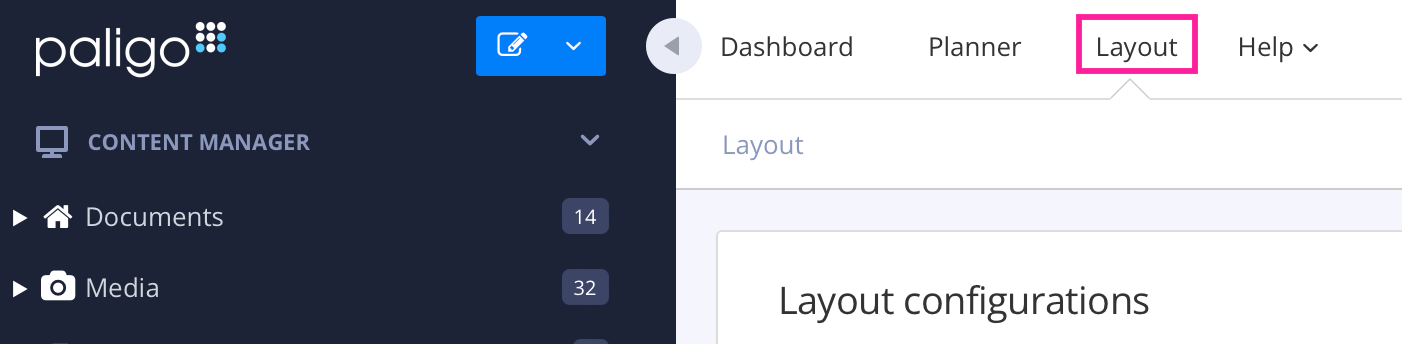
Paligo displays a list of Layouts. The list is empty if there are no custom Layouts in your Paligo instance.
Select the Layout you want to update or Create a Layout.
TipYou can copy the URL of the Layout Editor and paste it into a new tab in your browser. This can be useful if you frequently switch between your Paligo content and the Layout settings.
Select Theme in the list of categories.
In Theme source, choose Custom — upload your own.
Next to Theme bundle, select Upload.
Drag the ZIP file into the File upload dialog, or select Choose a file and choose it.
Paligo checks the file as it is uploaded. If the file can't be used, a message says why, and nothing changes. For what each message means, see Theme validation messages.
If the upload succeeds, the theme's options appear below it and Paligo checks the theme in more depth. While it does, Theme uploaded. Validating… is shown.
Wait for the result of the check:
Theme validation passed: the theme can be used.
Theme validation failed: the theme has errors that are likely to stop pages from being published. Each error names the template and the line it is on. Correct the theme and upload it again.
Warnings are shown in lighter text and don't make the check fail.
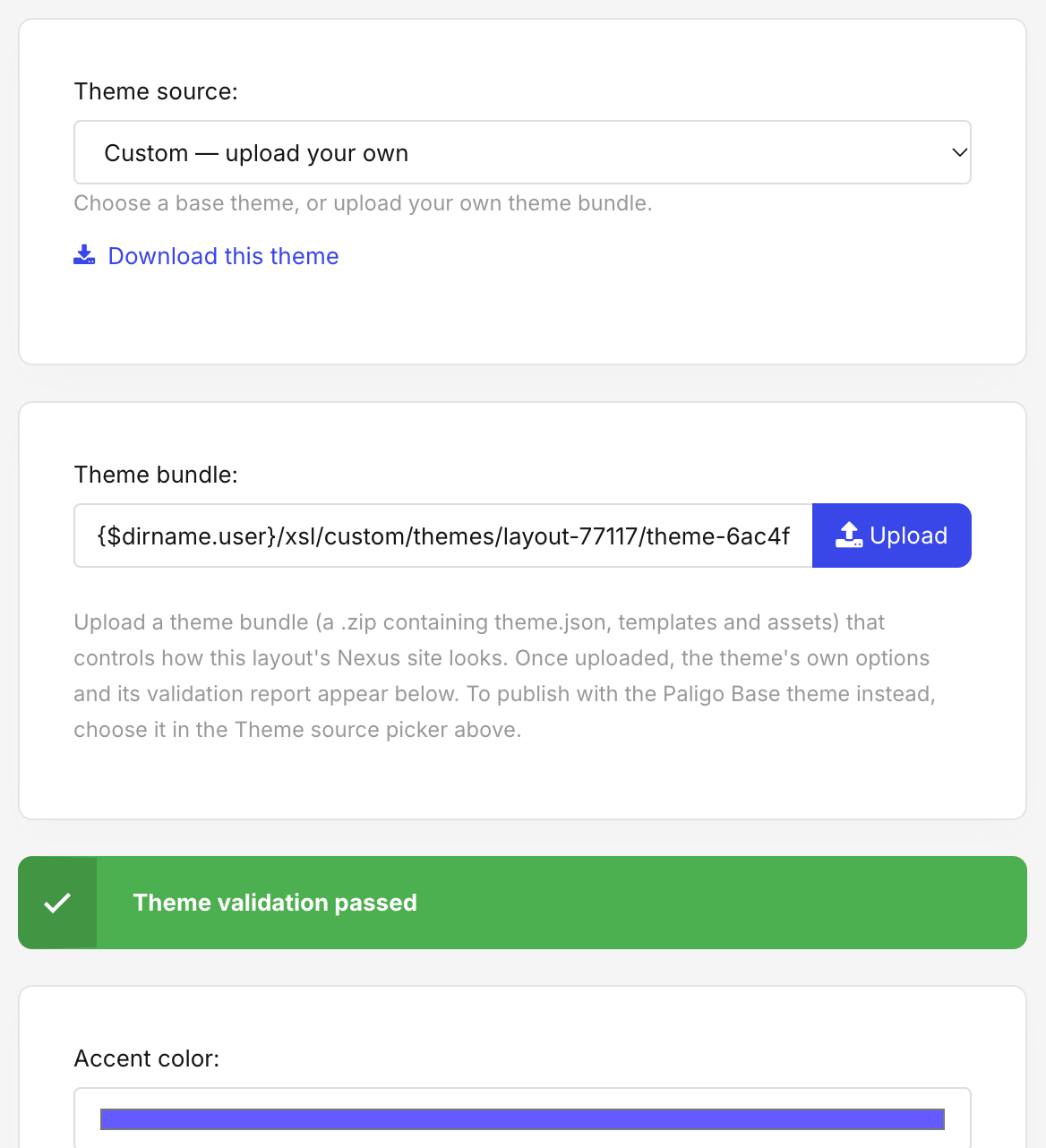
Set the theme's options, as described in Set theme options.
Select Save.
The layout uses the uploaded theme the next time you publish with it.
If the validation takes more than about two minutes, Theme validation did not finish is shown. The theme is uploaded and can be published. Select Check again to ask for the result, or reopen the layout later.
If your ZIP file had the theme's files inside a folder, Paligo uses them anyway and says so in a yellow box headed About the uploaded ZIP. For how to create the ZIP file, see Theme package structure.