eLearning
Quiz Topic
Quizzes are a fun way to test your audience's knowledge at various stages of your eLearning course. You can create your quizzes in Paligo and add questions with numerical answers and multiple-choice questions, see Question Types.
When you upload your eLearning to a Learning Management System (LMS), users will be able to take the quizzes and the LMS will track their progress and scores, see Upload the eLearning Output to your LMS.
To create a quiz:
Add the answers to your questions, see:

Example of a multiple choice question with multiple correct answers.
If you did not create the quiz topic from the publication structure, you will need to manually add the topic to the publication, see Organize the eLearning Publication.
Question Types
Before you add a question to your quiz, consider what type of answer formats are available. Paligo supports answers that require the user to:
Enter a numerical value into a field, see Set Up a Numerical Question / Answer

Choose one answer from a list of potential answers, see Set Up a Multiple Choice Question / Answer.

Choose several answers from a list of potential answers, see Set Up a Multiple Choice Question / Answer.
It is also possible to create a "trick" multiple choice question. This is where the question looks like a multiple choice question with multiple correct answers, but there is only one correct answer. The "trick" question has checkboxes.

Create a Quiz Topic
To create a quiz in Paligo, you create a topic and add a role attribute with the value set to: quiz. Then you add a qandaset element to contain the quiz structure.
The qandaset element is a container for all of the questions and answers you include in your quiz. When you add a qandaset, Paligo automatically adds some extra structure for the first question and one potential answer. The structure consists of:
qandaentry- Each question has to be inside its ownqandaentryelement. For example, if you have a quiz with 5 questions, the quiz is represented by theqandasetelement and inside that you will have 5qandaentryelements (1 for each question).questionandpara- Thequestionelement represents a question in the quiz and it has to be inside aqandaentryelement. Theparainside thequestionis where you enter the text for the question.answerandpara- Theanswerelement represents a possible answer to the question. It has to be inside the sameqandaentryelement as thequestion. Theparainside the answer is where you enter the text for the answer.
 |  |
To the left the structure in the Editor. To the right the structure in the XML Tree View.
To create a quiz topic:
Select the topic or component in the Content Manager to open it in the Editor.
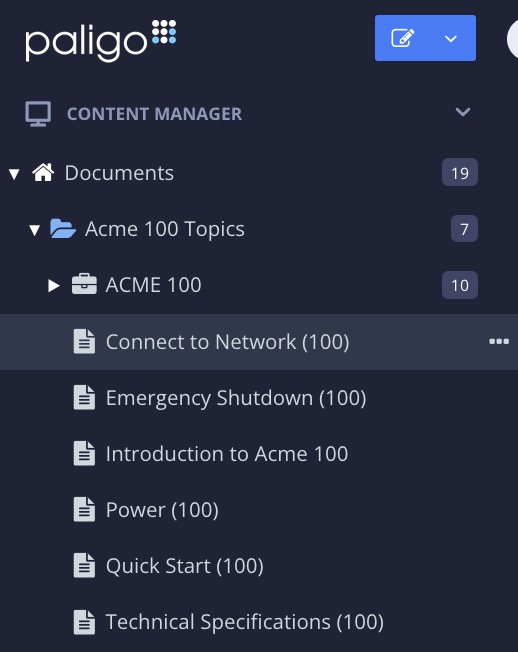
Alternatively, you can Create a Topic and edit that.
Select the
sectionelement in the Element Structure Menu.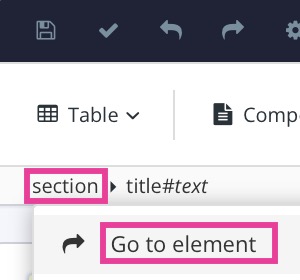
Select Go to element.
Add the
roleattribute in the Element Attributes Panel and set the value toquiz.
Position the cursor where the quiz is to be inserted.
Press Alt + Enter ⏎ (Windows) or Command ⌘ + Enter ⏎ (Mac) to display the Element Context Menu.
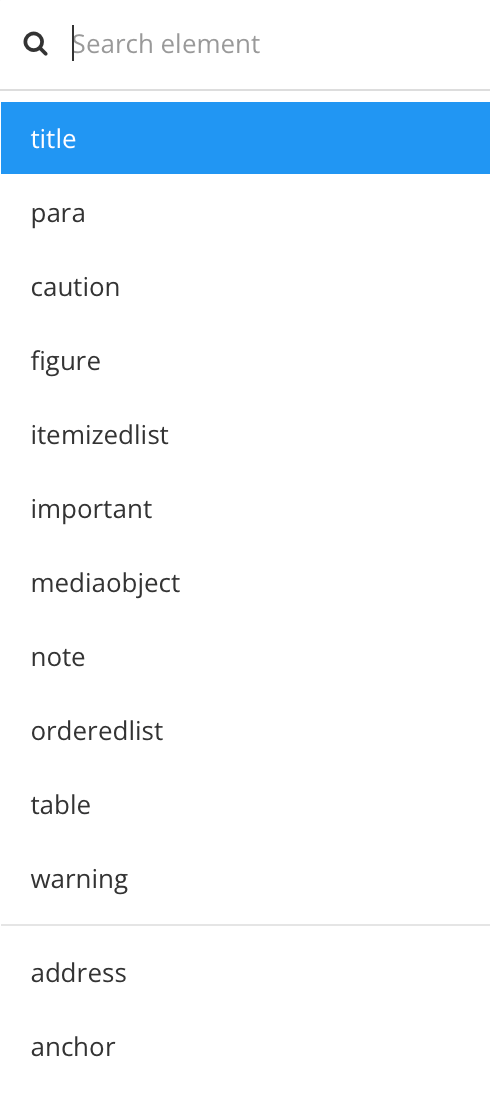
Enter
qandasetand select it from the menu.TipYou can add extra
paraelements inside aquestionoranswerto create multi-paragraph questions and answers. Add any extra para elements after the previousparaelement, inside thequestionoranswer.If you have multiple
paraelements, the first one will be styled like a heading in the output. The otherparaelements will be styled as regular text.You can also insert other content structures inside a
questionoranswer, such asmediaobjectfor an image andprogramlistingfor code.Select Save.

You now have the basic structure for a quiz, with one question and a single answer. This will be a numerical question and answer unless you add additional answers to turn it into a multiple-choice question / answer.
To learn how to add more questions, see Add More Questions to a Quiz.
We have included Example Quiz Topic that contains multiple questions and answers. You can use this example to see how the question and answers need to be structured in your quiz topic.
Set Up a Numerical Question / Answer
Numerical question/answers are quiz questions that require the user to enter a number for the answer. There is a question in text and below it, a field for entering the answer.
To set up a numerical answer for a quiz:
Make sure your topic has the
qandasetstructure that is needed for a quiz (see Create a Quiz Topic). You also need to add the question structure for your numerical question (see Add More Questions to a Quiz).Enter the body text of the question inside the
parathat is inside thequestionelement.
Enter the correct answer (a number) inside the
paraelement that is inside theanswerelement.
Select Save.
When you publish your eLearning, Paligo will detect that this is a numerical answer and make it a question with a text-entry field in the output.
Set Up a Multiple Choice Question / Answer
There are three types of multiple choice question that you can create:
A multiple choice question with one correct answer. The user is presented with a list of options and each one has a radio button.
A multiple choice question with more than one correct answer. The user is presented with a list of options and each one has a check box.
A trick multiple choice question. It presents the user with a list of options that have check boxes so it appears as if there are multiple correct answers. But there is only one correct answer.

The following instructions explain how to create all three types:
Make sure your topic has the
qandasetstructure that is needed for a quiz (see Create a Quiz Topic). You also need to add the question structure for your numerical question (see Add More Questions to a Quiz).Enter the body text of the question inside the
parathat is inside thequestionelement.Enter the text for a possible answer inside the
paraelement that is inside theanswerelement.
Position the cursor after the previous
answerelement but still inside theqandaentryelement.
Press Alt + Enter ⏎ (Windows) or Command ⌘ + Enter ⏎ (Mac) to display the Element Context Menu.
Enter answer and select it from the menu.
 Note
If the
answerelement is not available in the list, then the cursor is in an incorrect position. Check that it is after the question but inside theqandaentryelement. The correct structure should look like this in the XML tree:
Enter the text for a possible answer in the para inside the answer element that you have added.
 Tip
You can add extra
paraelements inside aquestionoranswerto create multi-paragraph questions and answers. Add any extra para elements after the previousparaelement, inside thequestionoranswer.If you have multiple
paraelements, the first one will be styled like a heading in the output. The otherparaelements will be styled as regular text.You can also insert other content structures inside a
questionoranswer, such asmediaobjectfor an image andprogramlistingfor code.Repeat steps 5 and 6 to add more possible answers, including the correct answer(s). The completed structure should look something like this in the XML tree:

Notice how the question and the potential answers are all inside the
qandaentryelement. Each question should have its ownqandaentryelement, with the question and potential answers inside it.Select the correct answer in the Editor.
Select its
answerelement in the Element Structure Menu at the top and choose Go to element from the menu.
Add the
roleattribute in the Element Attributes Panel and set the value to correct.

When you set an answer to correct, a green box and checkmark appear for that answer in the Paligo editor.
If a question has multiple correct answers, repeat steps 9 and 10 for each correct answer.
This step only applies if you want to make your multiple choice question a "trick" question. A trick question is where it looks like there is more than one correct answer but actually only one answer is correct.
To turn a multiple choice question into a trick question:
Select the
questionelement for the trick question.Add the
roleattribute in the Element Attributes Panel and set the value to multi-choice.
Select Save.
When you publish your eLearning, Paligo uses the role attributes to determine what type of multiple-choice questions you have added. It then creates those in the published output.
Add More Questions to a Quiz
To add more questions to a quiz topic:
Make sure your topic contains the structure for a quiz (as described in Create a Quiz Topic).
Position the cursor so that it is after the previous
qandaentryelement but inside theqandasetelement.NoteIf you cannot find the
qandaentryelement in the element context menu, it is because the cursor is in an incorrect position. Try repositioning the cursor so that the selection point is after the previousqandaentryelement but still inside theqandasetelement.When the cursor is in the correct position, the Element Structure Menu shows
section>qandaset. You will then be able to addqandaentryfrom the element context menu.Press Alt + Enter ⏎ (Windows) or Command ⌘ + Enter ⏎ (Mac) to display the Element Context Menu.
Enter
qandaentryand select it from the menu to add another question.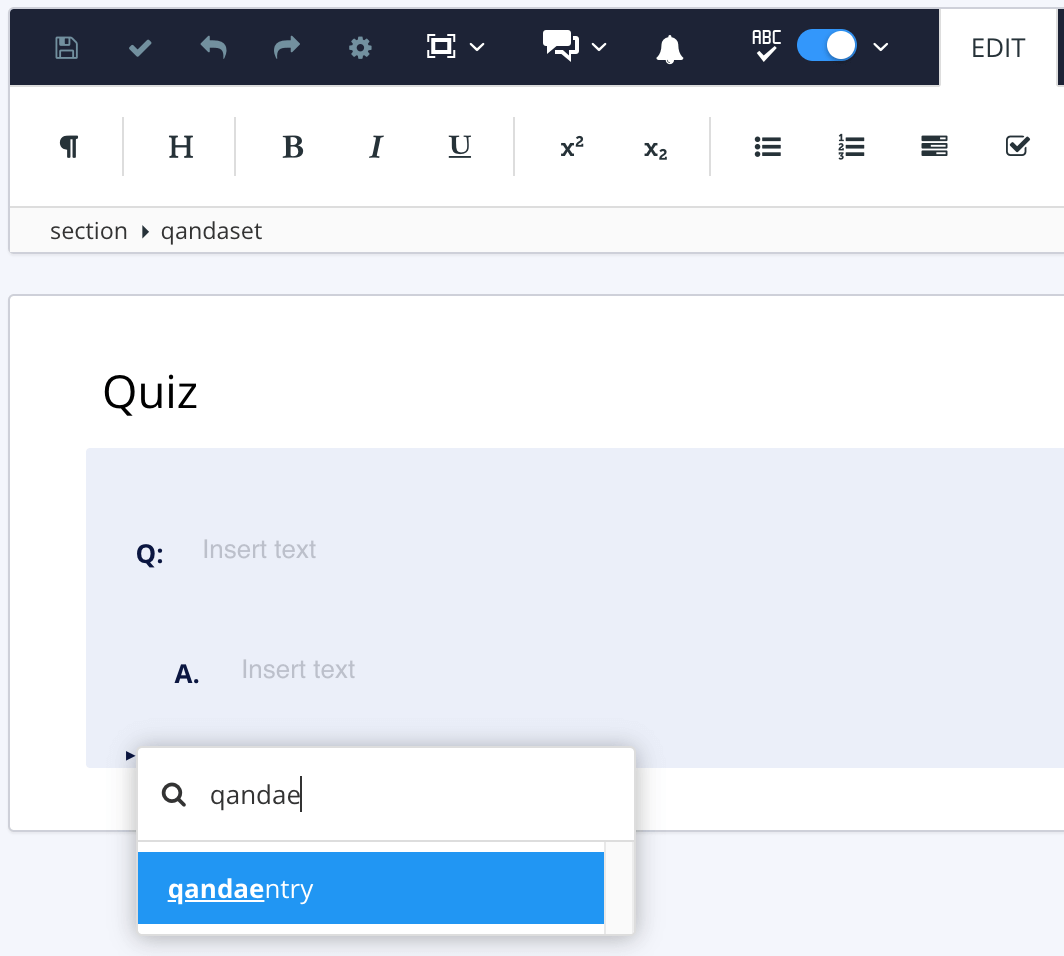
You have now added the structure for an additional question. By default, the structure contains one
answerelement. You can add moreanswerelements to turn it into a multiple-choice question. Alternatively, you can use a singleanswerfor a numerical question.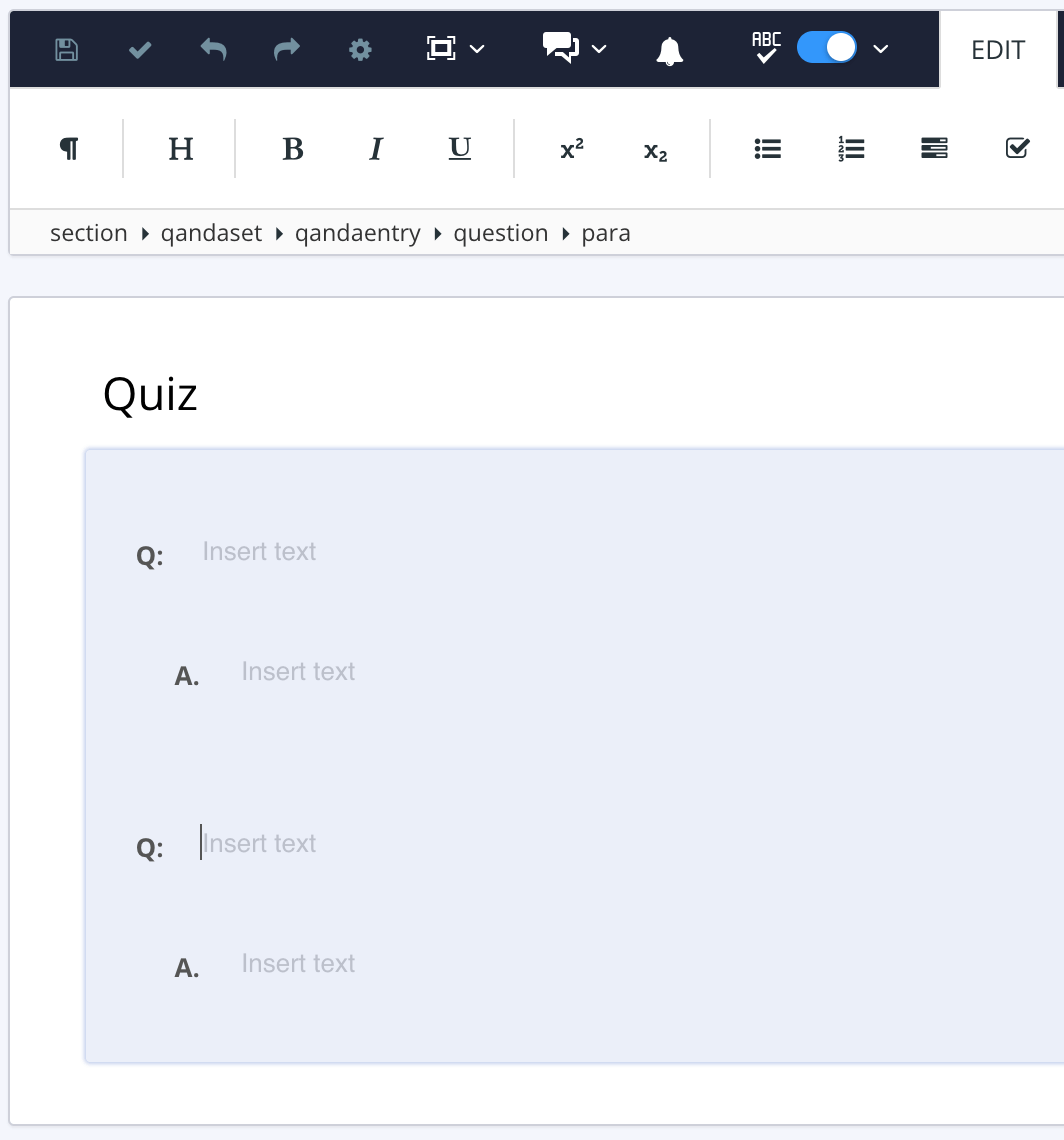
Repeat step 2 to 4 for as many questions as you need.
Select Save.
Remove a Question from a Quiz
To remove a question and its answers from a quiz:
Open the quiz topic in the Editor.
Select the question that you want to remove.
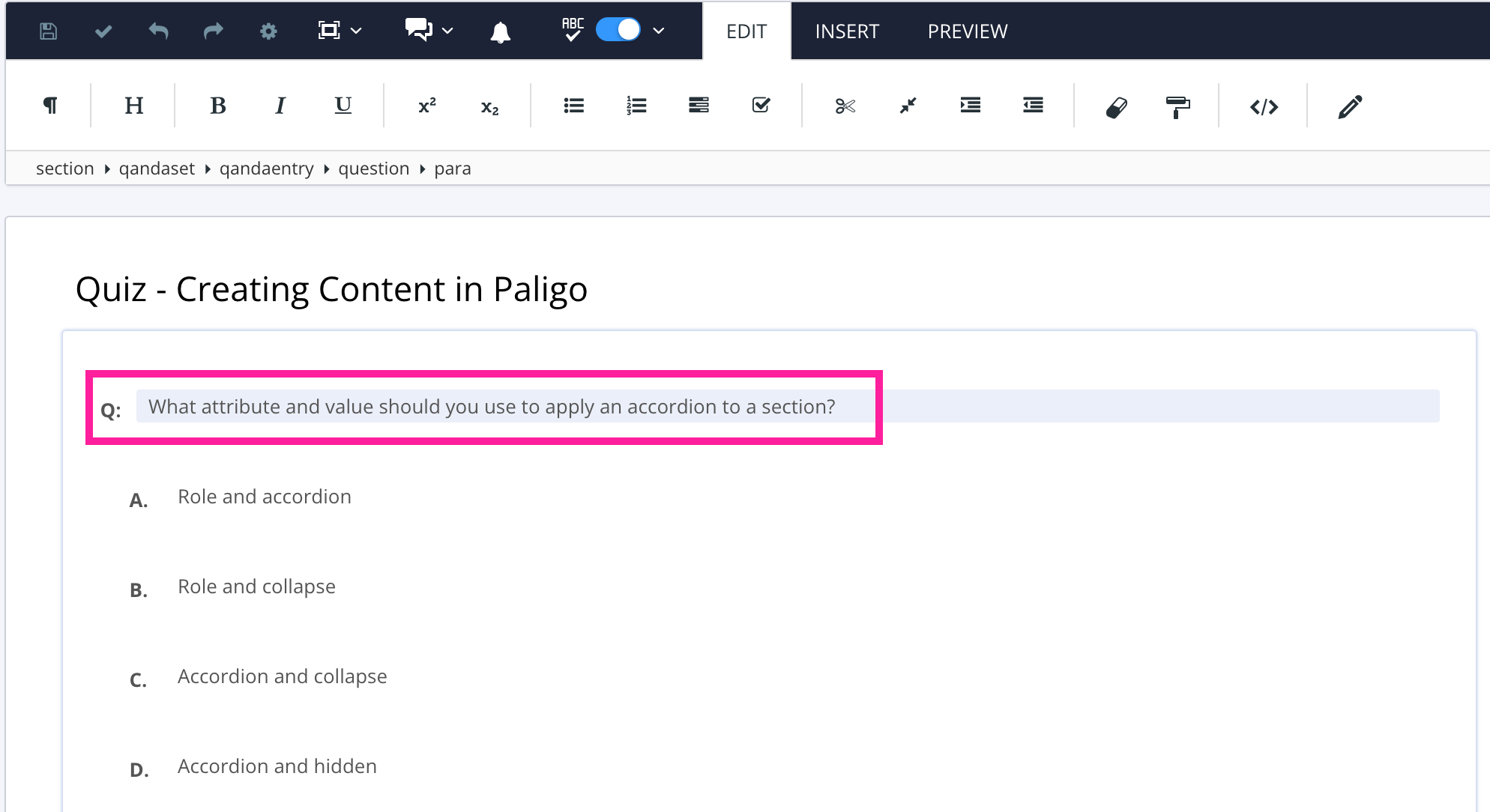
Select the
qandaentryelement In the Element Structure Menu and choose Delete.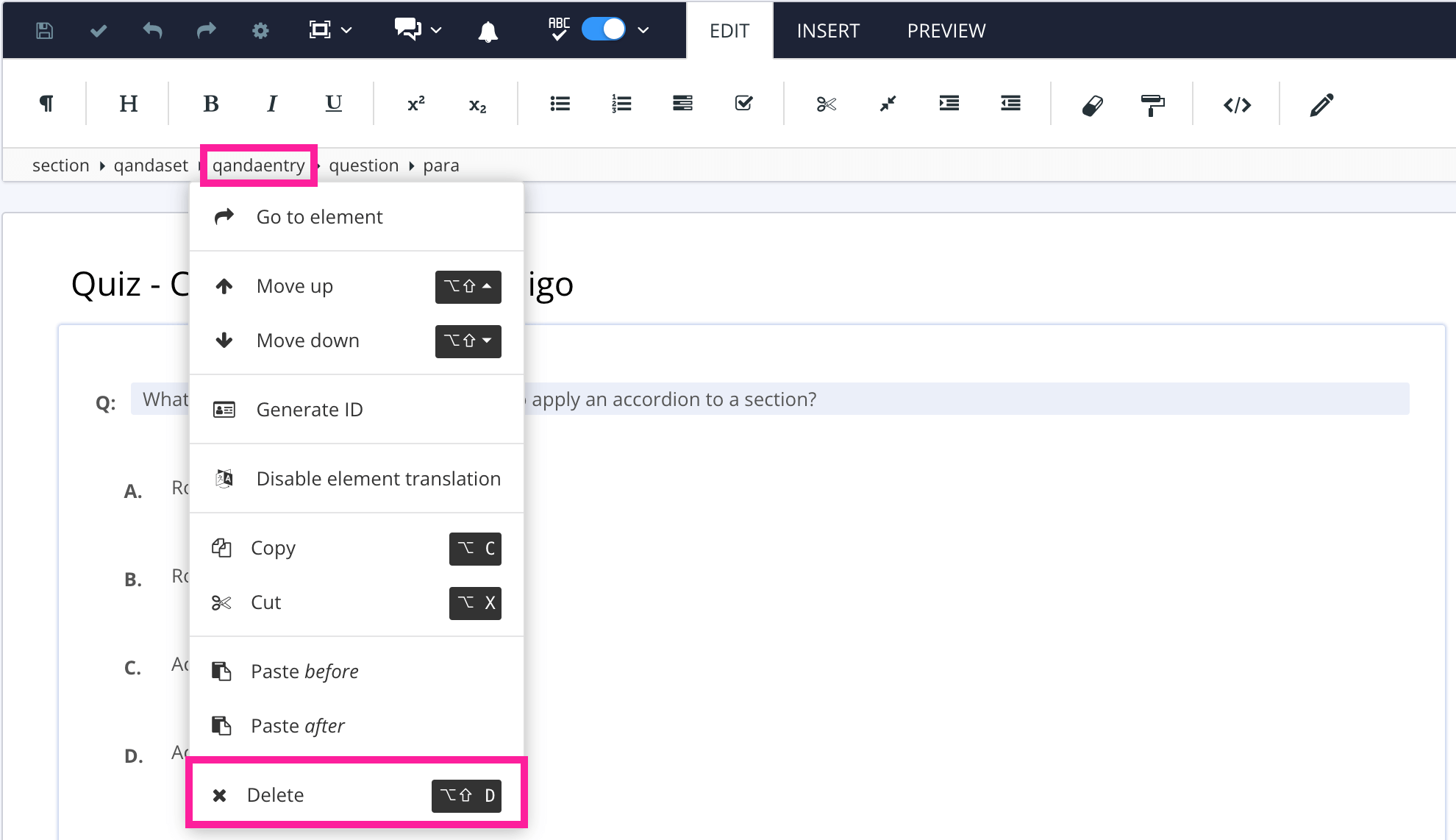
Paligo removes the structure for the question and its answers (
qandaentry,questionandpara, and eachanswerandparapair).Select Save.
Remove an Answer from a Quiz
To remove an answer from a question in a quiz:
Open the quiz topic in the Editor.
Select the answer that you want to remove.

Select the
answerelement in the Element Structure Menu and choose Delete.
Select Save.
Example Quiz Topic
This example shows the underlying structure of a Paligo quiz topic called "Quiz - Creating Content in Paligo". It contains multiple choice questions with single correct answers, multiple choice questions with several correct answers, a trick multiple choice question, and a numerical question too.
By looking at the code, you can see the valid structure for the quiz and the various question types. If you have problems setting up your own quiz, referring to this example may help you spot any structural problems.
We have removed the database IDs to make the code simpler, but in your topics the IDs will be included in the code, for example, xinfo:text="1169436".
The following source code shows the structure for a valid quiz.
<?xml version="1.0"?><section xmlns="http://docbook.org/ns/docbook" xmlns:xinfo="http://ns.expertinfo.se/cms/xmlns/1.0" version="5.0" xinfo:resource="UUID-9921a762-7cd2-093a-3583-c1f8206fcf0d" xinfo:resource-id="1169399" xinfo:resource-type="component" xinfo:resource-title="Quiz - Creating Content in Paligo copy 1" xinfo:resource-titlelabel="" xinfo:version-major="1" xinfo:version-minor="0" role="quiz" xml:id="UUID-9921a762-7cd2-093a-3583-c1f8206fcf0d" xml:lang="en"><title>Quiz - Creating Content in Paligo</title><qandaset><qandaentry><question><para>When you check out a topic in Paligo, can another Author edit that topic at the same time?</para></question><answer><para>Yes, Paligo supports simultaneous editing by multiple authors.</para></answer><answer role="correct"><para>No, the topic is locked for editing by others when it is checked out.</para></answer></qandaentry><qandaentry><question><para>What is an informal topic?</para></question><answer><para>A selection of content or images that must have a title</para></answer><answer role="correct"><para>A selection of content or images that do not need a title</para></answer><answer><para>A special type of admonition that the user can select to ignore</para></answer></qandaentry><qandaentry><question><para>What is a fork?</para></question><answer><para>A container where you organize your topics into a table of contents</para></answer><answer role="correct"><para>A reference to a source topic, reused in a publication</para></answer><answer><para>A building block for a section of content</para></answer></qandaentry><qandaentry><question><para>What interface is shown when you open a publication?</para></question><answer><para>The Editor View</para></answer><answer role="correct"><para>The Structure View</para></answer></qandaentry><qandaentry><question><para>To open a topic and work on it, which interface would you use?</para></question><answer role="correct"><para>The Editor View</para></answer><answer><para>The Structure View</para></answer></qandaentry><qandaentry><question role="multi-choice"><para>What is a topic?</para></question><answer><para>A container where you organize your topics into a table of contents</para></answer><answer><para>A reference to a source topic, reused in a publication</para></answer><answer role="correct"><para>A building block for a section of content</para></answer></qandaentry><qandaentry><question><para>Which of the following statements are true?</para><para>Topic-based authoring ...</para></question><answer><para>... is similar to document writing and formatting in Microsoft Word</para></answer><answer role="correct"><para>... encourages breaking down documents into smaller pieces of content</para></answer><answer role="correct"><para>... makes it possible to reuse content as building blocks in multiple publications</para></answer><answer role="correct"><para>... enables you to update content in one place, and the update applies wherever the content is used</para></answer><answer><para>... does NOT encourage the reuse of content</para></answer></qandaentry><qandaentry><question><para>What is the correct order (from largest to smallest, left to right) of the following Paligo structures?</para></question><answer><para>Topic, Publication, Element, Section</para></answer><answer><para>Section, Publication, Element, Topic</para></answer><answer role="correct"><para>Publication, Topic, Section, Element</para></answer><answer><para>Publication, Section, Topic, Element</para></answer></qandaentry><qandaentry><question><para>How many floating content panels can you have open at once?</para></question><answer><para>4</para></answer></qandaentry></qandaset></section>
Notice that:
The entire quiz is inside one
qandasetelementEach question is inside a
qandaentryelementEach question has a
questionelement with aparaelement for its textEach answer is in an
answerelement with aparaelement for its textrole="correct"is added to the answer element for each correct answer. Paligo does this automatically when you give ananswerelement theroleattribute and set its value to correct.role="multi-choice"is added to thequestionelement for a trick question. This tells Paligo to make this multiple choice question look like it has several correct answers (it presents the options as check boxes) but it actually only has one correct answer. Paligo applies this code when you give aquestionelement theroleattribute and set its value to multi-choice.The
answerelement for a numerical question contains the answer in theparaelement. Paligo detects that this is a numerical question/answer automatically. When you publish, the question will have a text box for the user to enter a number. They will not see the correct answer.