Work with a Translation Service
Translate with AI
The AI translation service lets you to translate content in minutes or hours rather than the days or weeks required by traditional workflows.
AI translations bring a lot of benefits, not least in turnaround speed and cost. However, as with any automated translation service, AI is not yet at a point where human intervention can be fully excluded. Therefore we do recommend keeping a human in the loop to check that translations are correct, and to ensure that consistency is maintained across topics.
Learn more about:
Prepare for AI translations
In order to begin sending files to the AI translation service, a few preparations need to be made.
Make sure the languages you want to translate into are activated in your Paligo instance. More information on adding languages can be found in Activate Languages.
Make sure the correct language code are added for those languages that have a culture/dialect designation. See AI translation language codes
Make sure you have tokens in your account. At least some tokens need to be present in your account to be able to send files for translation. If the number of tokens in your account is insufficient, the files will get translated but you will have a negative token balance. The remaining tokens will be deducted from your balance whenever it is refilled. More information on tokens can be found in AI translation tokens.
AI translation language codes
The language codes for AI translations are in some cases a bit different from the standard Paligo language codes. With a few notable exceptions, DeepL does not take culture/dialect designations into account, and therefore in most cases only uses a 2- or 3-letter language code without the culture/dialect suffix. In order for languages to show up in the list of translatable languages, they need to conform to DeepL's language codes.
If you find that a language that is supported by DeepL is not showing in the list of languages in the Translate with AI dialog window, do the following:
Look up the correct language code for the language in question on the DeepL supported languages page. E.g. the Paligo language code for Simplified Chinese is ZH-CHS, while DeepL uses ZH-HANS.
Sign in to Paligo using a user account that has administrator permissions.
Select the avatar in the top-right corner.

Select Settings from the menu.

Select the Languages tab.


The languages tab shows all of the languages that are currently activated for your instance.
Select the language you want to add the language code to.
In the Alternative language code field, enter the DeepL language code for that language.

Select Update.
AI translation tokens
In the world of AI in general, tokens are the fundamental, small units of text (words, parts of words, or characters) that AI models, especially Large Language Models (LLMs), use to process and generate language. In the case of AI translations in Paligo, however, tokens are used as credits for AI processing. These tokens can be added to your account's token balance. When you perform an AI translation, the content to be translated is divided into tokens, which are then deducted from your token balance.
View your token balance
Your token balance indicates how many tokens you have left in your account.
Tokens never expire.
Select AI Translations in the top menu.

Your current balance is listed in the Token balance field.

The token balance is also shown in the Translate with AI window when you send components for translation. For more information, please see Send content to the AI translation service.
Get more tokens
To get more tokens added to your account, please contact your administrator.
Token usage reports
You can export a report of all tokens used in your Paligo instance. The report will include information on the user who requested the translation, number of tokens used, a timestamp, and references to Paligo component IDs and target languages.
When you send content out for translation, the Translate with AI window will also show the estimated token cost for that translation. For more information, please see Send content to the AI translation service.
Select AI Translations in the top menu.
Select Export to CSV in the Usage report field.

AI translation glossaries
In an AI translation context, glossaries are curated, bilingual, or multilingual lists of approved terms (e.g. brand names, industry jargon), which can be uploaded to the AI translation tool to enforce consistency and accuracy. They can act as "rules" for the machine translation engine, overriding its general-purpose knowledge to ensure specific terms are translated in a pre-defined way.
In Paligo, you can compile your own glossaries for any language pair, which will automatically be associated with your translation exports.
In AI translation glossaries are used mostly as guidelines and will be applied wherever possible. However, if the AI translation service deems the chosen target language glossary term to be too far removed from its intended meaning, it will in most cases revert to a more generic translation.
If you have terms that require a very specific, and generally unusual translation, you can make sure that your specific translation is always used by replacing all instances of that term with a translatable variable, since those will not be translated by AI. For more information on using translatable variables, please see Translate Variables
Apart from variables, there are a few other elements that are never auto-translated: author, code, inlineequation, command, classname, computeroutput, constant, constraindef, database, email, envar, equation, errorcode, filename, foreignphrase, function, informalequation, prompt, and varname.
Add an AI translation glossary entry
Glossary entries can be added for all target languages activated in your Paligo instance.
Select AI Translations in the top menu.
Select the target language you want to add the entry for in the Target dropdown.
Enter the source language term and its target language term equivalent.
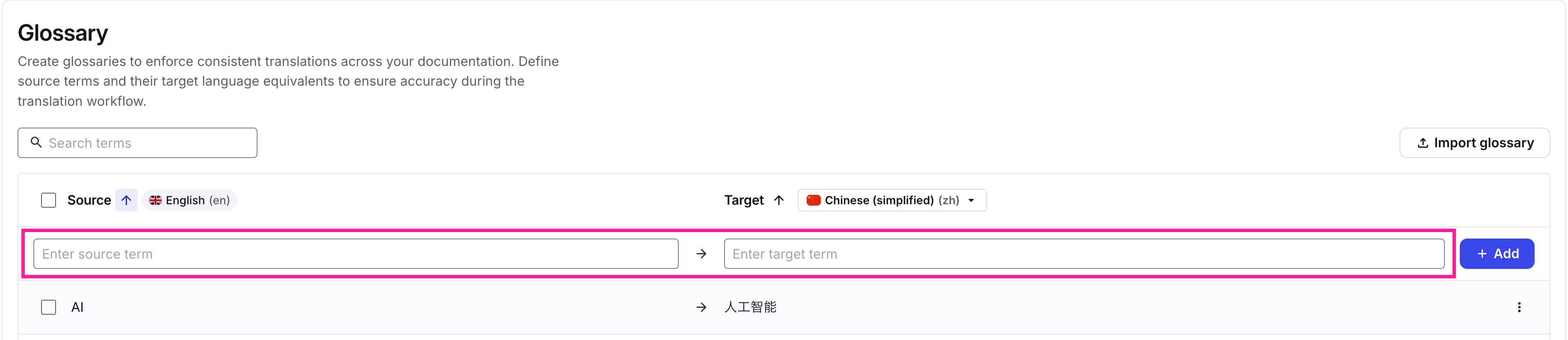
Select Add

Edit an AI translation glossary entry
You can edit any existing term in your translation glossary.
It is only possible to edit the target language of an existing glossary term, not the source language. If you need to edit the source language term, consider making a new entry.
Select AI Translations in the top menu.
Select the target language you want to edit the glossary term for in the Target dropdown.
Find the entry you want to edit in the glossary list.
NoteYou can use the search field to find specific glossary terms.
Select the More options menu

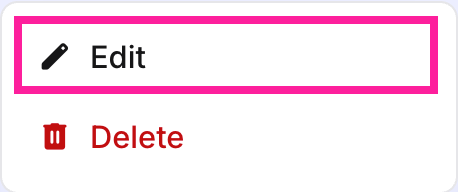
Edit the target language term, then select Update
Delete glossary entries
You can delete individual or multiple entries from your glossary lists.
Select the target language you want to delete the glossary term for in the Target dropdown.
Find the entry you want to delete in the glossary list.
NoteYou can use the search field to find specific glossary terms.
Select the More options menu
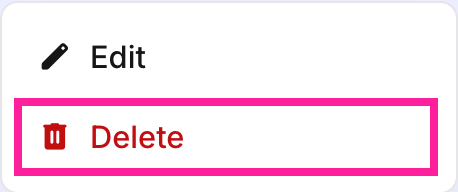 Note
To delete multiple entries at once, check the selection box for each entry, then select the Delete selected button at the bottom of the list.

Import translation glossary sets
It is possible to import entire glossary sets containing multiple languages into Paligo. This means that you can gather all of your languages in one single file, and have your glossary terms translated and reviewed separately from your regular content.
Prepare your translation glossary file. The file should conform to the following requirements:
The file should be saved as comma-separated values (.csv)
The file should be available locally on your system.
The file can only contain 4 columns (no headers), containing the following, respectively: Source term, Target term, Source language, Target language.
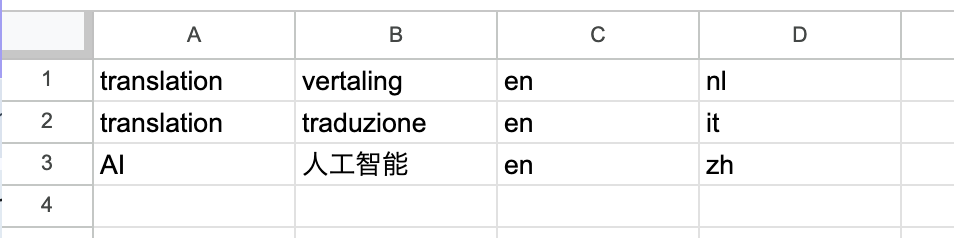
The language codes used for the source- and target languages have to be 2- or 3-letter codes without their culture/dialect designations. E.g. for Simplified Chinese, instead of ZH-HANS, only ZH can be used. For a list of languages, please refer to the DeepL supported languages list.
Select AI Translations in the top menu.
Select the Import glossary button

Select Click to add CSV and navigate to your glossary file, or drag and drop it in the import field.
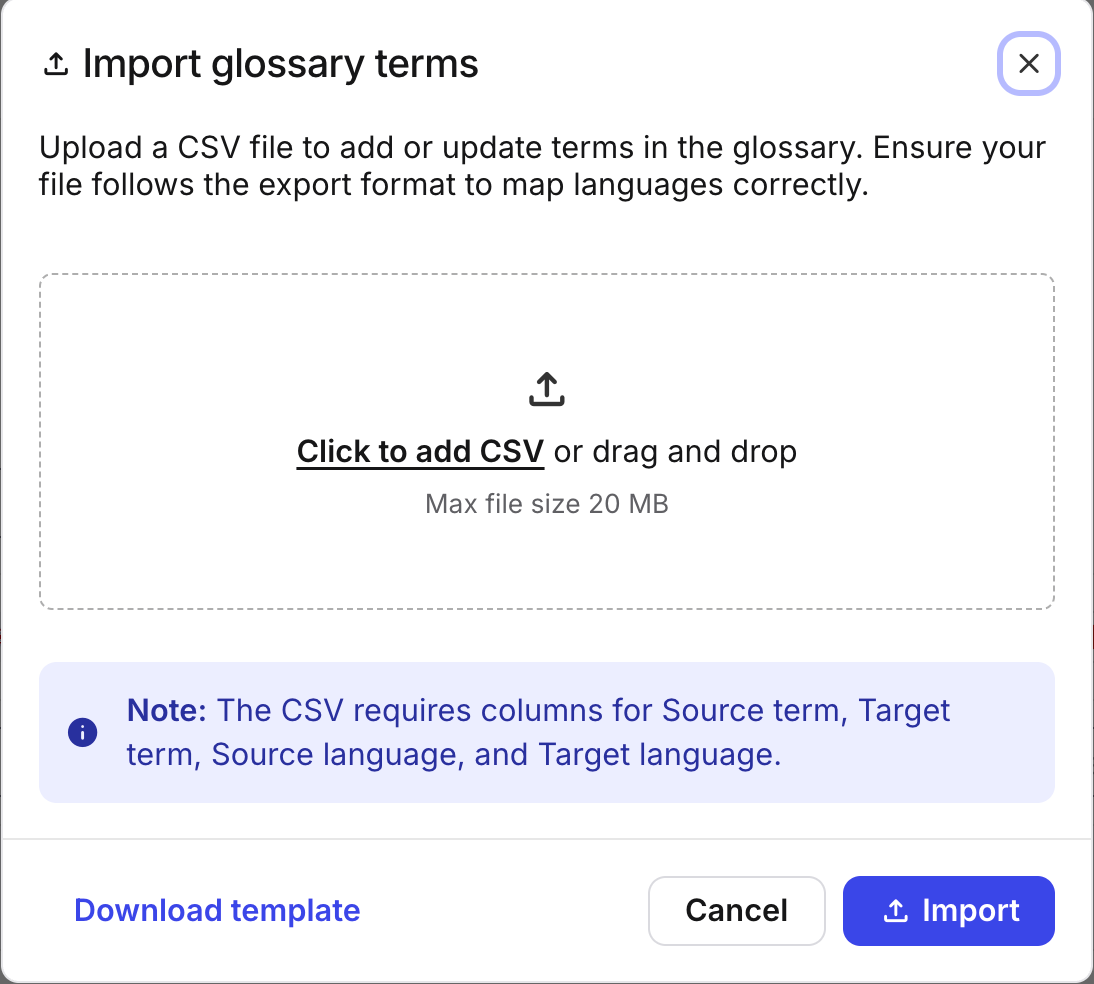
Select Import
 Caution
If your translation glossary file contains languages that have not been activated in your Paligo instance, or if the language codes do not match those of the AI translation service, the file will not be uploaded.
.
Send content to the AI translation service
Once your content is ready for AI translation, and you have made all the necessary preparations (see Prepare for AI translations), you can send it out for translation.
Select the
foldercontaining the topic or publication to be translated in Content Manager.
If the content is not in a folder, select the top-level folder Documents.


Paligo opens the Resource View.
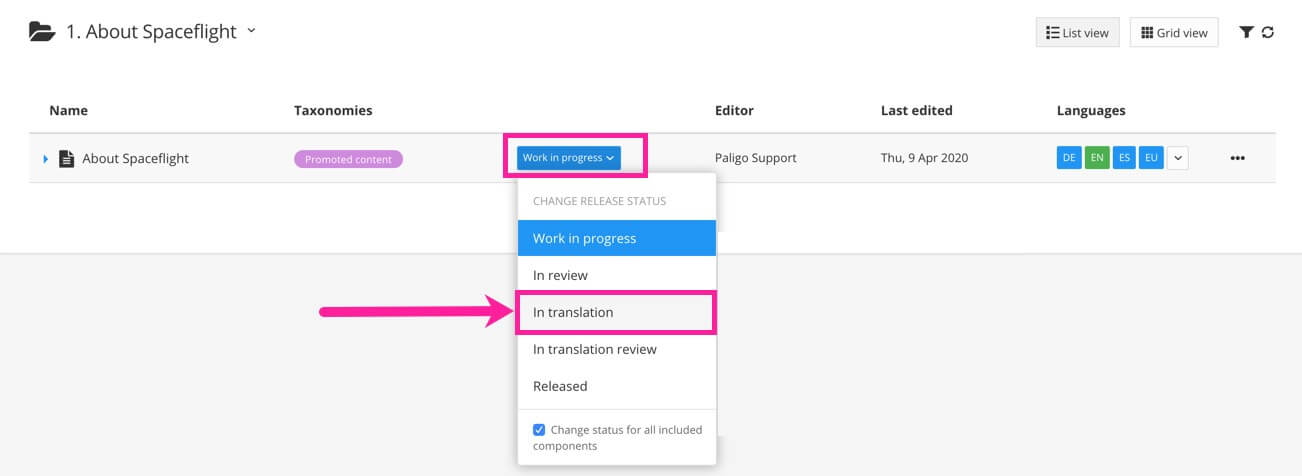
Change the topic or publication status to In translation.
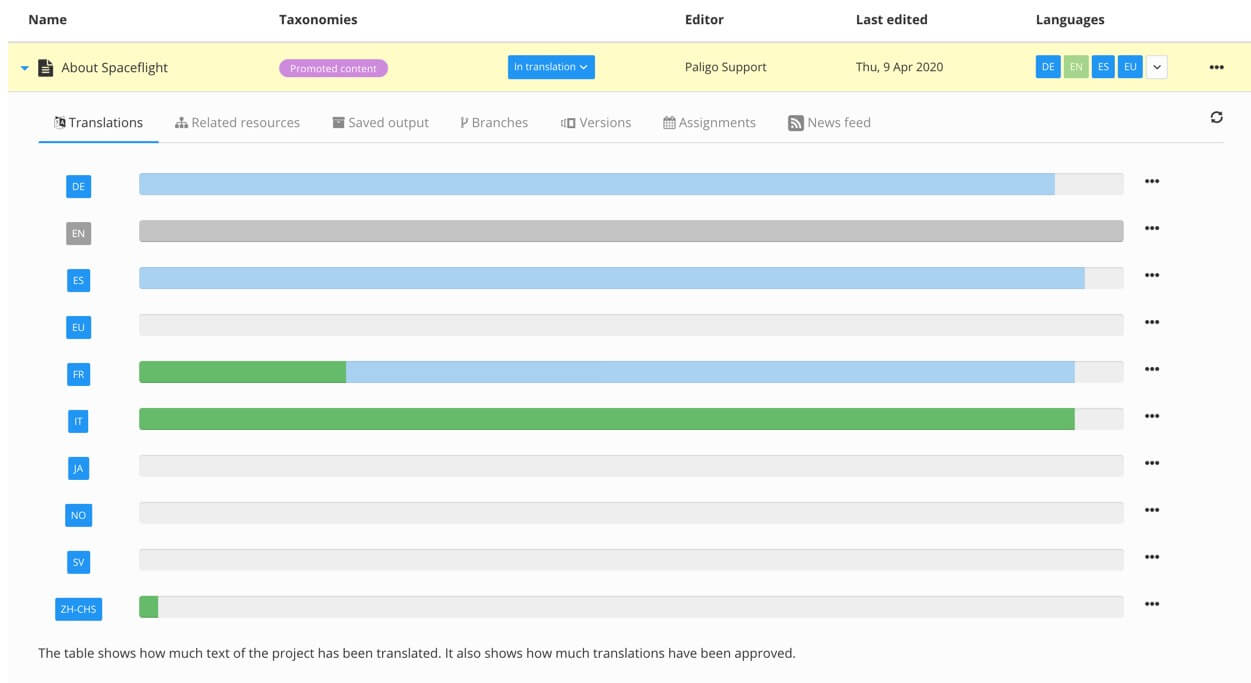
Expand the entry for the publication or topic to see the details and then select the Translations tab.
 Tip
Select Show incomplete topics to see a list of topics (in a publication) that are not fully translated.
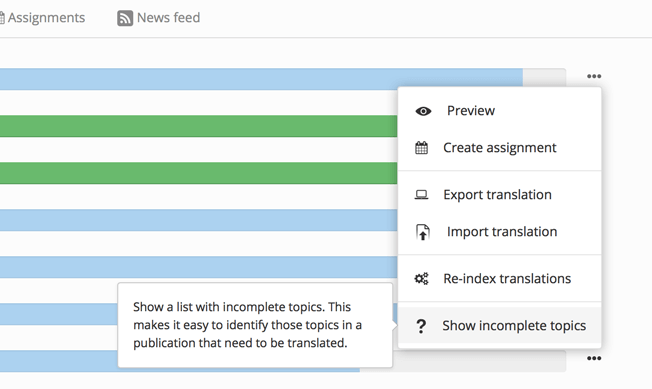
Select More options (...) for the topic or publication.
Select Translation, then Translate with AI.
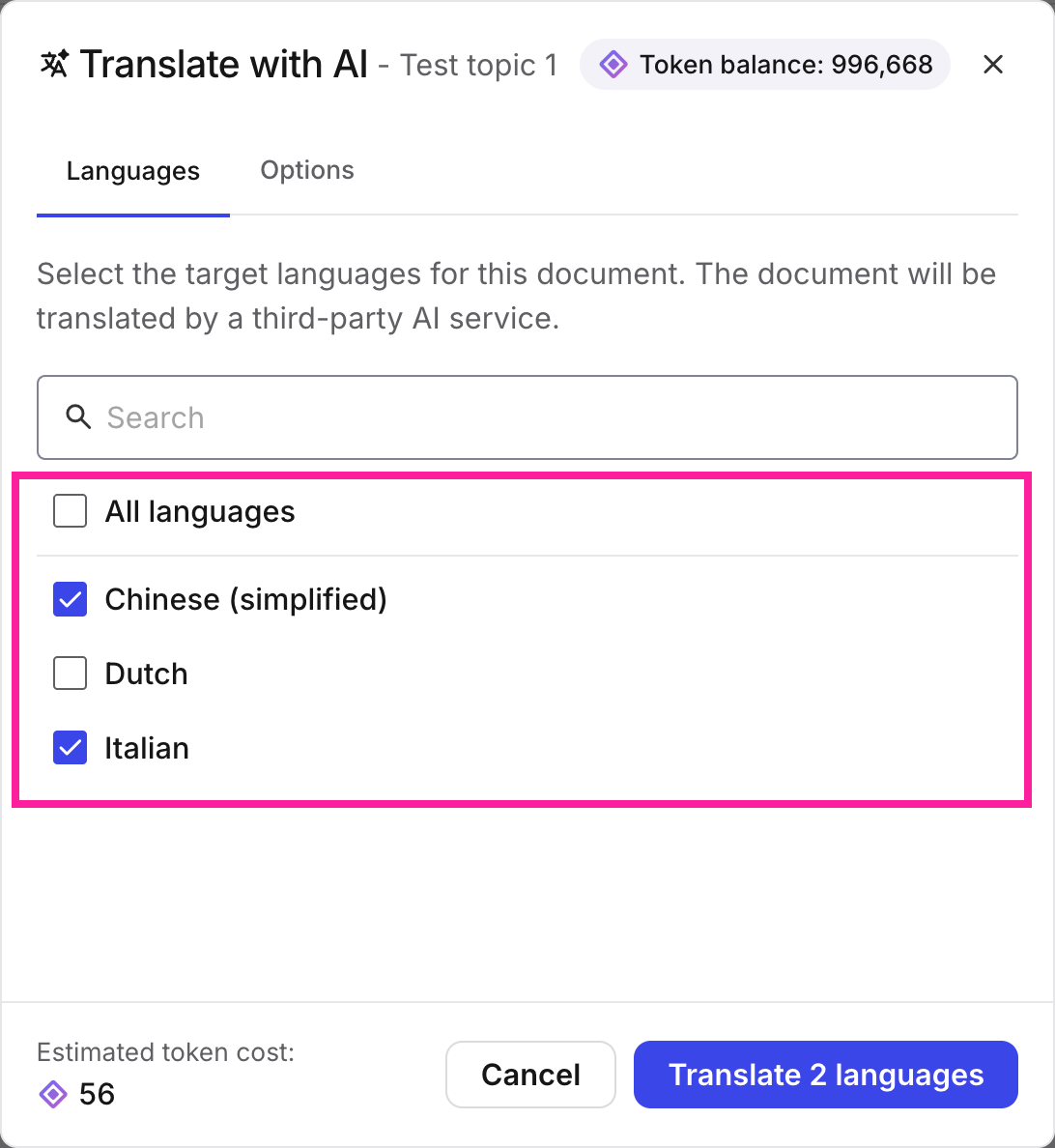
In the Translate with AI dialog box, check all the languages you want to translate into, or select the All languages box to translate to all of the active languages..
 Note
Only languages that have been activated in your Paligo instance AND that are supported by the AI translation service will be listed.
NoteYou can see the estimated token cost for the selected languages in the bottom left of the window. Your current token balance can be seen in the top right.
If necessary, include unapproved translations in the current translation by selecting the Options tab, then selecting Include unapproved translations.
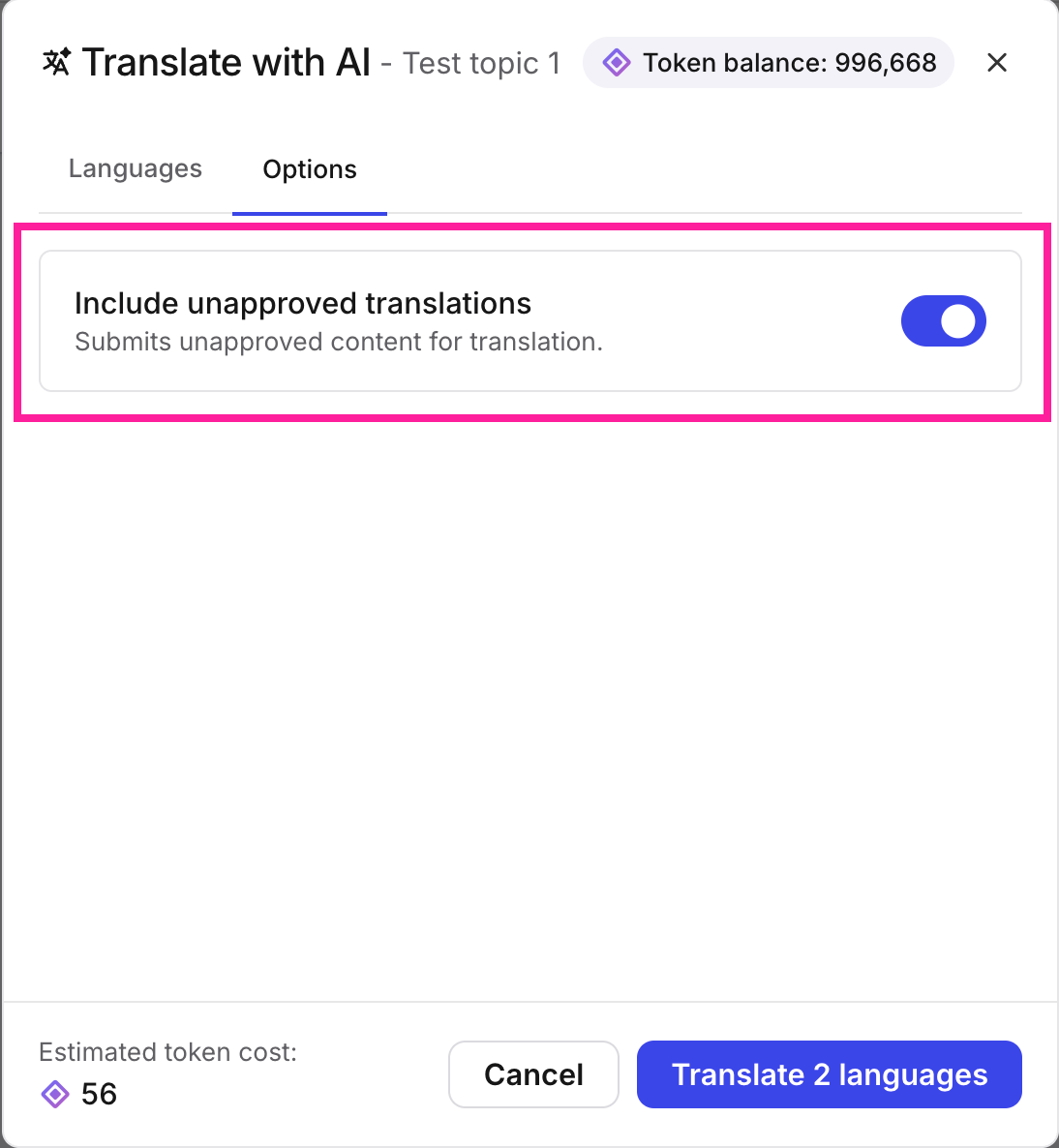
Select the Translate x language(s) button.
NoteYou will get a notification when a language has been translated.
Troubleshoot AI translations/FAQ
- 1. Not all languages are showing up in the Translate with AI dialog window.
- 2. The glossary doesn't always use the glossary term I assigned
- 3. The content doesn't get translated.
- 4. What constitutes a token?
- 5. Is there anything that does not count towards the token total?
- 6. How many tokens are needed for a typical publication?
- 7. Do (translated) terms from the glossary included in the text count towards tokens used?
- 8. Do you offer refunds for AI translations if we are not happy with the quality of the translation?
- 9. Why do I get an error message when uploading my glossary?
Not all languages are showing up in the Translate with AI dialog window.
Check if the language has been activated in your Paligo instance.
Check if the target language is supported by the AI translation service.
Check that the correct alternative language code has been set for the language. For more information , please see Prepare for AI translations
The glossary doesn't always use the glossary term I assigned
In some cases, where the AI translation service deems the glossary target language term to be too dissimilar from its original meaning, it will revert to the default translation term. For more information, please see AI translation glossaries
The content doesn't get translated.
Check if there is any untranslated content in the component you are sending out for translation. By default, content that has been translated, but has not yet been approved, will not be included.
Check if you have any tokens left in your account.
What constitutes a token?
One token is equivalent to one character in the list below:
Standard letters and numbers: a, b, 1, 7 etc. each count as 1 character.
Punctuation and symbols: !, @, #, etc. and even emojis count as 1 character each.
Spaces and formatting: invisible characters such as spaces, tabs, and line feeds (newlines) all count as 1 character.
Multi-byte characters: characters from languages like Chinese, Japanese, or Greek (e.g., あ, 深, Δ) count as 1 character, even though they take up more bytes in computer memory.
Keep in mind that the token calculation is a rough estimate of the actual cost.
Is there anything that does not count towards the token total?
DocBook XML elements are not counted as characters.
How many tokens are needed for a typical publication?
While it is hard to say what a “typical” publication is, we can provide a rough guideline. Technical documentation in English normally uses slightly longer words than regular English texts (an average of around 6 characters per word compared to around 4 characters per word for regular texts). This means that a text of 1 million words would consume on average around 8 to 10 million tokens (at 6 characters per word, plus all spaces and punctuation).
Do (translated) terms from the glossary included in the text count towards tokens used?
While existing (approved) translations are by default not included in the content sent out for translation (and therefore are not included in the total character count), already translated glossary terms are included since they are required for the translation service to make sense of a sentence (i.e. you cannot have gaps in the middle of a sentence just because it's a term that has already been translated). Since these glossary terms by necessity need to be processed by the translation service, they do count toward the total character count and therefore will incur a token cost.
You can include already approved translations in your export by selecting “Include approved translations”. This does mean that they will count towards the total character count.
Do you offer refunds for AI translations if we are not happy with the quality of the translation?
Unfortunately, Paligo cannot take responsibility for the quality of third-party services. We therefore recommend that you start with the smallest token package and perform some real world tests to see if the quality of the translations meets your expectations.
Why do I get an error message when uploading my glossary?
There could be a number of reasons why the glossary isn't uploaded.
Check if the file you are uploading is a .csv file and that it contains the correct columns.
Make sure there are no characters included that are not UTF-8.
Make sure there are no duplicate entries, i.e. the same source term with different target terms.