Scoped filtering for XML outputs
You can enable or disable scoped filtering for XML outputs. For more information on scoped filtering, please refer to Scoped Filtering.
Select Layout in the top menu.
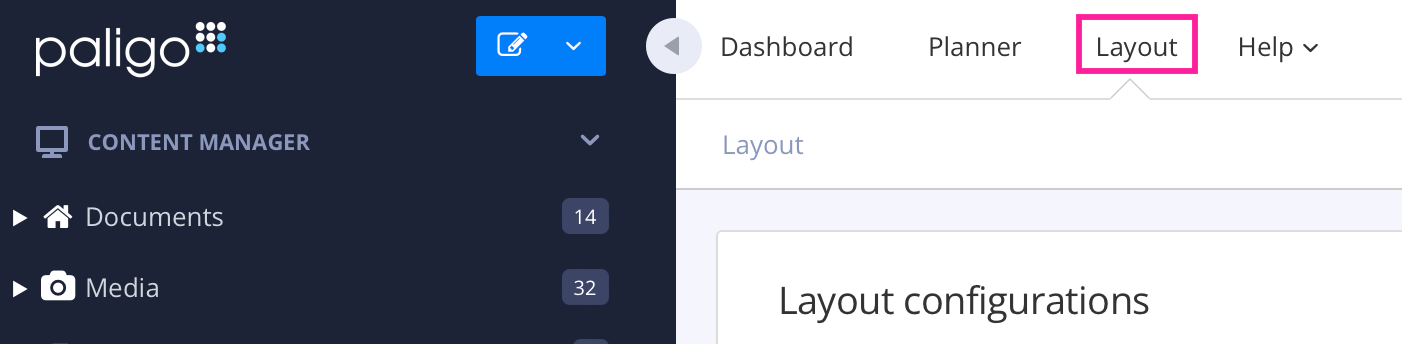
Paligo displays a list of Layouts. The list is empty if there are no custom Layouts in your Paligo instance.
Select the XML Layout that you are going to use for publishing.
Select Classes and attributes in the sidebar.
Set Enable scoped profiling/filtering: to:
Default: The default for this setting is Yes.
No: To disable scoped filtering.
Yes: To enable scoped filtering.
Select Save.