Tables
Delete Parts of a Table
As table structures are made up of many different elements, you can delete various parts without affecting the rest of the table structure.
Delete Table
This topic describes how to delete an entire table.
Select the topic or component in the Content Manager to open it in the Editor.
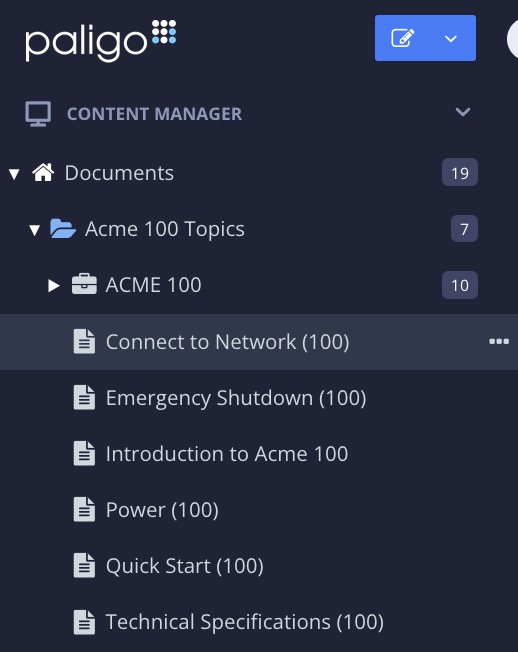
Alternatively, you can Create a Topic and edit that.
Position the cursor inside the table.
Select the
tableorinformaltableelement (represents the entire table) in the Element Structure Menu.Select Delete.

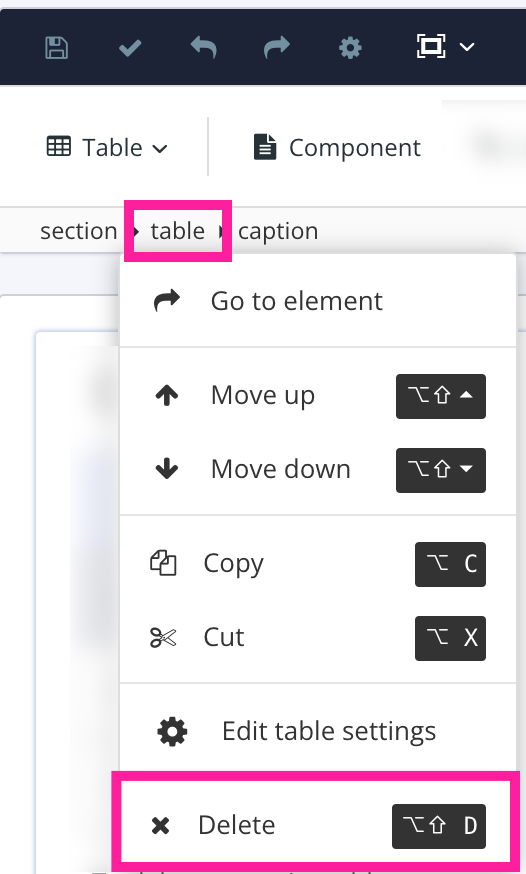
Paligo removes the table and all of its content.
Select Save.

Remove Table Header
By removing the title (caption element), you set Paligo to apply the correct table type, which is informaltable. Also see Change the Table Type.
To remove a table header:
Select the topic or component in the Content Manager to open it in the Editor.
Alternatively, you can Create a Topic and edit that.
Position the cursor in the header row and right-click to display the Table Context Menu.
Select Delete row.
NoteThe selected header gets a red highlight and a red line runs through its content. This is to show that Paligo is going to remove this structure and content from the table.
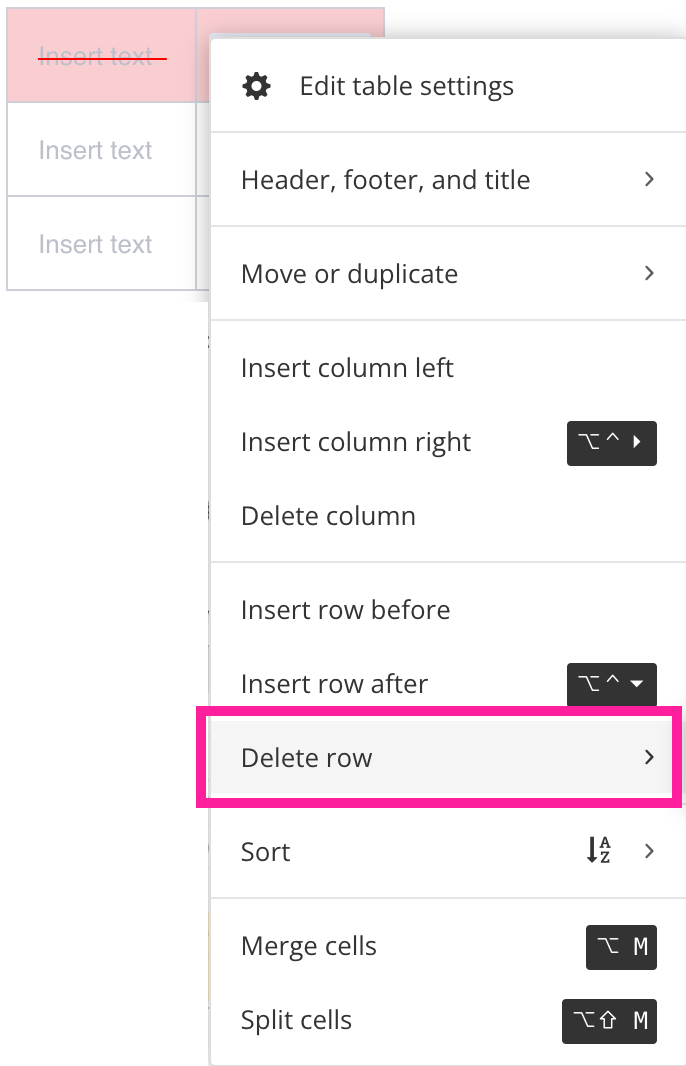
Paligo removes the header row and all of the header row's content.
Select Save.
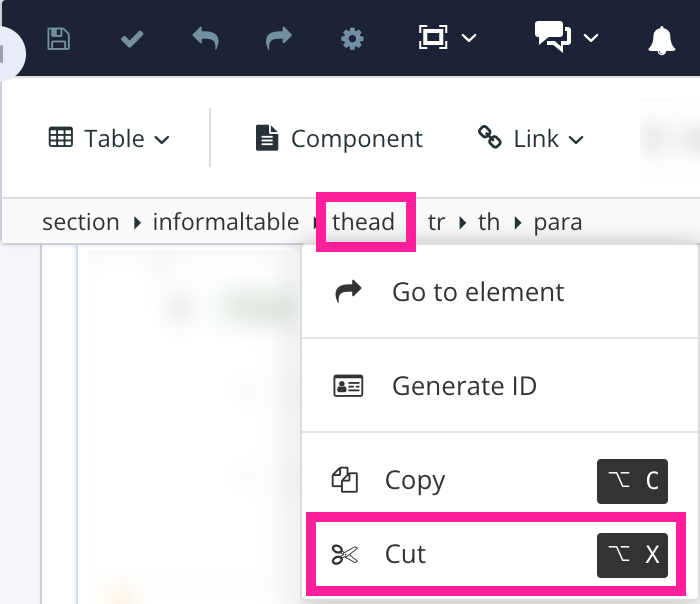
Alternatively, you can select the header row and then select the thead element in the Element Structure Menu. From the menu, select Cut.
Delete Single Row
To delete one row in a table:
Select the topic or component in the Content Manager to open it in the Editor.
Alternatively, you can Create a Topic and edit that.
Position the cursor in the row that you want to remove and right-click to display the Table Context Menu.
Select Delete row.
NoteThe selected row gets a red highlight and a red line runs through its content. This is to show which row Paligo will remove from the table.
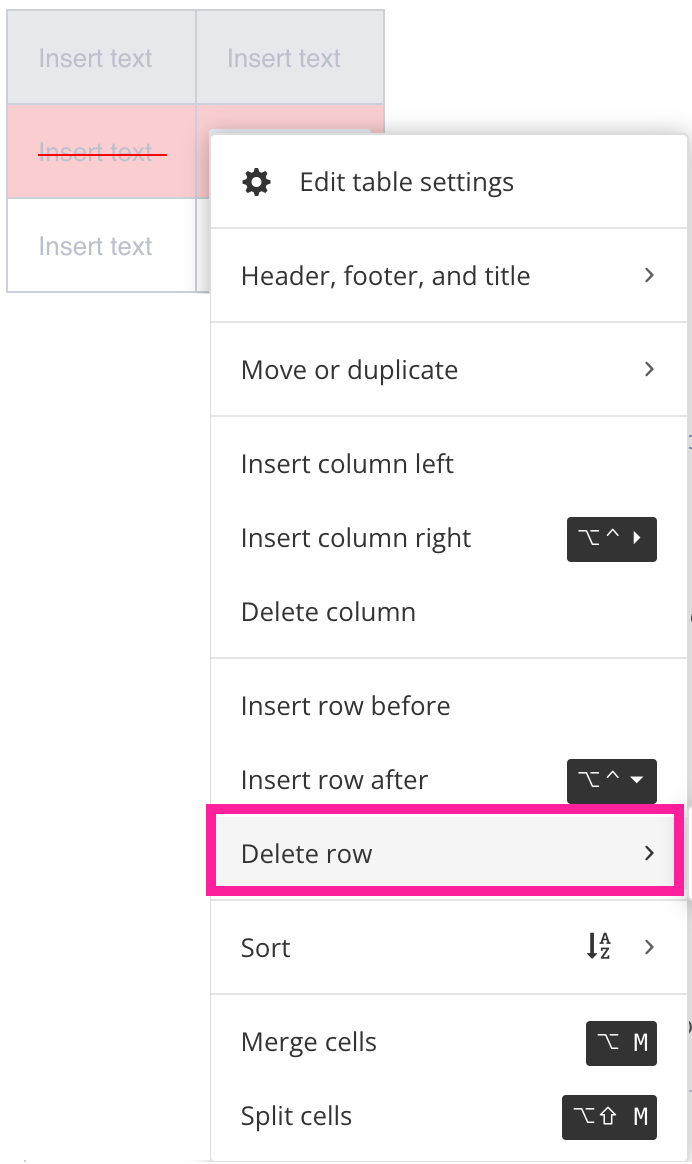
Paligo removes the row and all of the row's content.
Select Save.
Delete Multiple Rows
This topic describes how to delete multiple adjacent rows in a table.
Select the topic or component in the Content Manager to open it in the Editor.
Alternatively, you can Create a Topic and edit that.
Position the cursor in the first row that you want to select.
Hold down Shift and left mouse button and drag the cursor to over the rows that you want to delete.
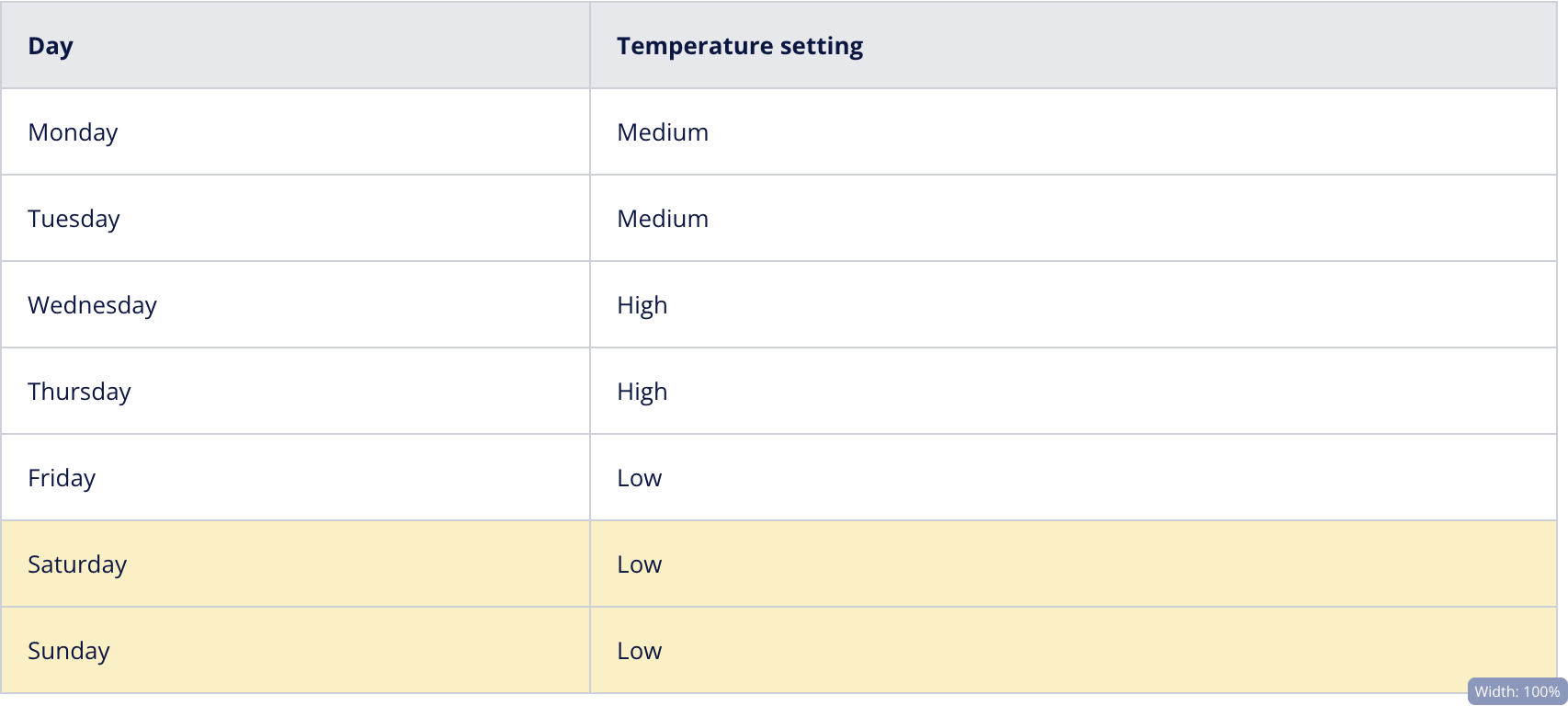
Paligo adds a yellow highlight to the selected rows.
Right-click to display the Table Context Menu.
Select Delete Row and choose Delete selected rows.
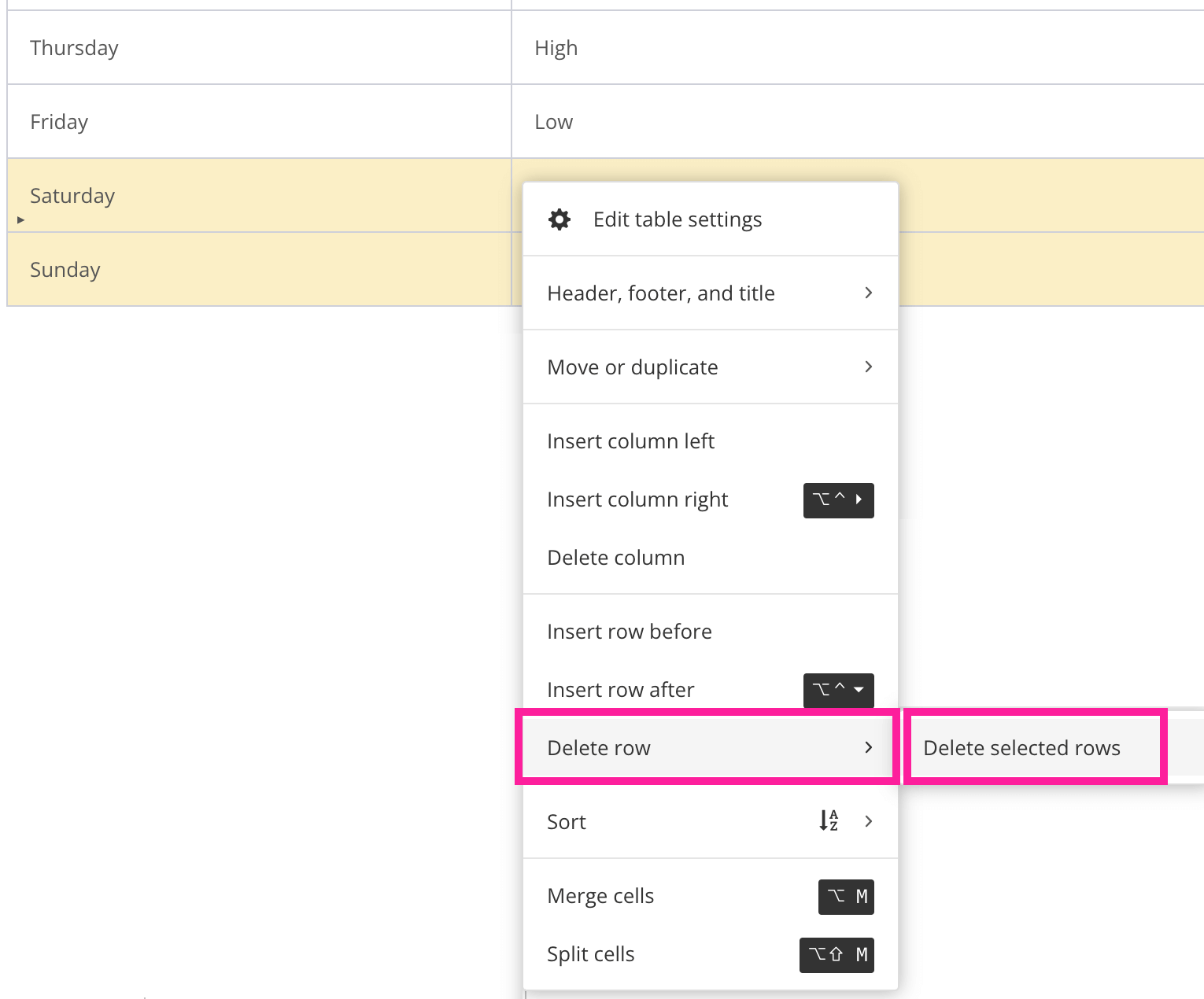
Paligo removes the selected rows and the content inside them.
Select Save.
Remove Column
This topic describes how to delete a column in a table.
Select the topic or component in the Content Manager to open it in the Editor.
Alternatively, you can Create a Topic and edit that.
Position the cursor in the column that you want to remove and right-click to display the Table Context Menu.
Select Delete Column.

Paligo removes the column and all of the column's content.
Select Save.
Remove Table Footer
To remove a table footer:
Select the topic or component in the Content Manager to open it in the Editor.
Alternatively, you can Create a Topic and edit that.
Position the cursor in the footer row and right-click to display the Table Context Menu.
Select Delete row.
NoteThe selected footer gets a red highlight and a red line runs through its content. This is to show that Paligo is going to remove this structure and content from the table.

Paligo removes the footer row and all of the footer row's content.
Select Save.
Alternatively, you can position the cursor in the footer row. Select the tfoot element in the Element Structure Menu and choose Cut from the menu.
