Topics
Create a Topic
We recommend that you create a new topic for each section of content that needs a heading (either a top-level heading or a subheading). By having your content in separate topics, it becomes more versatile. For example, you could have a topic as a subsection in one publication but as a top-level topic in another publication.
When you create a topic, you can either:
Create a Topic in Content Manager. It will not be associated with any publications.
Create a Topic from Structure View that will automatically to associated with a publication. It can still be used in other publications as well, if needed.
For an introduction to topics and publications, see What is structured content?.
Structure of a New Topic
When you create a new topic, Paligo automatically adds some structural elements to it. By default, a new topic consists of a section element, a title element, and a para element:
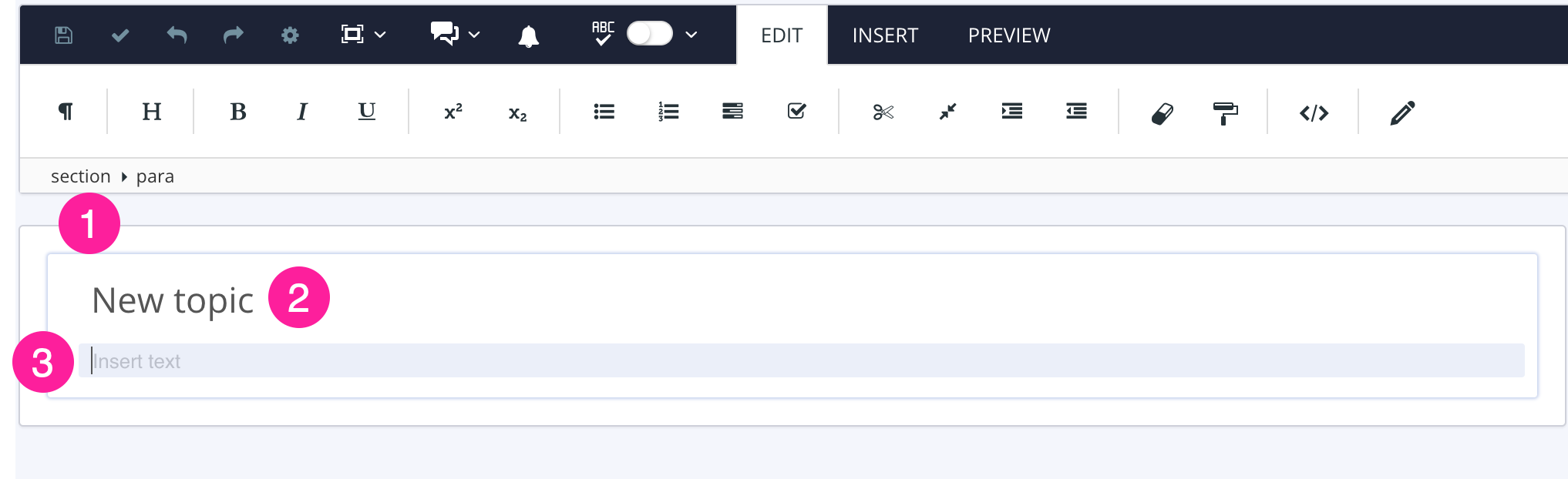
sectionis the container for the topic's other elements.titleis the topic's heading.parais the first paragraph in the topic.
To add content to a topic, you need to add suitable elements to form the structure. You can then add your content inside the elements. For example, if you wanted to have two paragraphs and an image, you would need to add two para elements and also the mediaobject, imageobject, and imagedata elements that are needed for an image. Paligo has toolbar options that make it easy to add commonly used structures in just a few clicks. There is also an Element Context Menu that you can use to build structures one element at a time.
To learn about adding content to a topic, see About Authoring.
Create a Topic in Content Manager
There are two ways to create a topic from the Content Manager:
Either:
Select the menu at the top of the Content Manager and then select Topic.

Select the dotted menu ( ...) for a folder and then select Create Content.

Use the Create content dialog to set the properties for the new component:

Make sure that the Document Type is set to Topic.
Enter a name for the new topic in the Document Title field.
NoteThe characters you can use for titles are: numbers, language characters, punctuation characters and spaces. The punctuation characters are:
! " # $ % / & ' ( ) * + , - . : ; < = > ? @ [ \ ] ^ _ ` { | } ~
Use the Language section to choose which languages Paligo should include for the topic. You can select individual languages or check the Select all languages box to include all languages.
NoteYou can only choose from those languages that are enabled on your Paligo instance. To learn about adding languages, see Language Management.
Use Open in editor to choose whether you want Paligo to display the new topic in the editor.
Check the box if you want Paligo to display the topic in the editor
Clear the box if you do not want Paligo to display the topic in the editor
Use Create another to choose whether you want Paligo to leave the Create content dialog open, ready for you to add another topic.
Check the box if you want Paligo to leave the Create content dialog open
Clear the box if you do not want Paligo to leave the Create content dialog open
Select OK.
Paligo creates the new topic.
Depending on your selections, Paligo may open the new topic in the editor automatically. Alternatively, you can select the topic in the Content Manager to display it in the editor.
To learn about the structure that is included in a new topic by default, see Structure of a New Topic.
Remember that your new topic is not included in any publications. To learn how to add it to a publication, see Add Content to a Publication.
Create a Topic from Structure View
It is possible to create new topics from the publication structure. The two benefits of this method are that:
The topic is automatically included in the publication.
The topic can instantly be moved to the intended position in the publication structure
At the top of the Content Manager, you also have the option to create content. This will however not automatically end up in the publication.

Select the publication in the Content Manager.

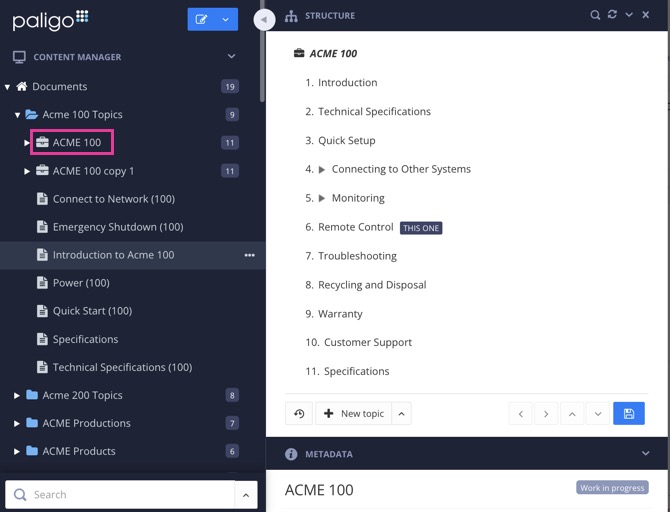
Paligo displays the Structure View, which consists of three sections: Structure, Metadata and Preview.
Select the arrow next to the New topic button to choose where to save the new topic.
 Note
If not done, the topic will by default be saved in the same folder as the topmost publication or topic.
Select New topic.

Name the new topic.
Move the topic to its intended position in the publication structure.
Select Save to confirm the publication changes.

The new topic is created at the chosen location and can now be edited.