Review in Next-Gen Editor
When opening a review assignment in the Next-Gen Editor, reviewers get a slimmed down version of the editor that allows them to leave comments on a component's content. Since comments are stored with the component, the original author can then access these comments and incorporate them into the component using the full Next-Gen Editor.
Note
You can only comment on text elements. You cannot comment on images, equations or program listings.
If the content you are reviewing has profiles/filters and/or variables applied to it, you may want to set the correct Profile settings so that you can review the content as it is meant to be published.
To configure the Profile settings:
Access the assignment via the link in the mail you received, or via the Dashboard.
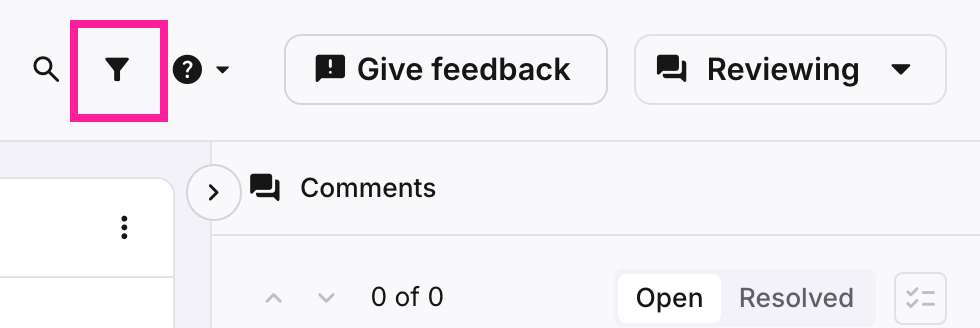
Select the Profile settings icon.
The Profile settings dialog opens.
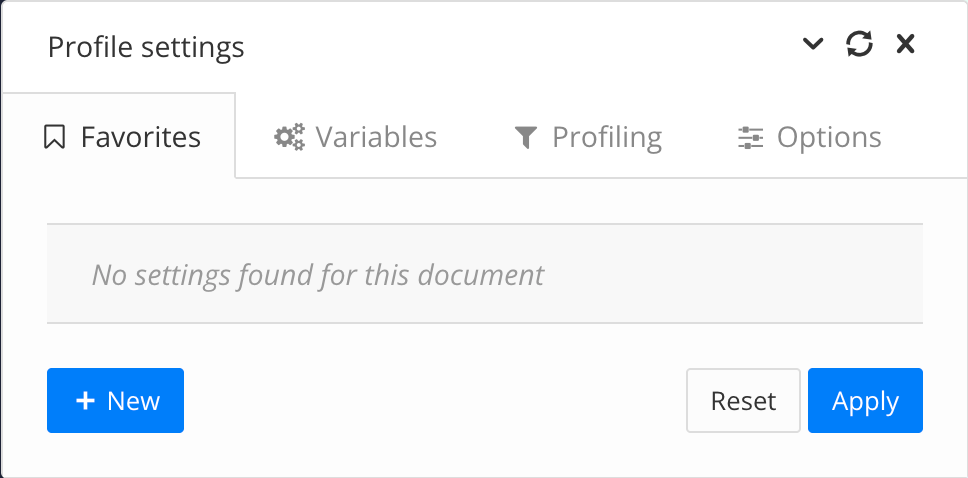
Select the tabs to set:
Variable sets
Profiling
Note
If you have a set of profile settings saved as Favorite, you can select that from the Favorites tab.
Alternatively, you can apply your variables and profiling settings, then return to the Favorites tab and select New to add the set as a new favorite.
Select Apply.
In Review mode, you can compare the current version of the topic to previous versions by comparing snapshots. For more information on snapshots, see Create Snapshot in Resource View.
To compare snapshots:
With the topic opened in Review mode, select the Compare snapshots icon
 in the Editor header.
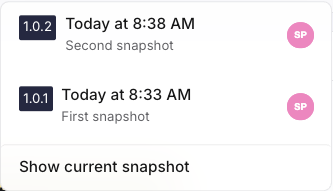
From the dropdown, select the snapshot you want to compare the current topic to.
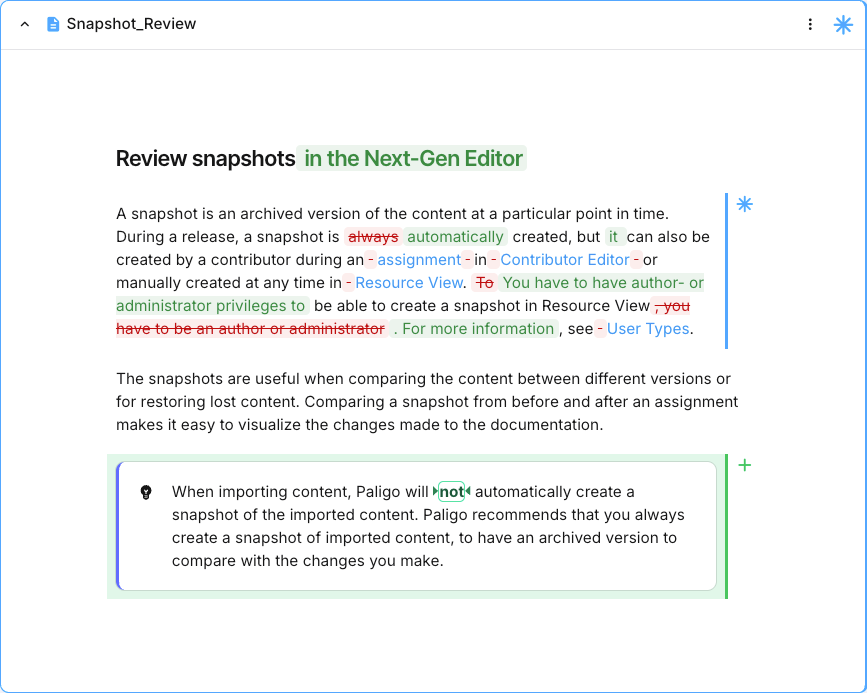
The topic reopens with all changes made in the topic compared to the chosen snapshot highlighted. Deleted content is indicated in red highlights, while added content is indicated in green highlights.
Access the assignment via the link in the mail you received, or via the Dashboard.
Place your cursor in the paragraph you want to comment on (to comment on the entire paragraph), or select a specific part of the text.
Start typing your comment.
Tip
You can mention other users in your comments and Paligo will send them a notification message.
To mention them, enter @ followed by the first characters of their name. Paligo then displays a list and you can select the user from the list.
Select Comment to save it.
Note
While you can see other reviewers' comments, you can only edit your own comments.
In the Side pane select the comment you want to alter.
Tip
You can also navigate through all comments by using the Comment navigation arrows.
Select the More options button
 , then Edit .
Make your alterations, then select Save.
Note
While you can see other reviewers' comments, you can only delete your own comments.
In the Side paneselect the comment you want to delete.
Select the More options button, then Delete.
Confirm by selecting Delete again.
You can reply to comments other reviewers have inserted into the component.
In the Side pane select the comment you want to post a reply to.
In the Reply text field, enter your reply.
Tip
You can mention other users in your comments and Paligo will send them a notification message.
To mention them, enter @ followed by the first characters of their name. Paligo then displays a list and you can select the user from the list.
Select Reply to post your reply.
You can view all resolved comments pertaining to the component you're working on. This can be especially useful when a component has been sent out to multiple reviewers. You can see all resolved comments in the Side pane, selecting the Resolved button.
Once you are done with your assignment, you can file it away as completed or indicate that more work needs to be done. The author is then notified that you are done with your part.
Select the Assignments button.
Select either Needs work, or Approve.
Note
These actions can also be undone if you want to continue working on the assignment.