Comments
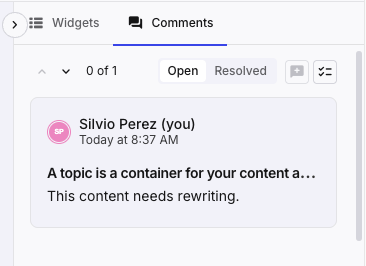
Comments are an integral part of the Next-Gen Editor. They are always accessible in the Side pane, both in Read-only- as well as Edit mode. Having the comments always accessible next to the content greatly improves collaboration on topics. Each comment forms its own conversation thread, consisting of the comment itself and all the replies associated with that comment.
 |
To view open or resolved comments, do the following:
Open the component in the Next-Gen Editor.
In the Side pane, select the Comments tab.
Note
By default, the comments pane will open showing the currently open comments. In order to view resolved comments, select the Resolved button
 .
.Navigate to a particular comment by scrolling, or by selecting the comment in the Editing area.
Note
In the Editing area text with comments are indicated with yellow highlights.

Text with comment
Navigation
You can navigate the comments pane by scrolling, as well as by selecting the comment in the Editing area. However, for navigating through all of the comments in the list, you can also use the Comment navigation. Use the up and down arrows  to move from one comment to another in the list.
Authors, can insert comments to give feedback on content. Topics do not have to be open in Edit mode in order to be able to insert comments.
Open the component in the Next-Gen Editor.
In the Editing area, select the element you want to comment on, or highlight part of the element.
Note
Highlighting part of the content will associate the comment with only the highlighted part (marked in yellow once the comment is inserted). Otherwise the comment will be associated with the entire element.
In the Side pane, select the Comments tab.
Insert a comment by either: or in the .
With the comments pane opened, selecting the Add new comment button
 at the top of the Side pane.
Selecting the Add new comment button
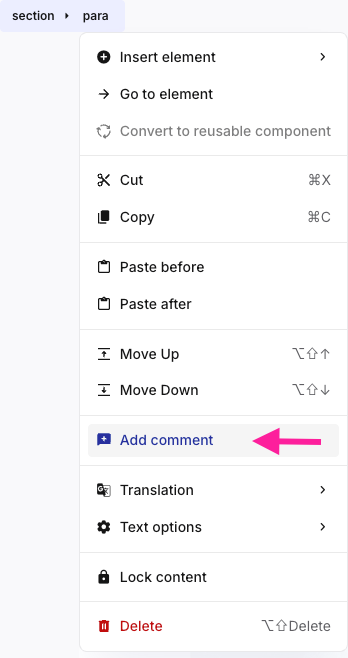
at the top in the Toolbar.Selecting the element you want to comment on in the Element context menu and then selecting Add comment.
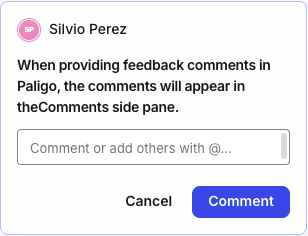
Add your comment in the Comment field, then select Comment.
You can edit your own comments, as well as your own replies to comments.
Navigate to the comment in the Comment Side pane, or by selecting the highlighted comment in the Editing area.
Select More options in the top right of the comment.
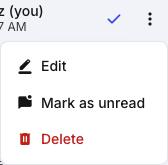
From the More options menu, select Edit
 .
.Note
Here you can also mark a previously read comment as unread, by selecting the Mark as unread option.
Make your edits to the comment text, then select Save
 .
.
You can reply to other people's comments to elaborate on the feedback given.
Open the comments in the Side pane.
Select the comment you want to reply to.
Note
If the comment has already been resolved, you will need to restore it first.
Add your reply in the Reply field, then select Reply
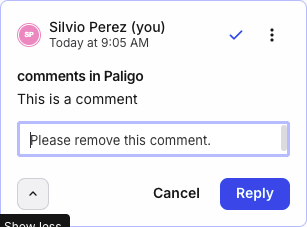
Note
You can mention other Paligo users by using the @-mention. Type @, then select the name of the user from the list, or type their name. Mentioned users will be notified of the comment by email, and will get a direct link to the comment in question.
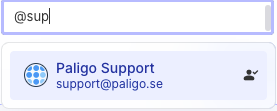
If you mention users who do not have access to the component you are commenting on, you will get a warning telling you to provide access for that particular user.
Once a comment has been dealt with, it can be set to Resolved to remove it from the list of open comments. After resolving, it can still be viewed by selecting the Resolved button at the top of the Side pane.
In the Side pane, select the Comments tab.
Select the open comment you want to resolve.
Select the Mark comment as resolved button.
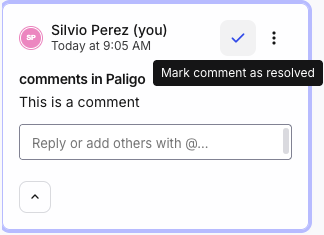
Note
You can also resolve all open comments at once, by selecting the Resolve all open comments button
 at the top right of the Side pane.
There may be times where you need to make a change to a resolved comment or need to revert it back to an open comment, in which case, you will need to restore it.
In the Side pane, select the Comments tab, then select the Resolved
button.Select the comment you want to restore.
Select the Restore comment button.
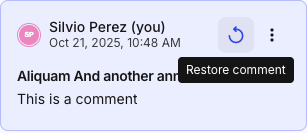
The comment will now disappear from the Restored list, and can be found in the Open comments list.
There may sometimes be a need to delete comments entirely.
Warning
Deleting comments will remove them completely. Unlike resolved comments, they cannot be restored.
In the Side pane, select the Comments tab, then select the comment you want to delete, either from the Open- or Resolved comments list.
Select the More options
 button, then select Delete
  .
.Select Delete
 again to confirm.