AI Assistant in the Next-Gen Editor
The AI Assistant integrated into the Next-Gen Editor is designed to help you be more productive in your authoring and provide support across various tasks. Leveraging advanced natural language processing and machine learning algorithms, the assistant can understand user queries, generate content, and offer context-aware suggestions.
Among other things, the AI Assistant can help you refine text, generate content, or transform a regular paragraph into a correctly worded and formatted procedure. By design, the AI Assistant's interactions are confined to the paragraph you are currently working on, so that the overall structure of your topic remains unaltered.
The AI Assistant behaves differently depending on what is selected. If the cursor is placed in an empty paragraph, the AI Assistant will allow you to enter a prompt to generate content. However, if the cursor is placed in a paragraph with existing content, it will instead help you to refine, rephrase or convert the existing content.
Generate content
The AI Assistant allows you to use natural language prompt to generate content in your component. For example, you can ask it to come up with a specific warning, or an introductory paragraph on the product you are working on.
Create a new
paraor place your cursor in an existing emptypara.Select the AI Assistant button
 to the right of the paragraph.
Write your prompt in the Generate dialog.
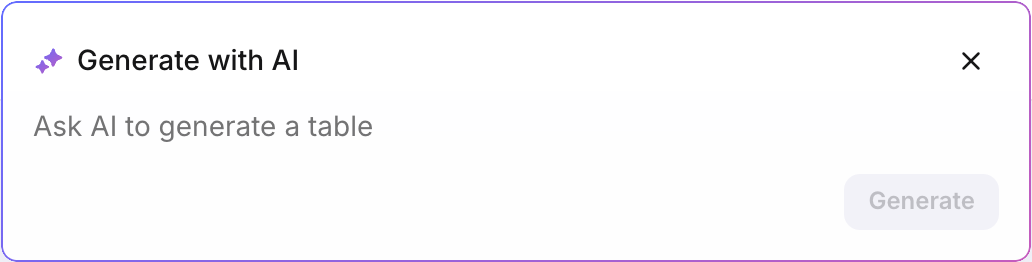
Note
The prompt cannot be longer than 4000 characters.
Select Enter, or select the Generate button
 .
.Depending on the result, you can either accept, refine, or discard the generated text:
To accept the suggestion, select the Insert button
 .
.To refine the suggestion, use the prompt field, or the Refine button
 . See below for more information.
To reject the suggestion, select the Close button
 , then select Discard in the dialog window.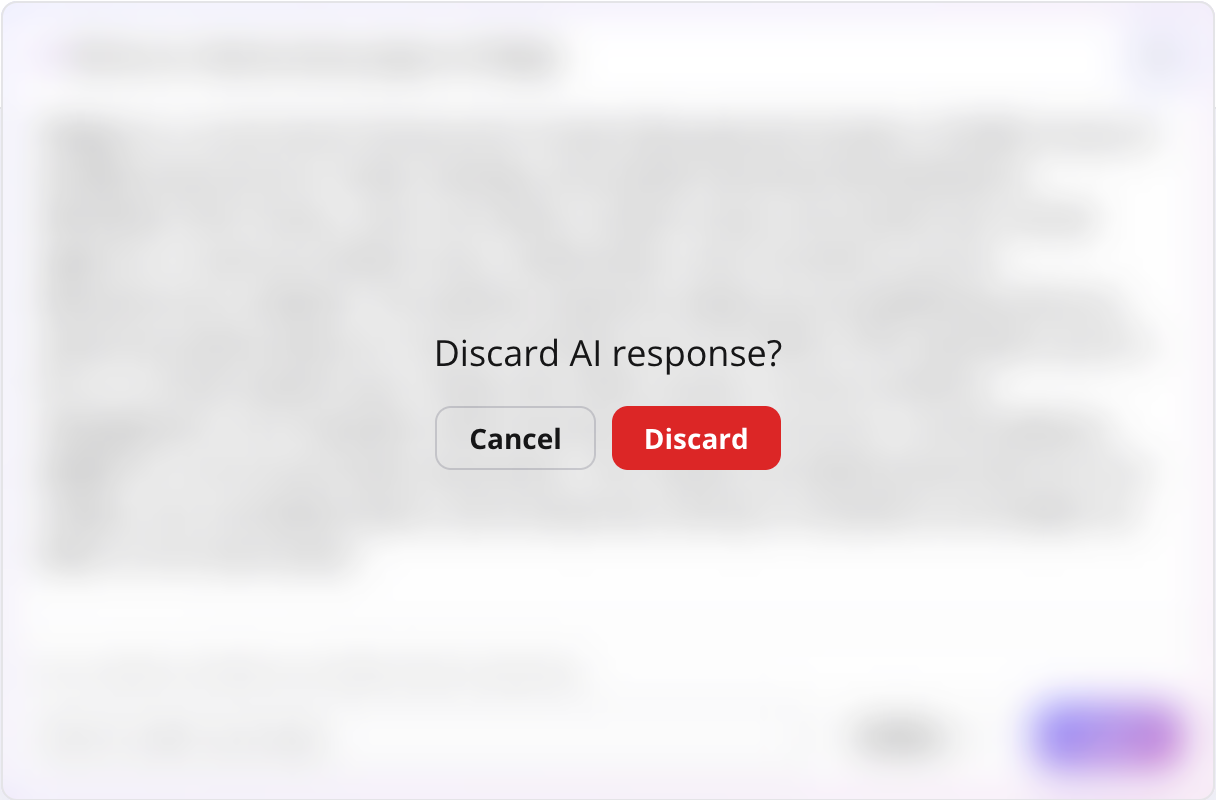
Refine, rephrase or convert content
If you place your cursor inside a paragraph with existing content, or select part of a paragraph, you can refine, rephrase or convert content.
Note
The AI Assistant will only work on the selected text. If you only place your cursor inside a paragraph, the entire paragraph text will be used as context for the AI Assistant. Since the AI Assistant will convert any selection to a standalone text (even when only part of a sentence is selected), we recommend selecting at least an entire sentence.
Place your cursor inside an existing paragraph, or select some text.
Select the Generate with AI button to the right of the paragraph.
In the refine menu box either:
Enter a natural language prompt to refine your existing content (e.g. “Add an introductory sentence at the beginning”, or “Rewrite this for. more technical audience”).
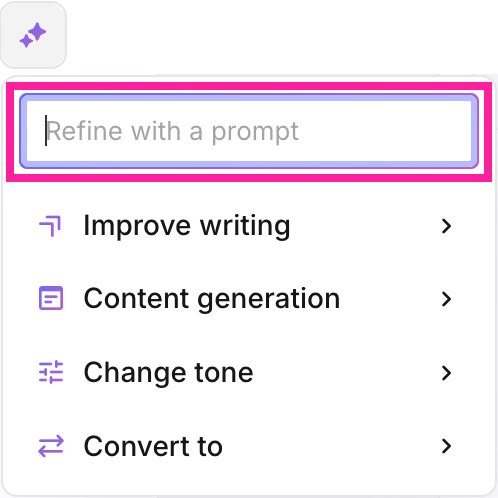
Use the predefined refinement options by selecting one of them. For more information on the various options, please see the AI Assistant command overview.
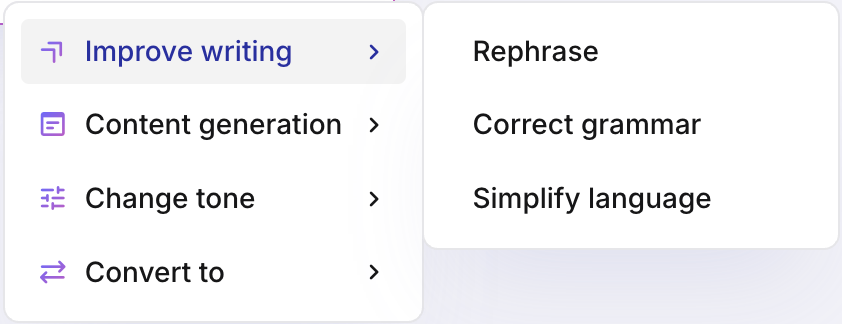
Depending on the result, you can either accept, refine, or discard the generated text:
To accept the suggestion, select the Insert button
.To refine the suggestion, use the prompt field, or the Refine button
. See below for more information.To reject the suggestion, select the Close button
, then select Discard in the dialog window.
Refine suggestions
Whatever the AI Assistant suggests, you can always change or refine it before you insert it into your component.
Generate a suggestion with the AI Assistant.
In the response dialog either:
Enter a natural language prompt in the prompt field.
Use the predefined refinement options by selecting one of them using the Refine button. For more information on the various options, please see the AI Assistant command overview.
The AI Assistant has a number of pre-defined commands that allow you to refine or convert existing text. These coimmands can be run when users access the AI Assistant existing text selected.
Improve writing
Helps you reword your text, as well correct grammatical mistakes.
Command | Output |
|---|---|
Rephrase | Rewrites the text block, improving clarity and readability. Structure (<para>) remains the same; only content changes. |
Correct grammar | Identical text block with minor string replacements, fixing grammar and spelling. No structural changes are allowed. |
Simplify language | Replaced with simpler words, sentence structure may be simplified, but variables and other inline elements must remain untouched. |
Content generation
Modifies the selected text to make it more concise, or expand upon it.
Command | Output |
|---|---|
Summarize | The AI Assistant condenses the selected text to one paragraph. Inline tags (bold/italics) from the source are usually discarded unless specifically requested to be kept. Grammar and spelling are also corrected. |
Shorten | The AI Assistant creates a concise version of the input. It removes redundant words and phrases. Variables, links and UI references are retained if they remain in the shortened text. Grammar and spelling are also corrected. |
Elaborate | The AI Assistant adds sentences to the existing <para>. It may introduce new structure (like splitting one paragraph into two) if the elaboration is long. It will add details, examples or explanations to enhance understanding. Grammar and spelling are also corrected. |
Change tone
Helps you change the tone of voice of your text.
Command | Output |
|---|---|
Professional | The AI Assistant converts the text to formal, objective, standard business language. It uses precise vocabulary. Contractions are not allowed. Grammar and spelling are also corrected. |
Friendly | The AI Assistant converts the text to engaging, warm, and helpful language. Contractions may be used where required. Grammar and spelling are also corrected. |
Neutral | The AI Assistant converts the text using direct, factual language. Sentence structure is kept relatively simple. Grammar and spelling are also corrected. |
Concise | Short sentences and imperative verbs are used. Conditional logic (if/then) is retained. Grammar and spelling are also corrected. |
Convert to
Lets you convert text to different structures.
Command | Output |
|---|---|
Ordered list | Converts text to an ordered list. Grammar and spelling are also corrected. |
Itemized list | Converts text to an unordered list. Grammar and spelling are also corrected. |
Procedure | Converts text to a procedure list. Grammar and spelling are also corrected. |
Table | Generates a table with column- and row count adjusted to the selected text. Grammar and spelling are also corrected. |
For security and operational reasons, the AI Assistant is limited in its scope and context. These guardrails ensure that the AI Assistant focuses only on what the user actively chooses, without affecting the rest of your documentation.
The following guardrails are in place:
The AI Assistant accepts and generates text only. It cannot analyze, generate, or modify images, videos, charts, or diagrams.
When using the natural language prompt, there is a limit of 4,000 characters per prompt.
The AI Assistant acts only on the active editor content. It cannot upload/read external PDF, Word, or Excel files.
The AI Assistant only knows the context provided in the current prompt and selection. It does not scan the entire document, other open tabs, or linked files or content referenced by cross-references.
The AI Assistant is stateless. It does not remember previous conversations. Its memory will be reset once the dialog is closed.
The AI Assistant cannot verify facts, dates, or technical specifications against a real-time database. The user should verify content before inserting it into the document
In some cases, inline elements will not necessarily be preserved unless explicitly requested. Please see AI Assistant command overview for more information.