Edit components
When you open a component in the NGE, it will always open in Read-only mode. In order to start editing a component, you need to set the component to Edit mode, after which you can edit as usual.
Note
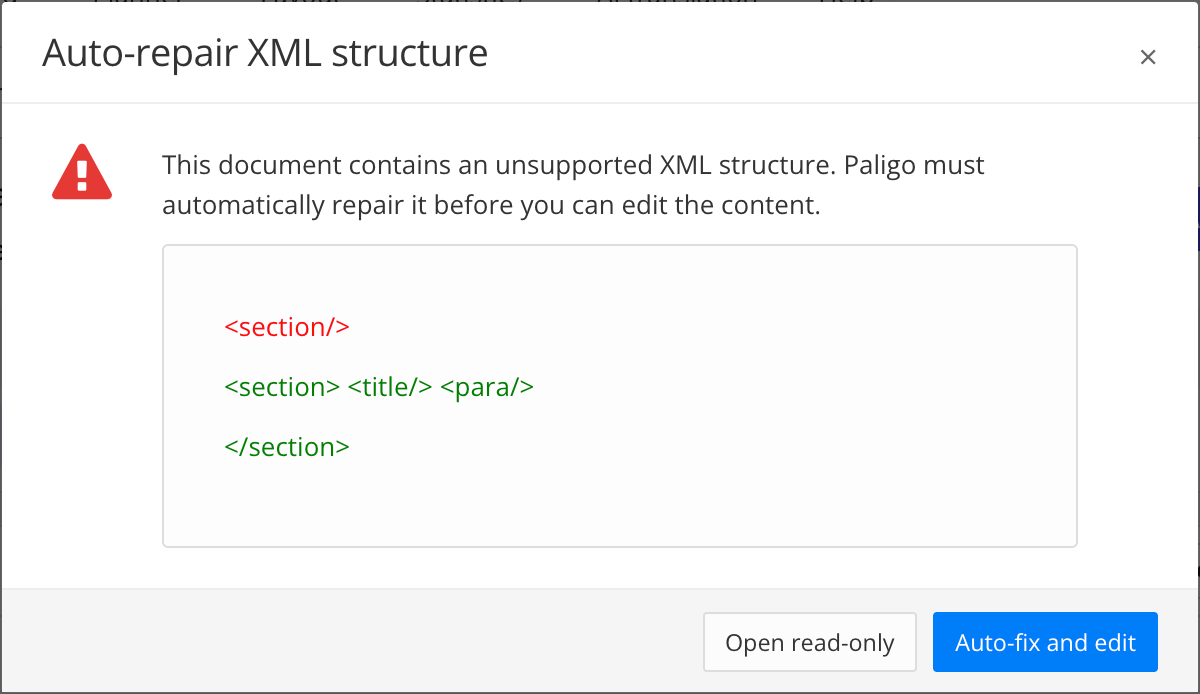
If for any reason the Next-Gen Editor encounters unsupported XML structures (for example, when changes have been made in the source code editor), Paligo will auto-repair these before you can edit the content.
 |
When you open a component in the Next-Gen Editor it will open directly in edit mode if the status of the component is set to Work in progress. If the status is not Work in progress (e.g. In translation), you can set that status to enable editing by selecting the Set to work in progress button.
 |
When the status has been changed to Work in progress, select the Edit/Close edit button to start editing.
Note
By default, Autosave will be enabled for all users. If users decide to turn off Autosave, that setting will be remembered by the Next-Gen Editor.
Select the Edit/Close edit button
 .
.Note
Make sure you are in Edit mode, and not suggestion mode by using the Mode switcher
 .
.Once you are done with your edits, select the Edit/Close edit button again
 .
.Note
If you have unsaved changes in your document, you will get a save warning when exiting edit mode.
Blank topics by default start with an empty title element and an empty para element. There are several ways to insert new elements into a component:
using the Enter key (
paraonly) and convertingusing the Insert menu
using the Element structure menu
using the Insert paragraph button
Insert element using the Insert point
The Insert point is the easiest way to add elements to your document. The Insert point is a graphical interface element represented by a dotted line with a plus that can be accessed both by using the cursor, as well as by keyboard navigation.

The Insert point
In order to make it clear where exactly in the element structure you are placing your new element, the Selection highlight will appear, indicating the level at which you are placing the element within the structure. For example, if you want to add an item to an itemizedlist element, rather than adding a para to an existing list item, you would select the Insert point directly inside the itemizedlist element instead of inside the listitem element.
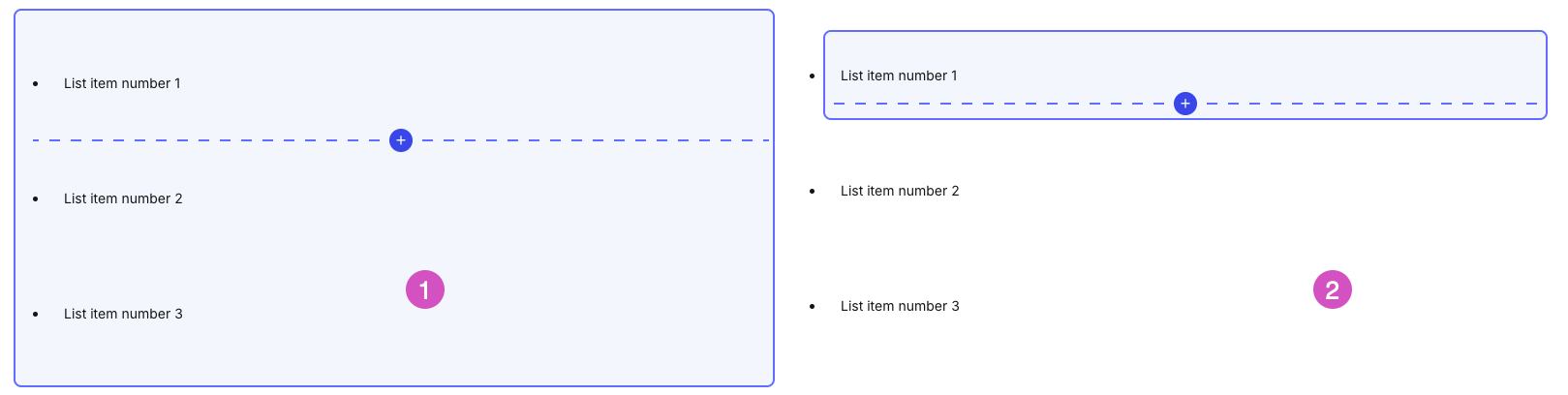
Insert point inside the itemizedlist (1) vs inside the listitem element
Note
If the Insert point is not located inside another element (e.g. when inserting a para in the main section of the topic), the Selection highlight will not appear.
If the Insert point is not visible in the Editing area, do the following:
Select View in the Menubar
Check the Insert point checkbox
In any component (topic, informal topic etc.), hover your cursor over the content. The Insert point will appear between elements.
Note
The Insert point will not appear in Structure view (e.g. when viewing the structure of a publication).
Select the plus icon in the Insert point
 .
.Select the element you want to insert from the Element insert menu.
Place your cursor anywhere in your document.
Use the up- and down arrow keys (↑, ↓) to navigate up and down the document. When the cursor reached the beginning or end of an element, it will jump to the next Insert point upon the next press.
Select Enter.
Use the up- and down arrow keys to scroll down the list of elements in the Element insert menu until you reach the element you want to insert.
Select Enter.
Insert element using Enter
In most cases, pressing Enter inside an element will produce a new paragraph (an exception to this is list items, in which case pressing Enter will result in a new list item or procedure step; see Lists). You can then convert that paragraph to other valid elements (see Convert an element).
Place your cursor at the end of an element.
Press Enter.
With the cursor inside the new paragraph, either use the Element insert menu or the Element context menu to convert the paragraph to another valid element.
Insert paragraph before or after block elements
In cases where it is not possible to put your cursor at the end of the element in order to insert a new element (i.e. block elements such as images, tables and reused components), the Next-Gen Editor provides buttons at the top and bottom of the element to insert an empty paragraph before or after the element, respectively.
Note
You can also right-click on block elements, then select Insert before or Insert after.
To insert an empty paragraph after a block element:
Hover over the element you want to place an element after.
Select the Insert paragraph button
 , either at the top or the bottom of the element. A new paragraph will be created.
Note
The newly created paragraph can be converted to another element if you need a different element. Please see Convert an element for more information on converting elements.
Note
Inserting paragraphs using the Insert paragraph button also works for subsections (such as reused topics).
Insert additional sections
If you want to insert additional sections before of after an existing section, you can use the Insert section button  at the top and bottom of the existing section.
Insert elements using the Insert menu
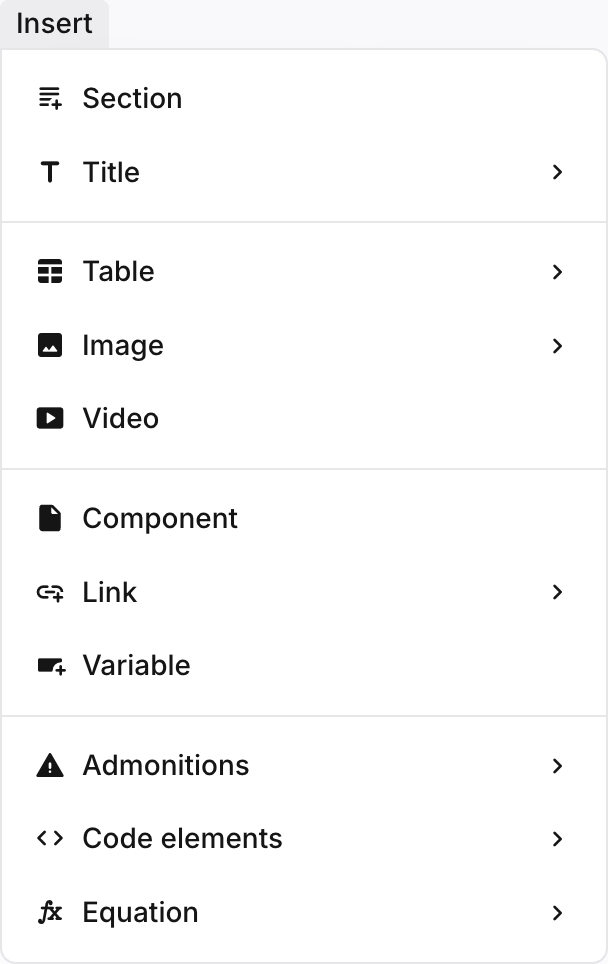
You can use the Insert menu to insert valid elements into your component.
Place your cursor at the end of an element or inside an empty paragraph.
Note
Selecting a block element (e.g. table or image) when the cursor is placed inside an empty paragraph, will convert that paragraph to the chosen element.
Choose a valid element from the insert menu.
Note
Invalid elements will be greyed out and can not be chosen at your current cursor position.
Note
The Insert menu contains both block- and inline elements. When choosing an inline element (such as Variable, or Inline image), the new element will be placed inline rather than a new block element being created.
Insert element using the Element structure menu
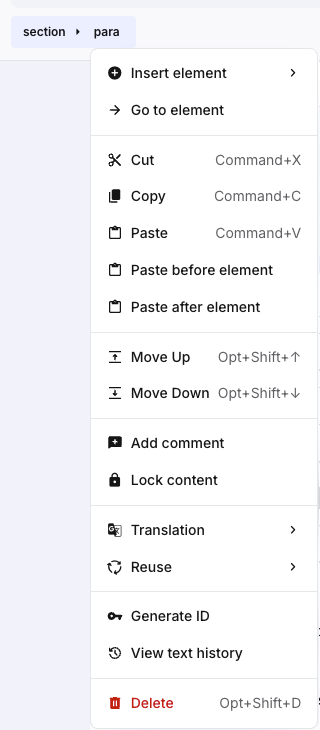
The Element structure menu lets you insert elements before or after your currently selected element.
Place your cursor inside an element before or after which you want to insert a new element.
Select the element in the Element structure menu.
Note
Depending on the element chosen, as well as on which new element you want to insert, you may have to select the parent element of the currently chosen element. For example, if you have a procedure and you want to insert a step after the current step, you have to select the step element, rather than the para element of that step.
Select Insert element > Before element/After element.
Note
Depending on the element, you can also choose As first child or As last child, but this will place the (inline) element inside the current element, rather than creating an entirely new element.
Select a valid element you want to insert.
Inserting components (both topics, as well as informal topics) works in much the same way as inserting other (block) elements.
Place your cursor at the end of a paragraph, or inside an empty paragraph. Create a new paragraph if necessary.
Note
Inserting a component with your cursor placed inside an existing paragraph (i.e. not at the beginning or end of the paragraph) will result in the existing paragraph being split into two separate ones, with the inserted component in between.
Select the Element insert menu, then select Component.
Note
When reusing informal topics as parts of lists and procedures (see Reuse a Sequence of List Items), the reused topic needs to be placed before or after the step element. For more information, please see Lists).
Reused component options
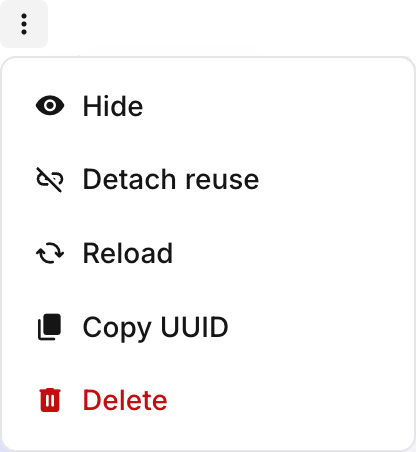
You can manage reused components inside topics by accessing the More options menu at the top right of the reused element.
 |
Here you can do the following:
Hide/Show: toggles the accordion to hide or show the reused component's contents.
Detach reuse: converts the reused component into a regular section and severs the link to the original component.
Reload: reloads the reused component (e.g. when you've altered the reused component in another browser tab.
Copy UUID: copies the reused component's UUID to the clipboard.
Delete: deletes the reused component from the topic.
Insert a reusable text fragment
Every paragraph (or other textual block element, such as titles and captions) that you write in Paligo is stored in the database and is available for reuse. Reusable paragraphs are also known as reusable text fragments. By reusing paragraphs, you can save time with content creation and updating and make your content more consistent.
For information on how to insert reusable text fragments, see Insert Reusable Text Fragment.
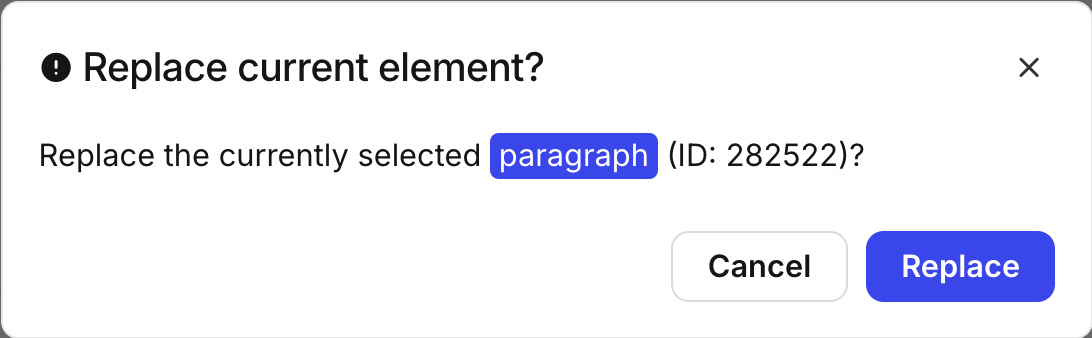
When inserting reusable text fragments it is important to set the insertion point (cursor) inside an empty paragraph or list item. If the element is not empty, you will be asked if you wish to replace the current element with the text fragment you are trying to insert.
 |
Inserting inline elements is done in much the same way as it was before.
Place your cursor where you want to insert the inline element or select the text you want to apply the element to.
Choose the inline element by:
Selecting the Insert menu and choosing from there.
Using the Element context menu (Alt + Enter ⏎ (Windows) or Command ⌘ + Enter ⏎ (Mac))
Empty paragraphs can easily be converted to other types of elements.
Create an empty paragraph.
With the cursor inside the paragraph, select the Element insert menu, then choose the element you want to convert it to (e.g. a table).
Note
To convert a paragraph to a list (ordered, unordered, procedure etc.), select the appropriate button in the toolbar.
Note
Note that lists can also be converted from one type to another by placing the cursor inside the list or nested list and selecting the button in the toolbar for the list type you want to convert to.
The Advanced View gives you additional editing options by replacing the standard system-related right-click menu with Paligo's own context menu. It is intended for authoring complex DocBook structures and is recommended for users who are familiar with DocBook syntax.
To enable Advanced View:
In the Menubar, select View.
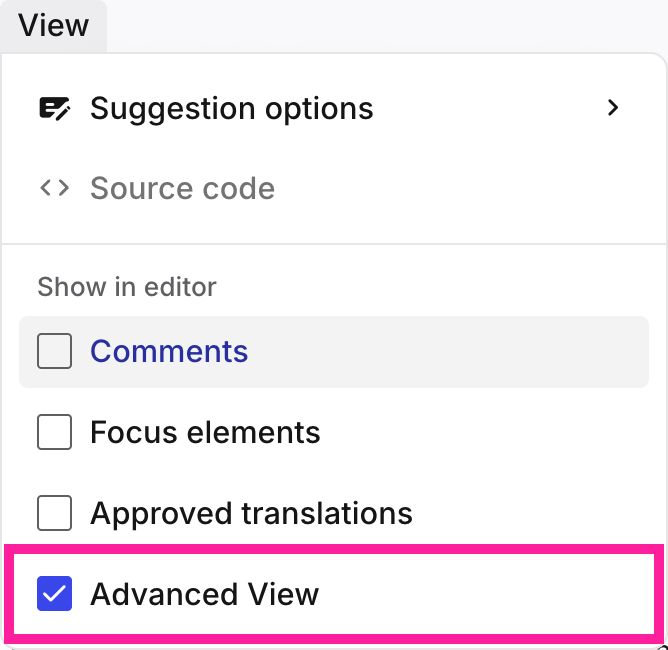
Select Advanced View
Check the box to enable Advanced View.
Clear the box to revert to the regular (system) context menu.