Contribute in Next-Gen Editor
When opening a contribution assignment in the Next-Gen Editor, the topic or publication that has been assigned to you will open in Edit mode. You can then add or remove content, as well as leave comments and create review assignments.
If the topic you want to make changes to is in Read-only view, you need to open it up for editing before you can start working on it.
Locate the topic you want to contribute to.
Select the Edit/Close edit button
 .
.Start editing.
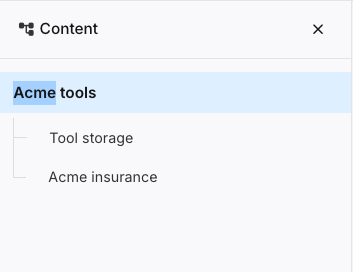
Some topics, and most publications can consist of many reused topics and other elements. To get an overview of the structure of the document you are contributing to, do the following:
Select the Content structure pane button
 .
.The Content structure pane expands and shows all reused and structure reused components.
You can add new topics to topics or publications you are contributing to.
In between two topics or at the end of the topic you are contributing to, select the Create topic icon.

In the Create topic dialog, enter a title for the topic.
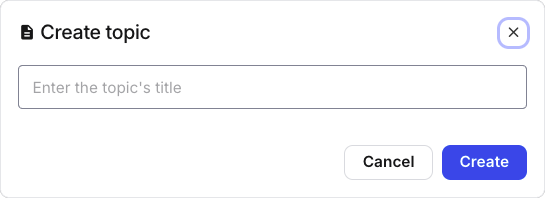
Select Create.
Select the Edit button
for the newly inserted topic to start adding content.
Note
When adding a new topic to a topic, it will be inserted as Structure reuse.
Whether you are working in Edit or Suggestion mode, you can always insert comments into the content.
Inserting comments works in the same way it does for Reviewers. Please see Review in Next-Gen Editor for more information.
While in Contributor mode, you can interact with assignments using the Assignments button in the Editor header.
Create a review assignment
If you want your contributions to be reviewed by someone other than the original assigner, you can create a review assignment.
Note
You can only create a review assignment for the document you are currently working in.
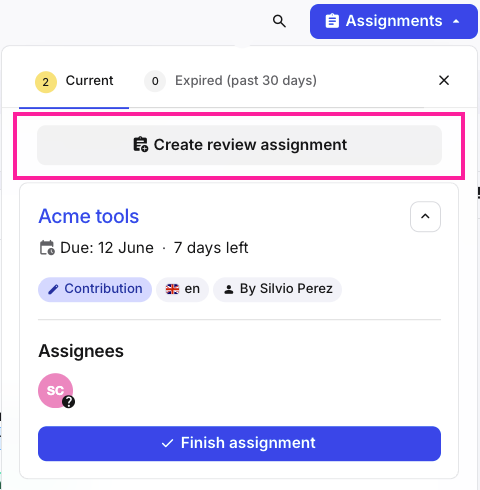
Select the Assignments button
 .
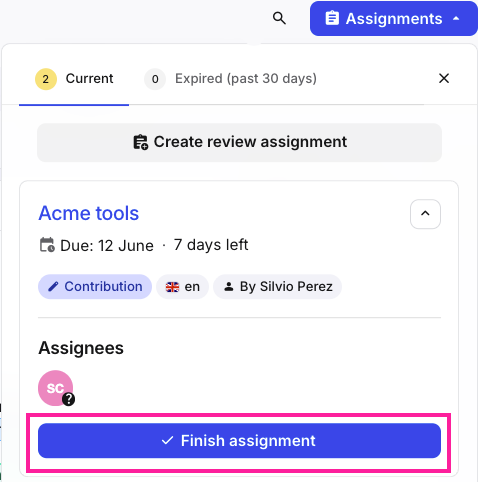
.In the assignments dialog, select the Create review assignment button.
In the Create a review assignment dialog, set the following parameters:
One or more assignees
Assignment date
Note
By default this is set to 7 days from the current date.
Assignment description (optional)
Select Create.
Finish an assignment
To finish an assignment:
Select the Assignments button
.In the assignments dialog, select the Finish assignment button.
Note
This action can be undone by selecting the Undo button.
Switch to another assignment
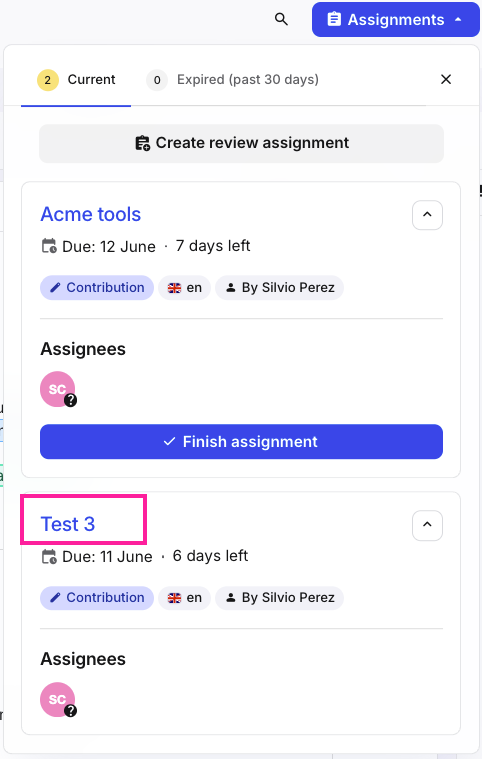
You can switch to any other assignment that is currently assigned to you.
Select the Assignments button
.In the assignments dialog, select the title of the assignment you want to switch to.