Image language variants
Image language variants can be used to provide separate variants of an image for different languages. This can be useful if you have country-specific versions of a product, screenshots in different languages, or text callouts in the picture that need to be language-specific.
Note that although language variant images do not have formal revisions, the main revision and the language variant are linked. This means that if you revert an image to a previous revision, it will also revert to the language variant that was current when that revision was created.
For more information about using language variants, please see Translate images
Add a language variant
Select the image in the Media library.
Note
Alternatively, you can select an image inside a topic:
Right-click on the image.
Select Edit properties
Select the image
From the Image toolbar, select Edit image details
Select the Language variants tab.
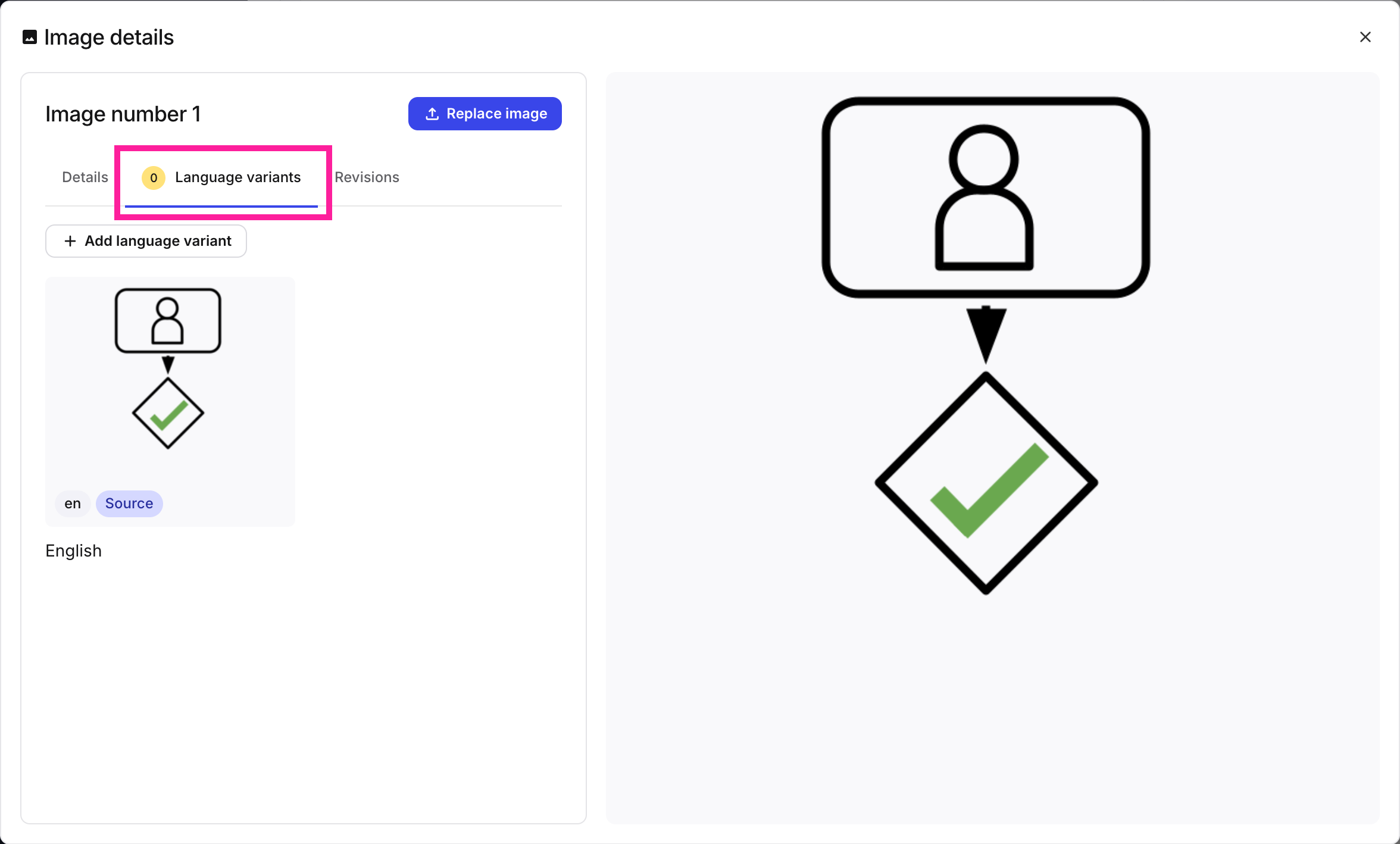
The Language variants tab shows the images associated with each language.
Select the Add language variant button
 .
.Upload the new image by:
Dragging and dropping it onto the Replace image window.
Selecting Click to add file and browsing to the new image.
Select the Select a language dropdown and select the language you want to associate with the image.
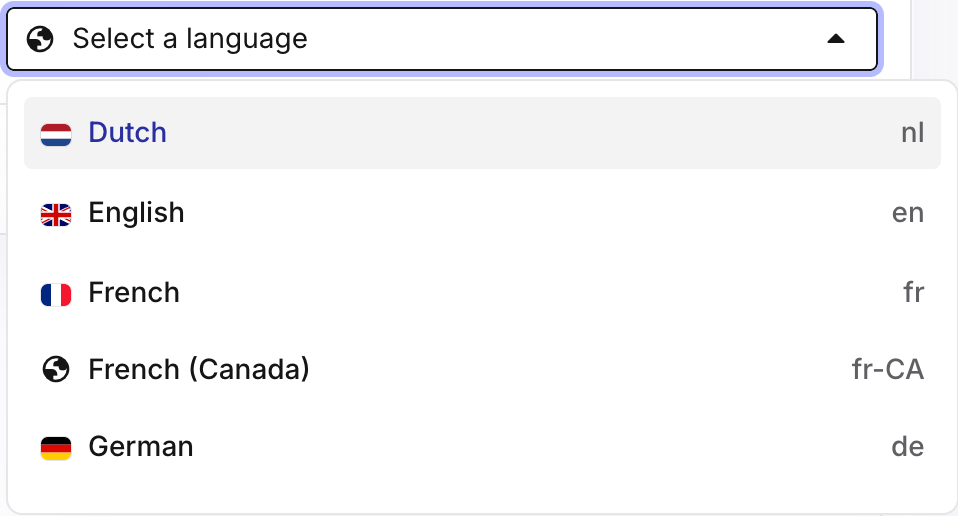
The language dropdown will only list the languages that have been configured in Settings
Note
If the language you want to add is not in the list, it has to be activated in Settings. See Activate Languages on the Paligo Docs website for more information.
Note
If you choose a language for which a language variant already exists, this will replace that language variant with the selected image.
Select Upload variant
 .
.Note
This language variant will now be associated with the current revision of the main image.
Update a language variant
Select the image in the Media library.
Note
Alternatively, you can select an image inside a topic:
Right-click on the image.
Select Edit properties
Select the image
From the Image toolbar, select Edit image details
Select the Language variants tab.
Locate the language variant you want to update and select the More options icon
 .
.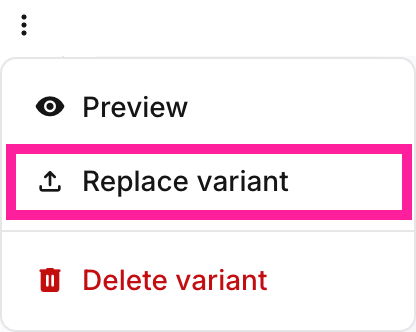
Select Replace variant.
Upload the new image by:
Dragging and dropping it onto the Replace image window.
Selecting Click to add file and browsing to the new image.
Select Upload variant
.
Remove a language variant
Select the image in the Media library.
Note
Alternatively, you can select an image inside a topic:
Right-click on the image.
Select Edit properties
Select the image
From the Image toolbar, select Edit image details
Select the Language variants tab.
Locate the language variant you want to remove and select the More options icon
.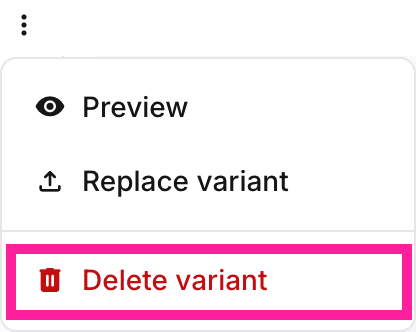
Select Delete variant.
Warning
The removal of language variants cannot be undone. Please be sure to check if you can remove a language variant before permanently deleting it.
Note
If no language variant exists for a particular language, the main image will be used for that language.