Add a new image revision
Every time you replace an image (through the Image details window), the newly uploaded image automatically becomes the latest (current) revision of that image. To add an image revision:
Select the image in the Media library.
Note
Alternatively, you can select an image inside a topic:
Right-click on the image.
Select Edit properties
Select the image
From the Image toolbar, select Edit image details
Select the Replace image button.
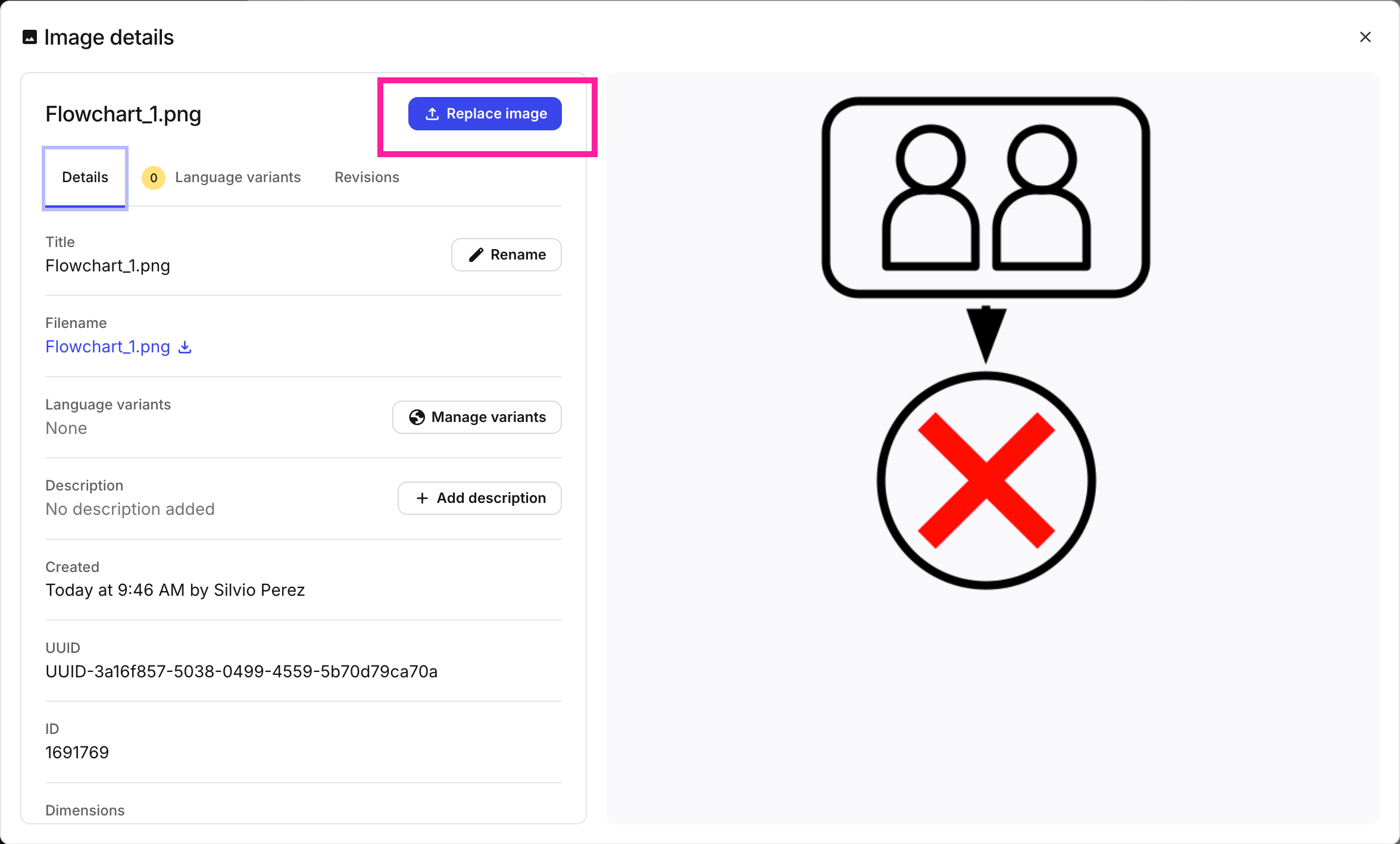
Adding an image revision
Upload the new image by:
Dragging and dropping it onto the Replace image window.
Selecting Click to add file and browsing to the new image.
Choose whether or not to keep the existing language variants.

Keep variants: this will associate the current language variant images with the new revision (unless you replace the language variant image later on).
Remove variants: this will remove all language variants from the new revision (current). All languages will revert to the main image. If you want to associate new language variants with the current image, you have to upload them.
Please see Image language variants for more information.
Select the Replace image button. The new image will now appear at the top of the list in the Revisions tab, and will be labeled Current.
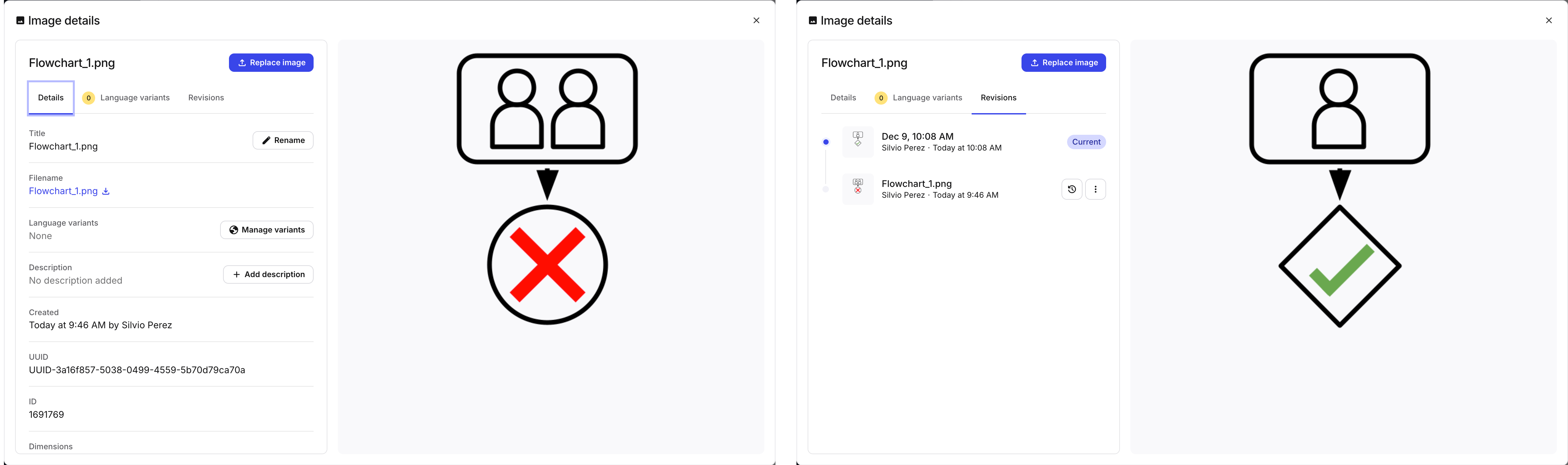
The image on the right shows the new image revision (indicated by the Current label