Revert to previous image revision
If you want to revert to an image's previous revision, do the following:
Select the image in the Media library.
Note
Alternatively, you can select an image inside a topic:
Right-click on the image.
Select Edit properties
Select the image
From the Image toolbar, select Edit image details
Select the Revisions tab.
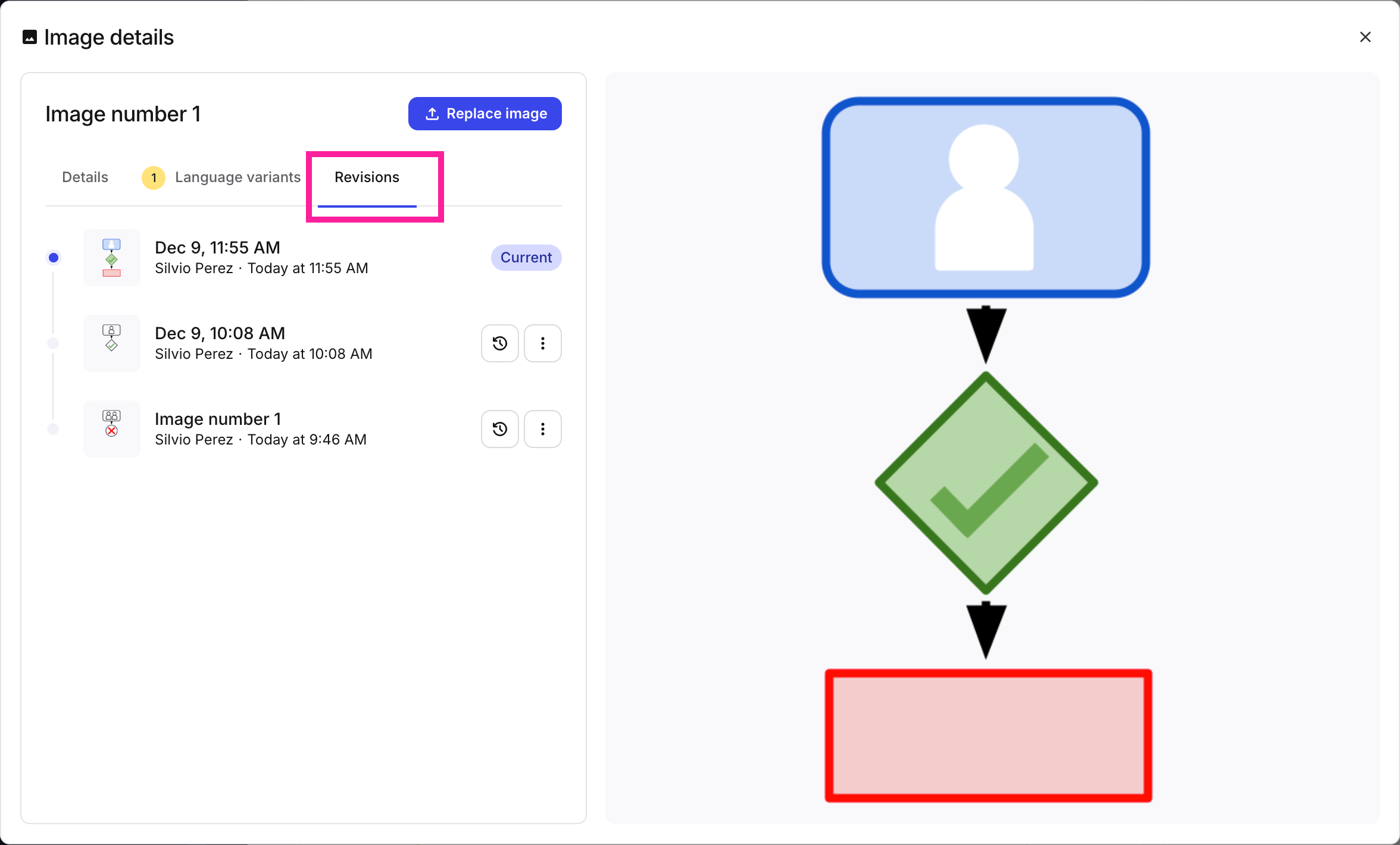
The Revisions tab shows all revisions of the image
Select the Restore this revision button
 for the image you want to restore.
Warning
Restoring a revision will update that image in all topics where that image is used.
Select Restore revision in the pop-up window
 .
.Note
The revision entry will be duplicated at the top of the list and labeled Current to indicate that it is now the revision that is being used in all topics.
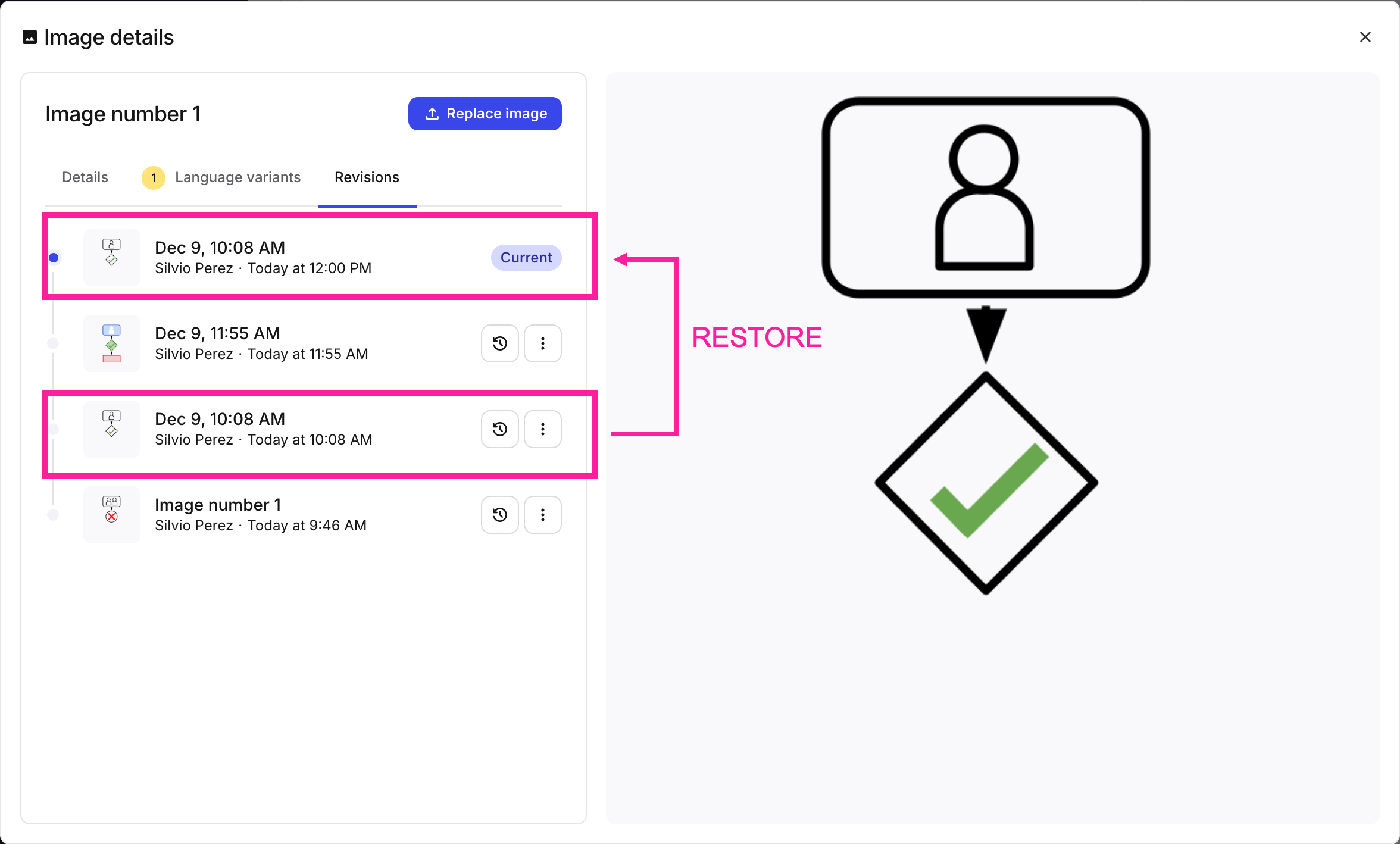
After restoring a previous revision, that revision will be listed twice in the list since the current revision is always displayed at the top.
Close the window.
For more information on image revisions, please refer to Add a new image revision.