View image revisions
To view all existing revisions of a particular image:
Select the image in the Media library.
Note
Alternatively, you can select an image inside a topic:
Right-click on the image.
Select Edit properties
Select the image
From the Image toolbar, select Edit image details
In the Image details window, select the Revisions tab. All revisions of the image are listed, with the current revision at the top, labeled Current.
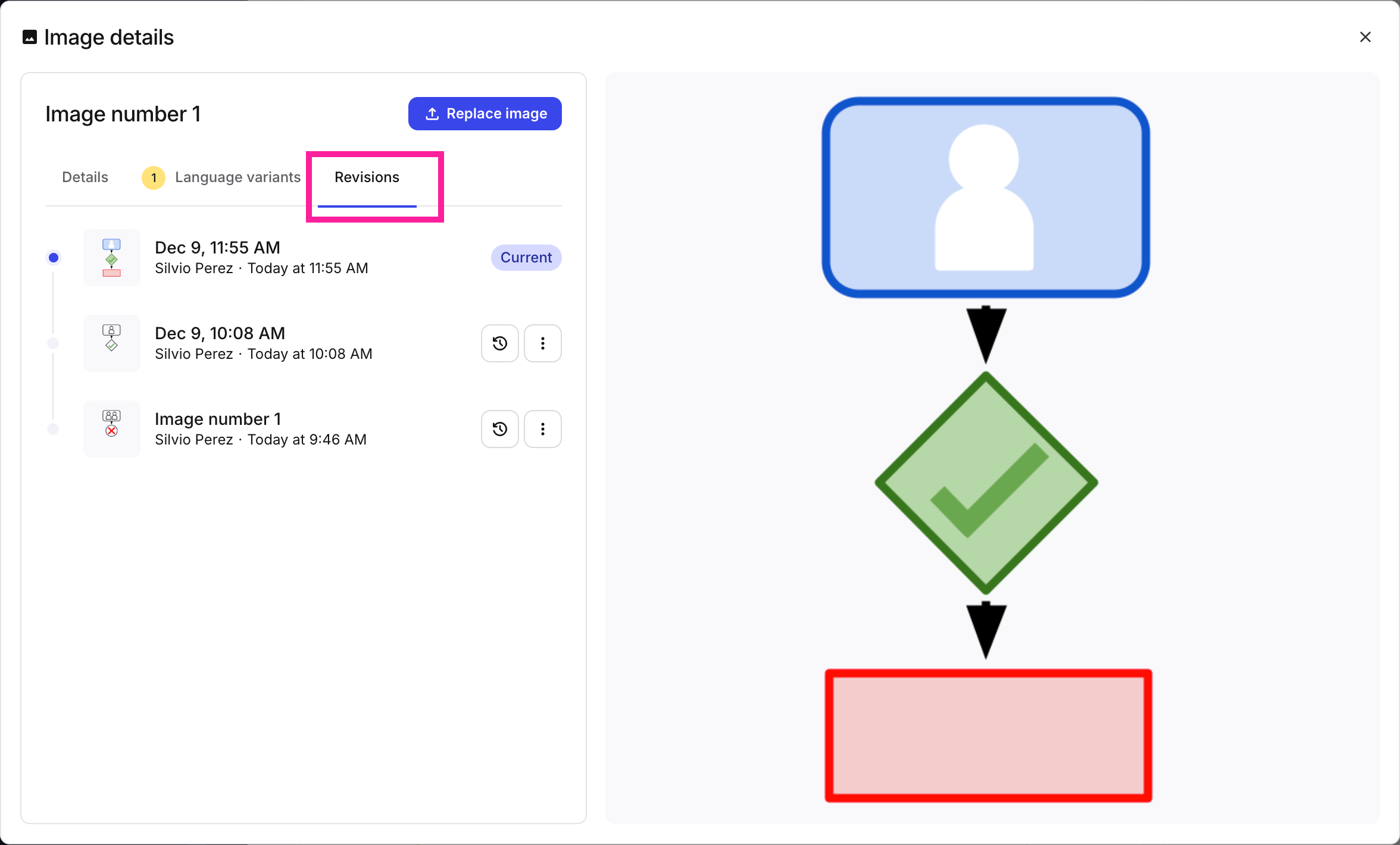
The Revisions tab shows the current revision at the top of the list
View a specific revision
Since it is sometimes hard to discern details in a revision's thumbnail, it is always possible to view image revisions in a separate window.
Note
You can enlarge the image in the preview pane by clicking the Expand image button  .
.
Select the image in the Media library.
Note
Alternatively, you can select an image inside a topic:
Right-click on the image.
Select Edit properties
Select the image
From the Image toolbar, select Edit image details
Select More options
 for the revision you want to preview.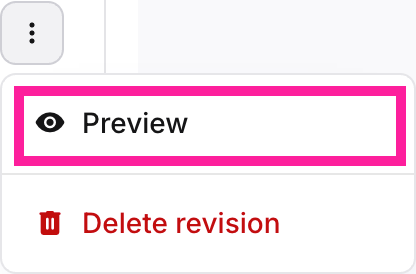
Select Preview. The image will open in a modal window.
Note
Language variants can be viewed in the same way.