Image and revision names
By default, the image name (title) will be the same as the filename. This name can be changed.
Note
If your image filename contains spaces, these will be converted to underscores.
Change image title
Select the image in the Media library.
Note
Alternatively, you can select an image inside a topic:
Right-click on the image.
Select Edit properties
Select the image
From the Image toolbar, select Edit image details
Select the Details tab.
Select the Rename button
 in the title field and enter a new title for the image.
Select Update.
Revision names
The title of the first revision of an image (root) will be the same as the filename. Subsequent revisions will be automatically named with the timestamp of when the revision was uploaded.
If you wish, you can rename the revisions.
Select the image in the Media library.
Note
Alternatively, you can select an image inside a topic:
Right-click on the image.
Select Edit properties
Select the image
From the Image toolbar, select Edit image details
Select the Revisions tab.
Select More options
 for the revision you want to rename.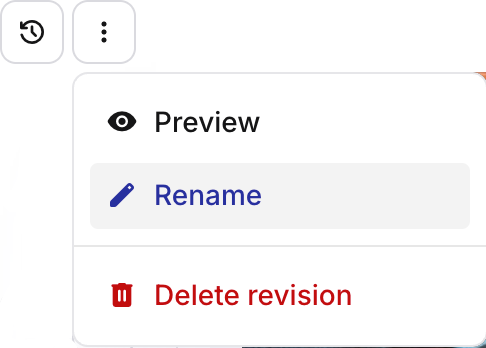
Select Rename.
Enter the name of the revision in the text field, and select Enter.
Pease see Add a new image revision for more information about revisions.