Send content to the AI translation service
Once your content is ready for AI translation, and you have made all the necessary preparations (see Prepare for AI translations), you can send it out for translation.
Select the
foldercontaining the topic or publication to be translated in Content Manager.
If the content is not in a folder, select the top-level folder Documents.


Paligo opens the Resource View.
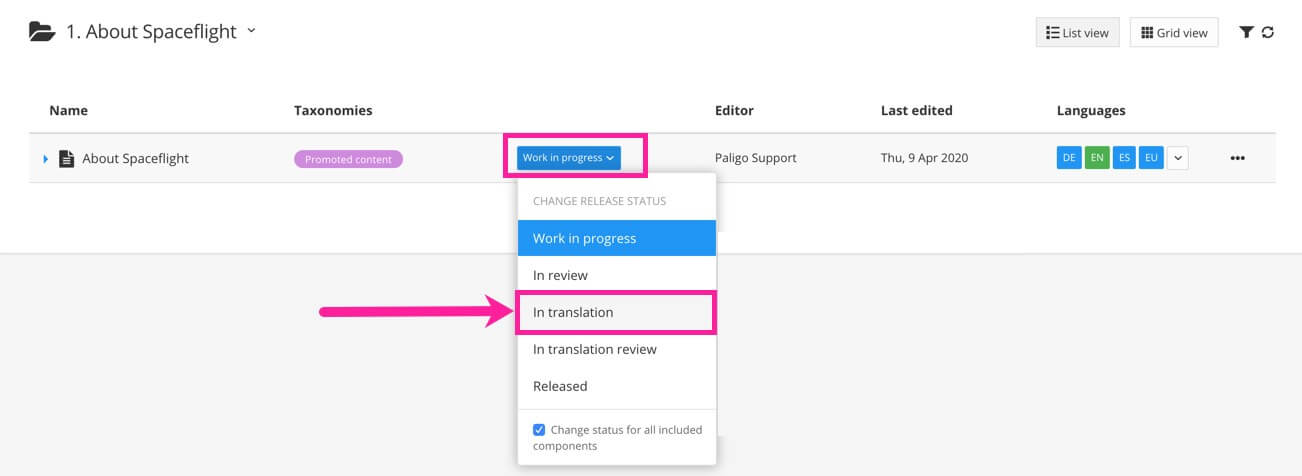
Change the topic or publication status to In translation.
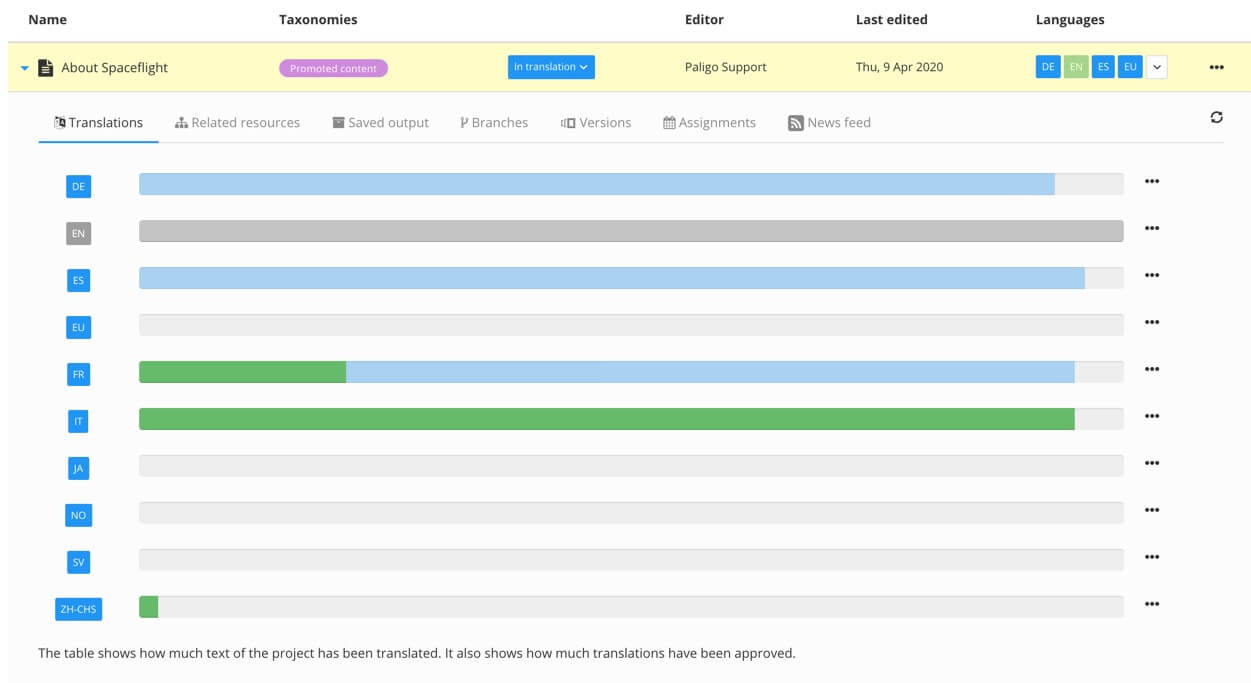
Expand the entry for the publication or topic to see the details and then select the Translations tab.
Tip
Select Show incomplete topics to see a list of topics (in a publication) that are not fully translated.
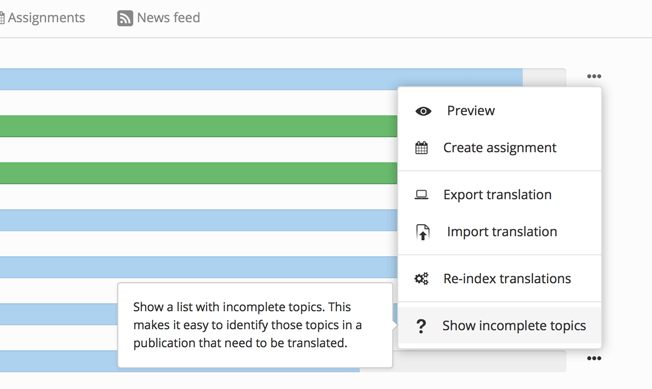
Select More options (...) for the topic or publication.
Select Translation, then Translate with AI.
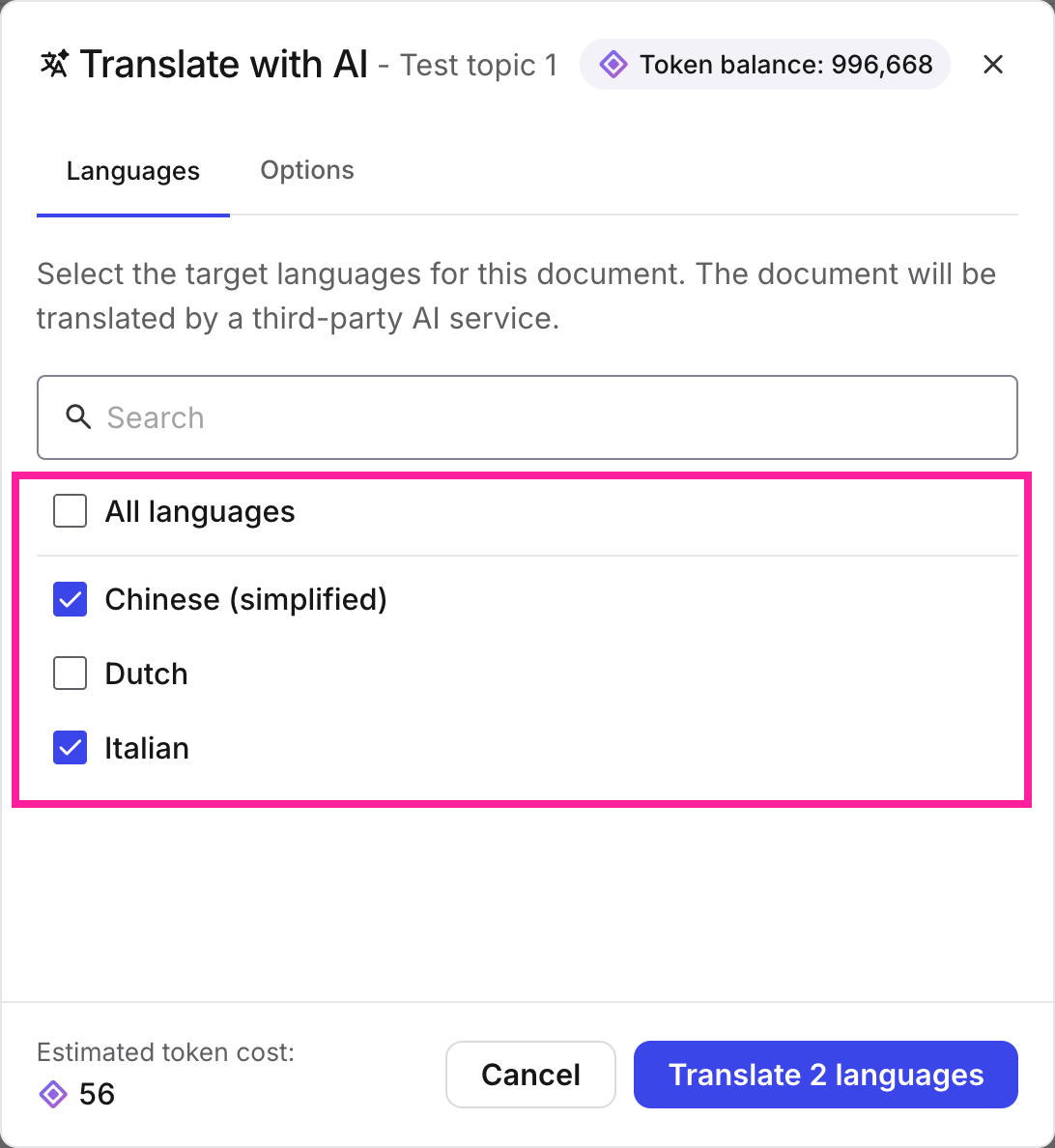
In the Translate with AI dialog box, check all the languages you want to translate into, or select the All languages box to translate to all of the active languages..
Note
Only languages that have been activated in your Paligo instance AND that are supported by the AI translation service will be listed.
Note
You can see the estimated token cost for the selected languages in the bottom left of the window. Your current token balance can be seen in the top right.
If necessary, include unapproved translations in the current translation by selecting the Options tab, then selecting Include unapproved translations.
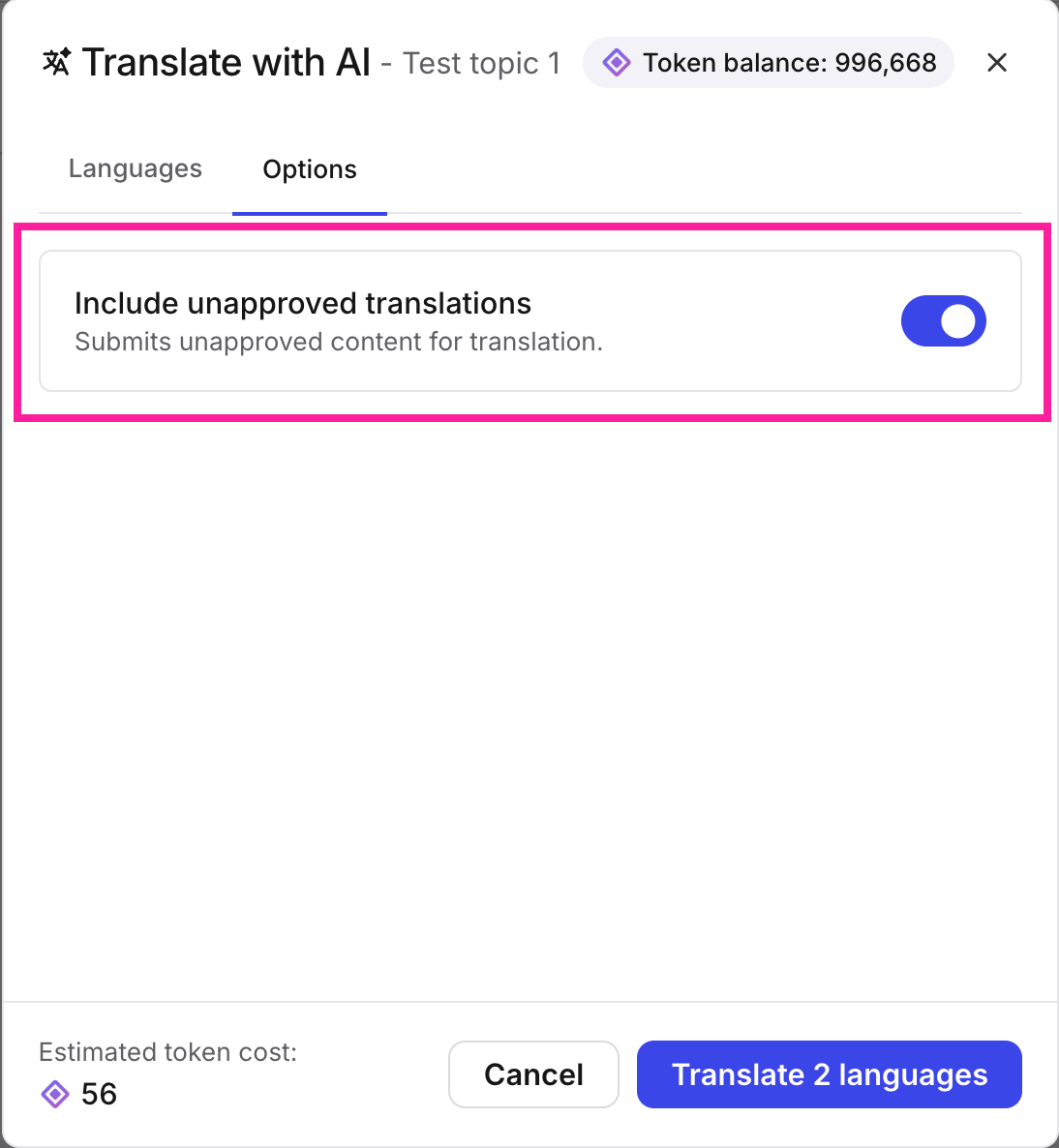
Select the Translate x language(s) button.
Note
You will get a notification when a language has been translated.