[en] Send content to the AI translation service
[en] Once your content is ready for AI translation, and you have made all the necessary preparations (see [en] Prepare for AI translations), you can send it out for translation.
[en] Select the
foldercontaining the topic or publication to be translated in Content Manager.
[en] If the content is not in a folder, select the top-level folder Documents.

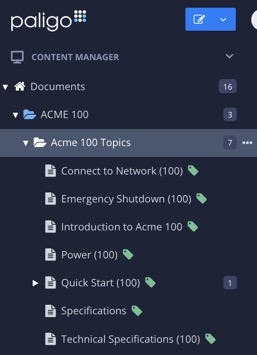
[en] Paligo opens the Ressourcenübersicht.
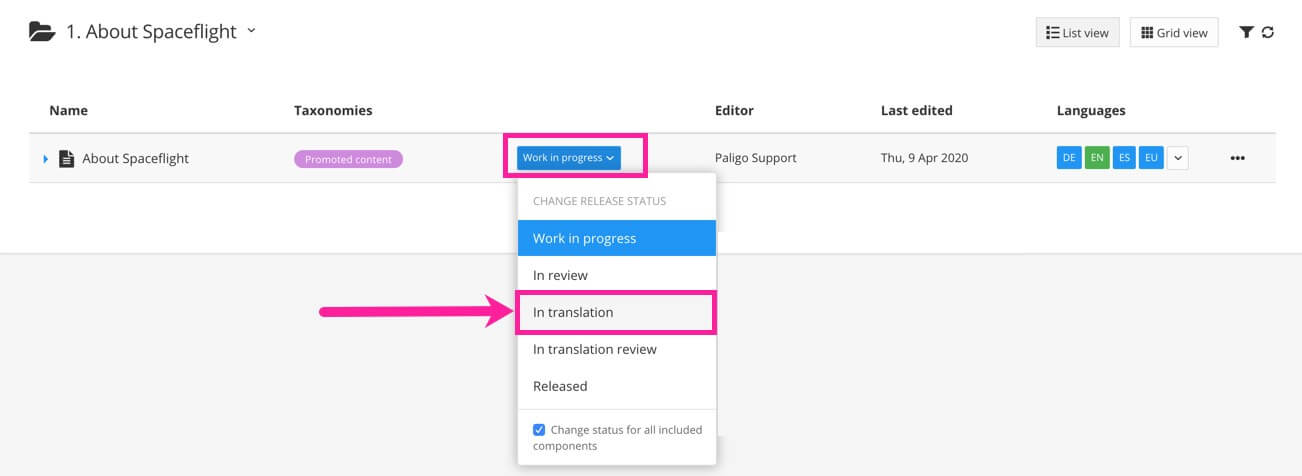
[en] Change the topic or publication status to In translation.
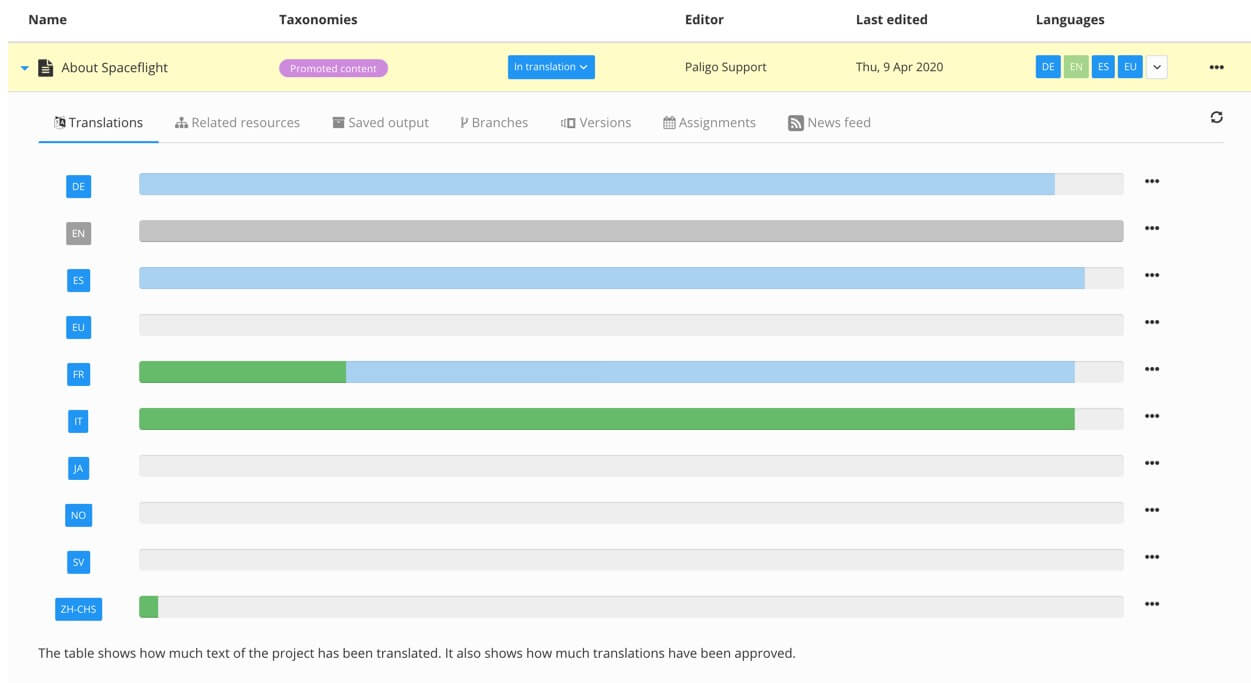
[en] Expand the entry for the publication or topic to see the details and then select the Translations tab.
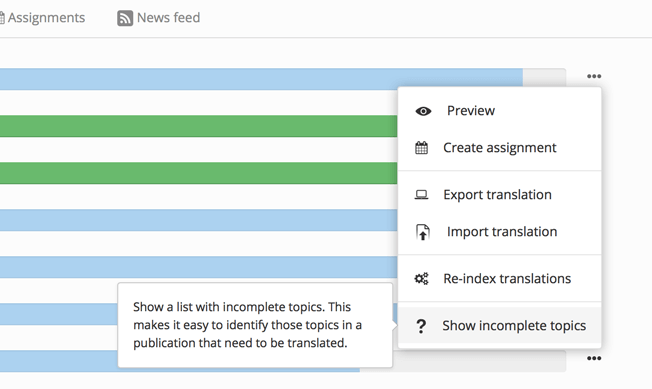
Tipp
[en] Select Show incomplete topics to see a list of topics (in a publication) that are not fully translated.
[en] Select More options (...) for the topic or publication.
[en] Select Translation, then Translate with AI.
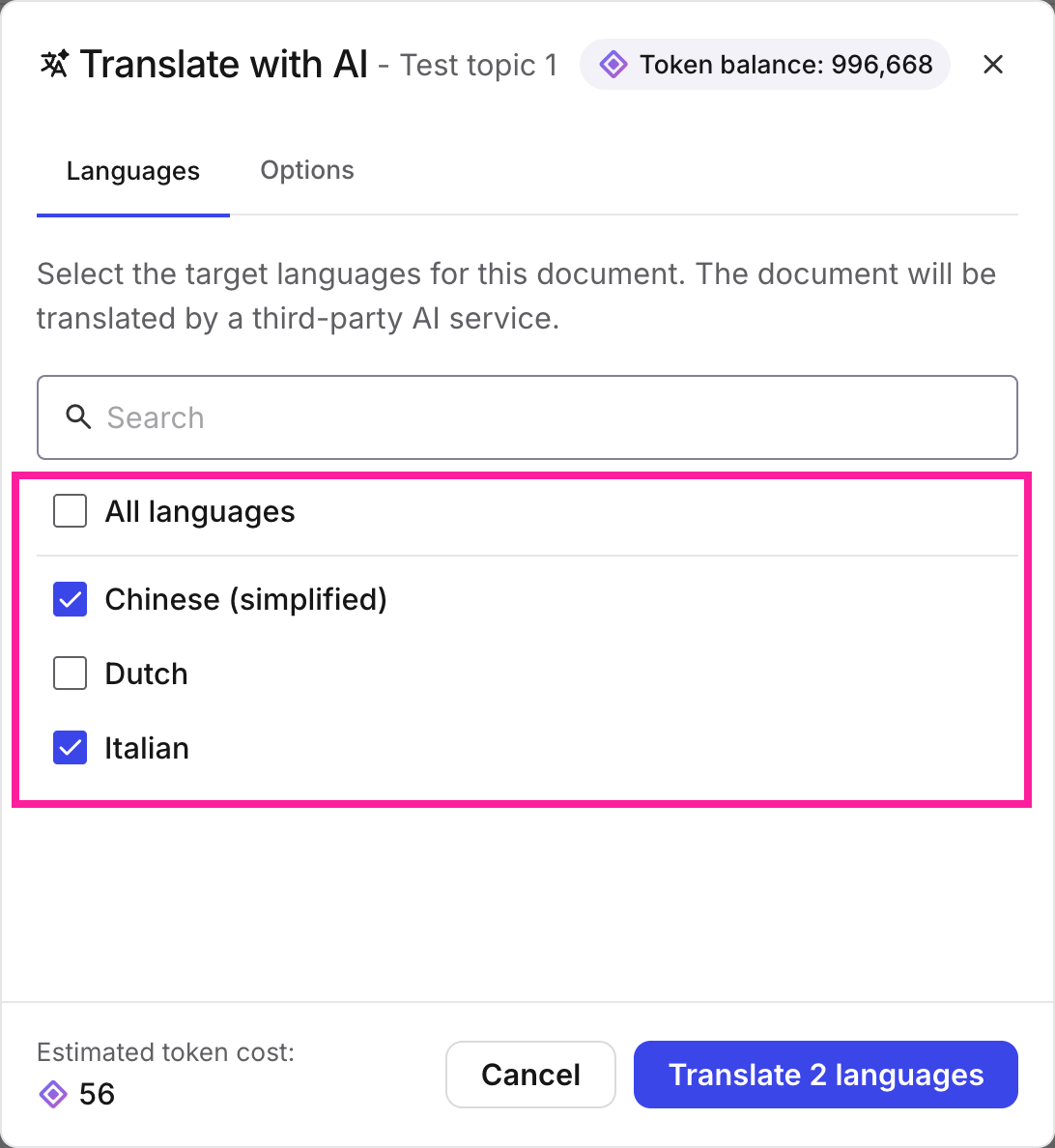
[en] In the Translate with AI dialog box, check all the languages you want to translate into, or select the All languages box to translate to all of the active languages..
Anmerkung
[en] Only languages that have been activated in your Paligo instance AND that are supported by the AI translation service will be listed.
Anmerkung
[en] You can see the estimated token cost for the selected languages in the bottom left of the window. Your current token balance can be seen in the top right.
[en] If necessary, include unapproved translations in the current translation by selecting the Options tab, then selecting Include unapproved translations.
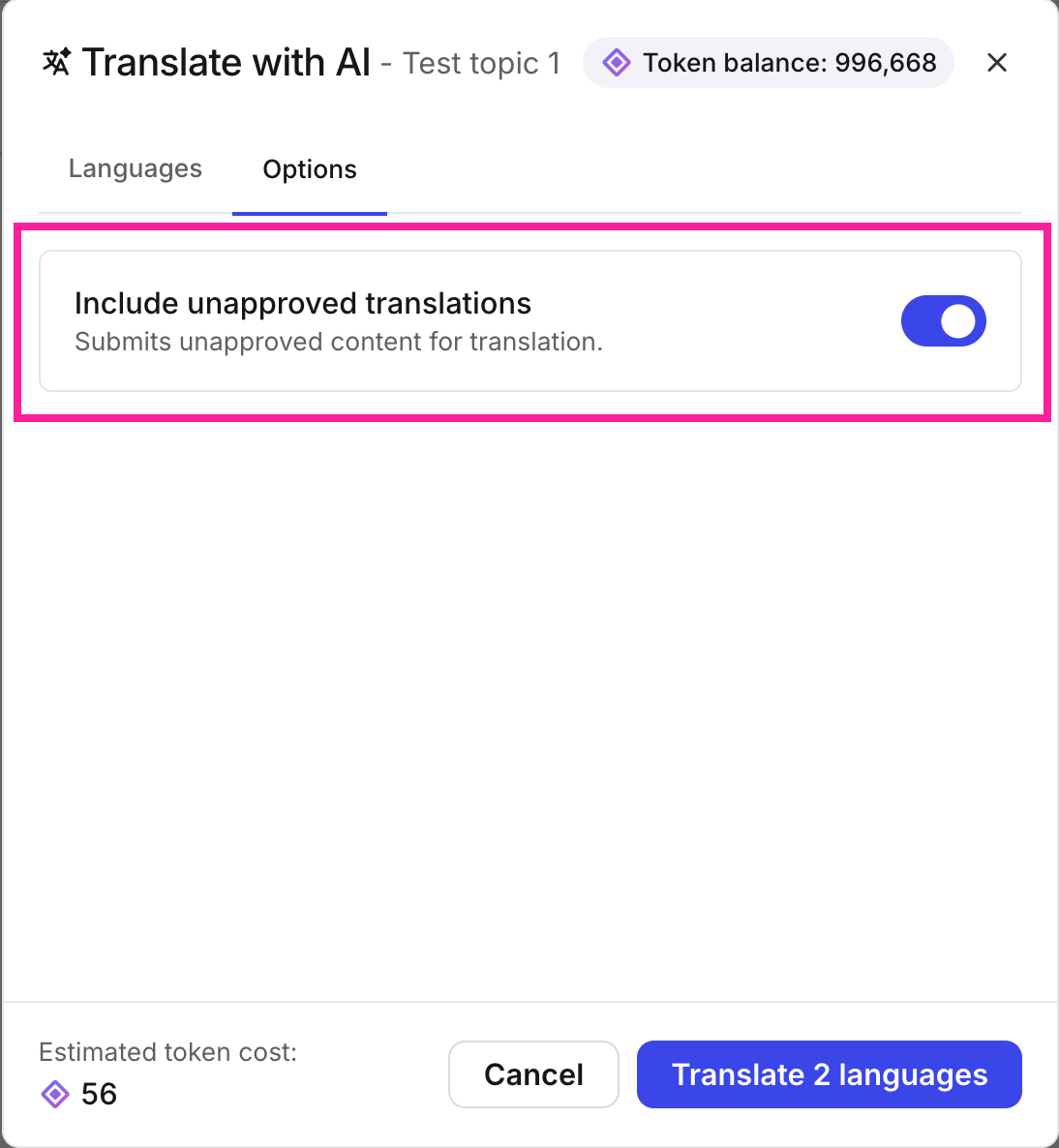
[en] Select the Translate x language(s) button.
Anmerkung
[en] You will get a notification when a language has been translated.