[en] AI translation glossaries
[en] In an AI translation context, glossaries are curated, bilingual, or multilingual lists of approved terms (e.g. brand names, industry jargon), which can be uploaded to the AI translation tool to enforce consistency and accuracy. They can act as "rules" for the machine translation engine, overriding its general-purpose knowledge to ensure specific terms are translated in a pre-defined way.
[en] In Paligo, you can compile your own glossaries for any language pair, which will automatically be associated with your translation exports.
Achtung
[en] In AI translation glossaries are used mostly as guidelines and will be applied wherever possible. However, if the AI translation service deems the chosen target language glossary term to be too far removed from its intended meaning, it will in most cases revert to a more generic translation.
[en] If you have terms that require a very specific, and generally unusual translation, you can make sure that your specific translation is always used by replacing all instances of that term with a translatable variable, since those will not be translated by AI. For more information on using translatable variables, please see Variablen übersetzen
[en] Apart from variables, there are a few other elements that are never auto-translated: author, code, inlineequation, command, classname, computeroutput, constant, constraindef, database, email, envar, equation, errorcode, filename, foreignphrase, function, informalequation, prompt, and varname.
[en] Add an AI translation glossary entry
[en] Glossary entries can be added for all target languages activated in your Paligo instance.
[en] Select AI Translations in the top menu.

[en] Select the target language you want to add the entry for in the Target dropdown.
[en] Enter the source language term and its target language term equivalent.
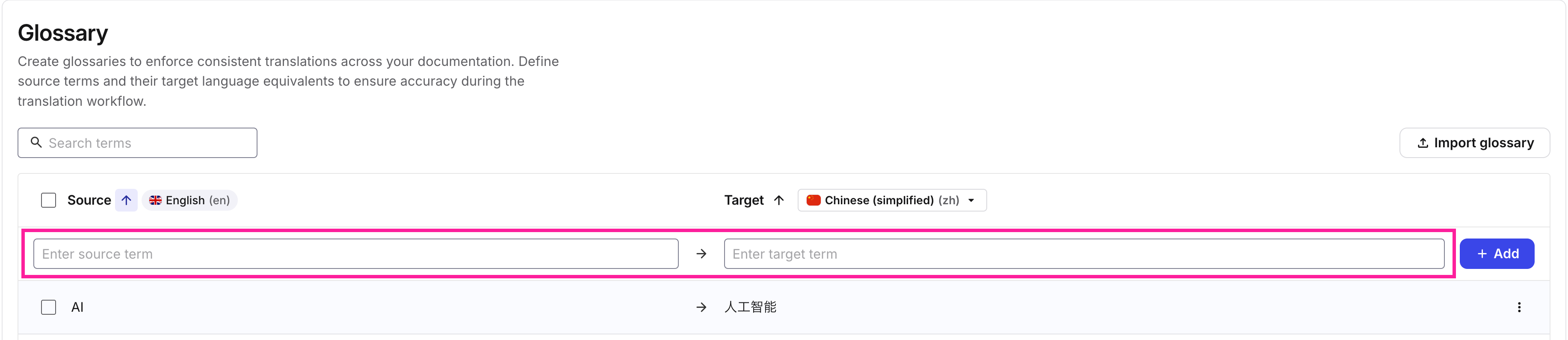
[en] Select Add
 .
.
[en] Edit an AI translation glossary entry
[en] You can edit any existing term in your translation glossary.
Anmerkung
[en] It is only possible to edit the target language of an existing glossary term, not the source language. If you need to edit the source language term, consider making a new entry.
[en] Select AI Translations in the top menu.
[en] Select the target language you want to edit the glossary term for in the Target dropdown.
[en] Find the entry you want to edit in the glossary list.
Anmerkung
[en] You can use the search field to find specific glossary terms.
[en] Select the More options menu
 , then select Edit.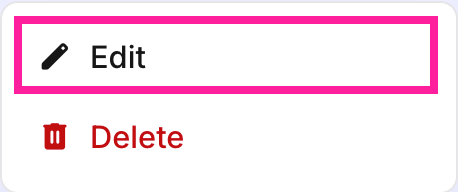
[en] Edit the target language term, then select Update
 .
.
[en] Delete glossary entries
[en] You can delete individual or multiple entries from your glossary lists.
[en] Select the target language you want to delete the glossary term for in the Target dropdown.
[en] Find the entry you want to delete in the glossary list.
Anmerkung
[en] You can use the search field to find specific glossary terms.
[en] Select the More options menu
, then select Delete.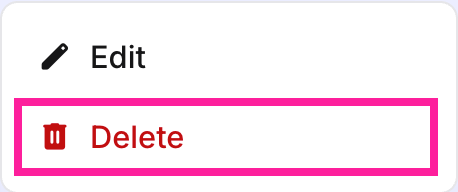
Anmerkung
[en] To delete multiple entries at once, check the selection box for each entry, then select the Delete selected button at the bottom of the list.

[en] Import translation glossary sets
[en] It is possible to import entire glossary sets containing multiple languages into Paligo. This means that you can gather all of your languages in one single file, and have your glossary terms translated and reviewed separately from your regular content.
[en] Prepare your translation glossary file. The file should conform to the following requirements:
[en] The file should be saved as comma-separated values (.csv)
[en] The file should be available locally on your system.
[en] The file can only contain 4 columns (no headers), containing the following, respectively: Source term, Target term, Source language, Target language.
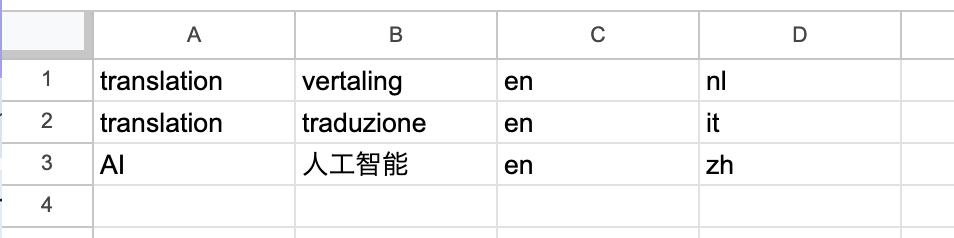
[en] The language codes used for the source- and target languages have to be 2- or 3-letter codes without their culture/dialect designations. E.g. for Simplified Chinese, instead of ZH-HANS, only ZH can be used. For a list of languages, please refer to the DeepL supported languages list.
[en] Select AI Translations in the top menu.
[en] Select the Import glossary button
 .
.[en] Select Click to add CSV and navigate to your glossary file, or drag and drop it in the import field.
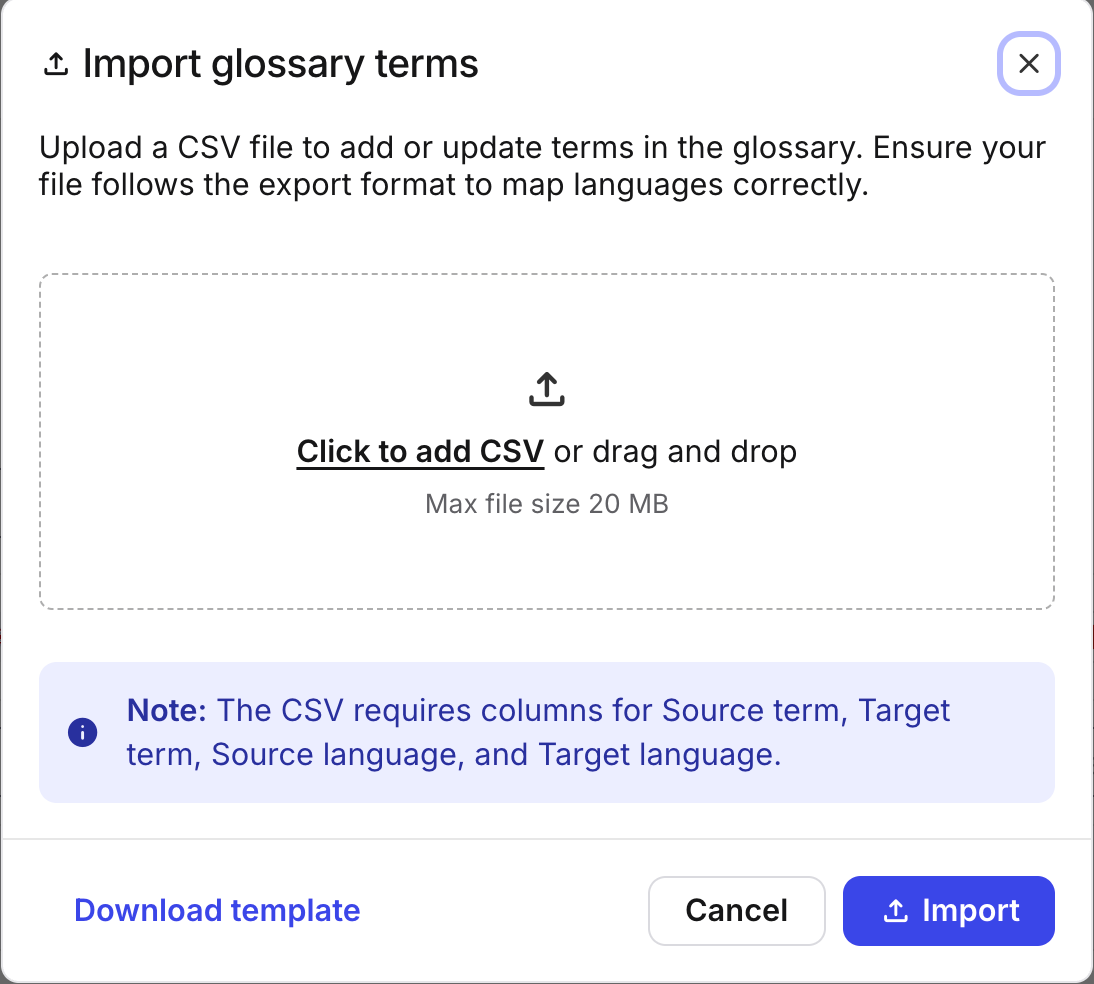
[en] Select Import

Achtung
[en] If your translation glossary file contains languages that have not been activated in your Paligo instance, or if the language codes do not match those of the AI translation service, the file will not be uploaded.
.