[en] Prepare for AI translations
[en] In order to begin sending files to the AI translation service, a few preparations need to be made.
[en] Make sure the languages you want to translate into are activated in your Paligo instance. More information on adding languages can be found in Sprachen aktivieren.
[en] Make sure the correct language code are added for those languages that have a culture/dialect designation. See [en] AI translation language codes
[en] Make sure you have tokens in your account. At least some tokens need to be present in your account to be able to send files for translation. If the number of tokens in your account is insufficient, the files will get translated but you will have a negative token balance. The remaining tokens will be deducted from your balance whenever it is refilled. More information on tokens can be found in [en] AI translation tokens.
[en] The language codes for AI translations are in some cases a bit different from the standard Paligo language codes. With a few notable exceptions, DeepL does not take culture/dialect designations into account, and therefore in most cases only uses a 2- or 3-letter language code without the culture/dialect suffix. In order for languages to show up in the list of translatable languages, they need to conform to DeepL's language codes.
[en] If you find that a language that is supported by DeepL is not showing in the list of languages in the Translate with AI dialog window, do the following:
[en] Look up the correct language code for the language in question on the DeepL supported languages page. E.g. the Paligo language code for Simplified Chinese is ZH-CHS, while DeepL uses ZH-HANS.
Melden Sie sich bei Paligo über ein Benutzerkonto mit Administratorberechtigungen an.
Wählen Sie den Avatar in der oberen rechten Ecke aus.

Wählen Sie im Menü Einstellungen aus.

Wählen Sie die Registerkarte Sprachen.

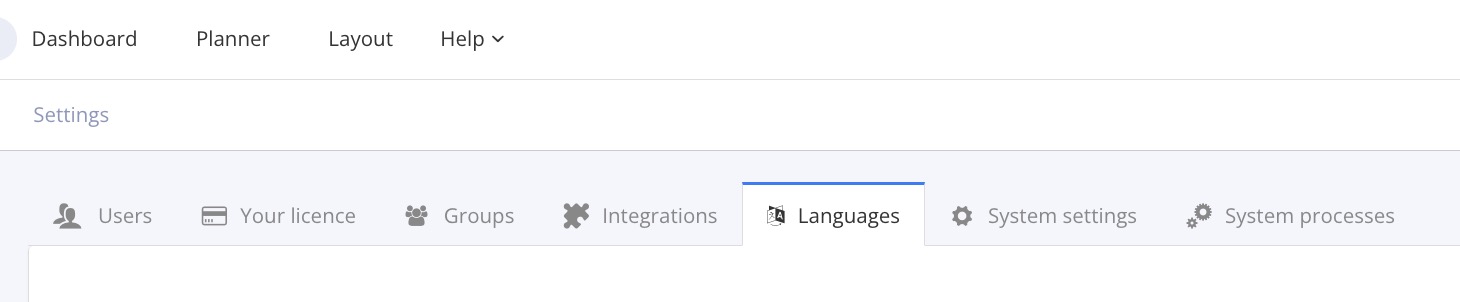
Die Registerkarte „Sprachen“ zeigt alle Sprachen an, die aktuell für Ihre Instanz aktiviert sind.
[en] Select the language you want to add the language code to.
[en] In the Alternative language code field, enter the DeepL language code for that language.
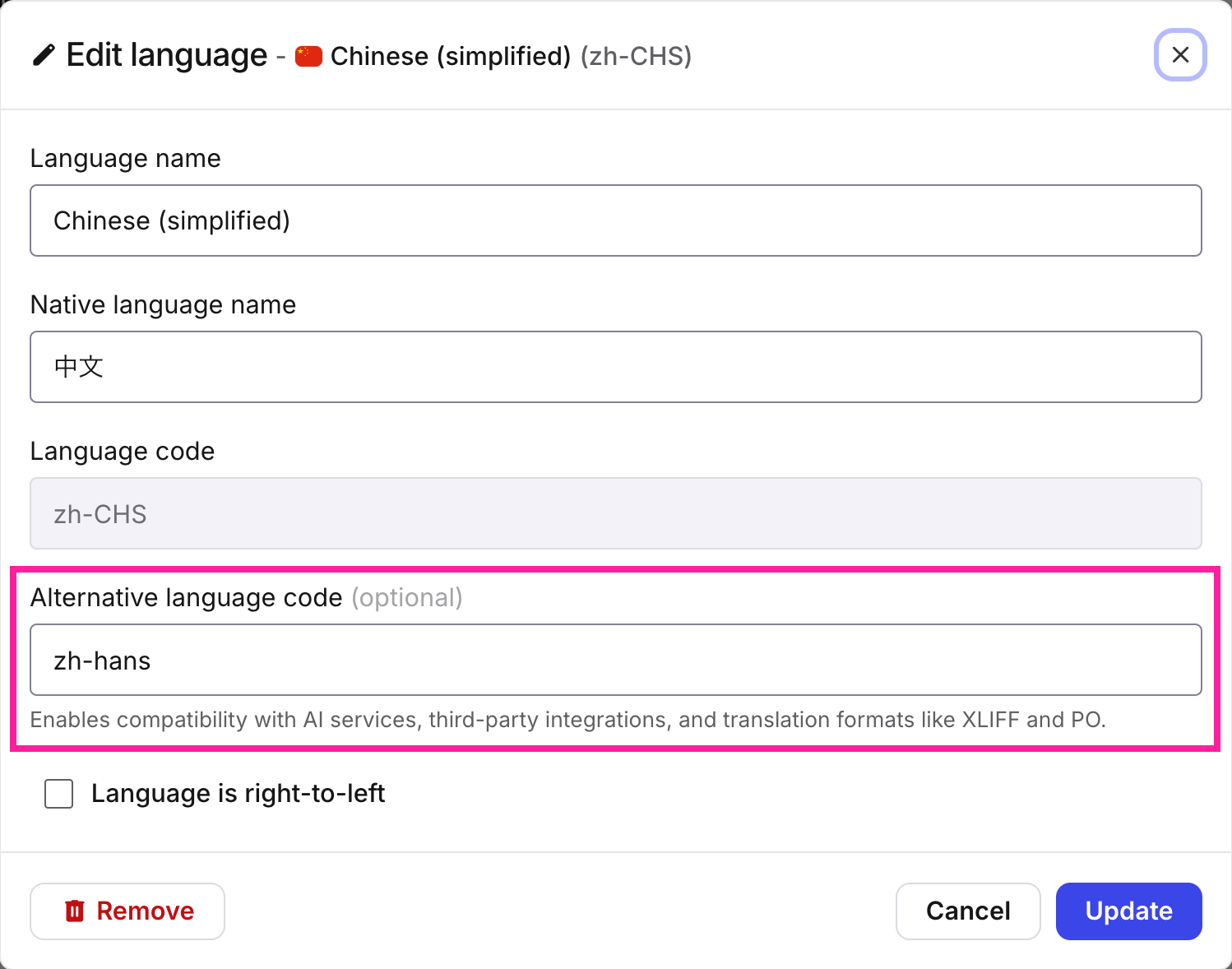
[en] Select Update.
[en] In the world of AI in general, okens are the fundamental, small units of text (words, parts of words, or characters) that AI models, especially Large Language Models (LLMs), use to process and generate language. In the case of AI translations in Paligo, however, tokens are used as credits for AI processing. These tokens can be added to your account's token balance. When you perform an AI translation, the content to be translated is divided into tokens, which are then deducted from your token balance.
[en] View your token balance
[en] Your token balance indicates how many tokens you have left in your account.
Anmerkung
[en] Tokens never expire.
[en] Select AI Translations in the top menu.

[en] Your current balance is listed in the Token balance field.

Anmerkung
[en] The token balance is also shown in the Translate with AI window when you send components for translation. For more information, please see [en] Send content to the AI translation service.
[en] Get more tokens
[en] To get more tokens added to your account, please contact your administrator.
[en] Token usage reports
[en] You can export a report of all tokens used in your Paligo instance. The report will include information on the user who requested the translation, number of tokens used, a timestamp, and references to Paligo component IDs and target languages.
Anmerkung
[en] When you send content out for translation, the Translate with AI window will also show the estimated token cost for that translation. For more information, please see [en] Send content to the AI translation service.
[en] Select AI Translations in the top menu.
[en] Select Export to CSV in the Usage report field.
