[en] Revert to previous image revision
[en] If you want to revert to an image's previous revision, do the following:
[en] Select the image in the Media library.
Anmerkung
[en] Alternatively, you can select an image inside a topic:
[en] Right-click on the image.
[en] Select Edit properties
[en] Select the image
[en] From the Image toolbar, select Edit image details
[en] Select the Revisions tab.
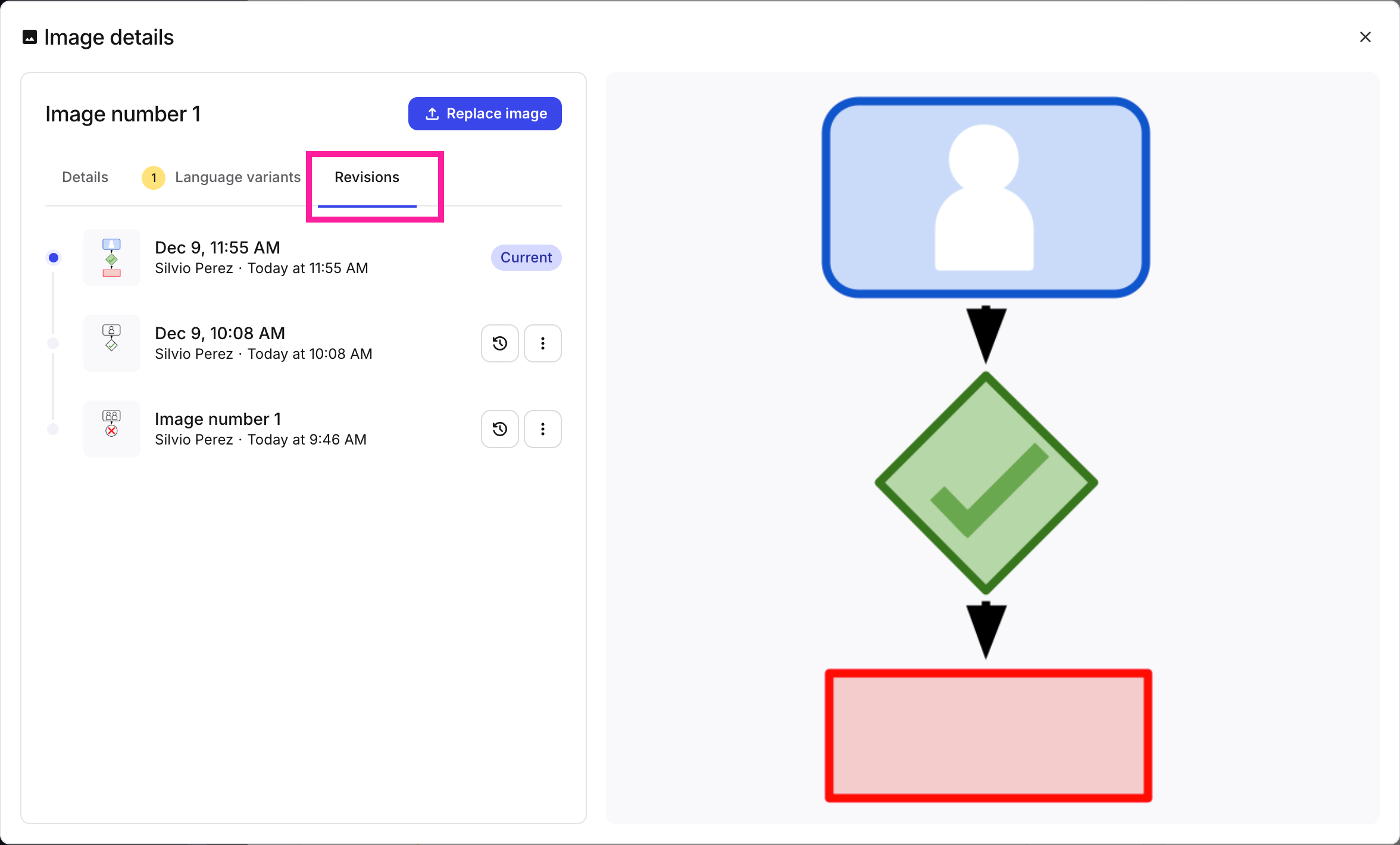
[en] The Revisions tab shows all revisions of the image
[en] Select the Restore this revision button
 for the image you want to restore.
Warnung
[en] Restoring a revision will update that image in all topics where that image is used.
[en] Select Restore revision in the pop-up window
 .
.Anmerkung
[en] The revision entry will be duplicated at the top of the list and labeled Current to indicate that it is now the revision that is being used in all topics.
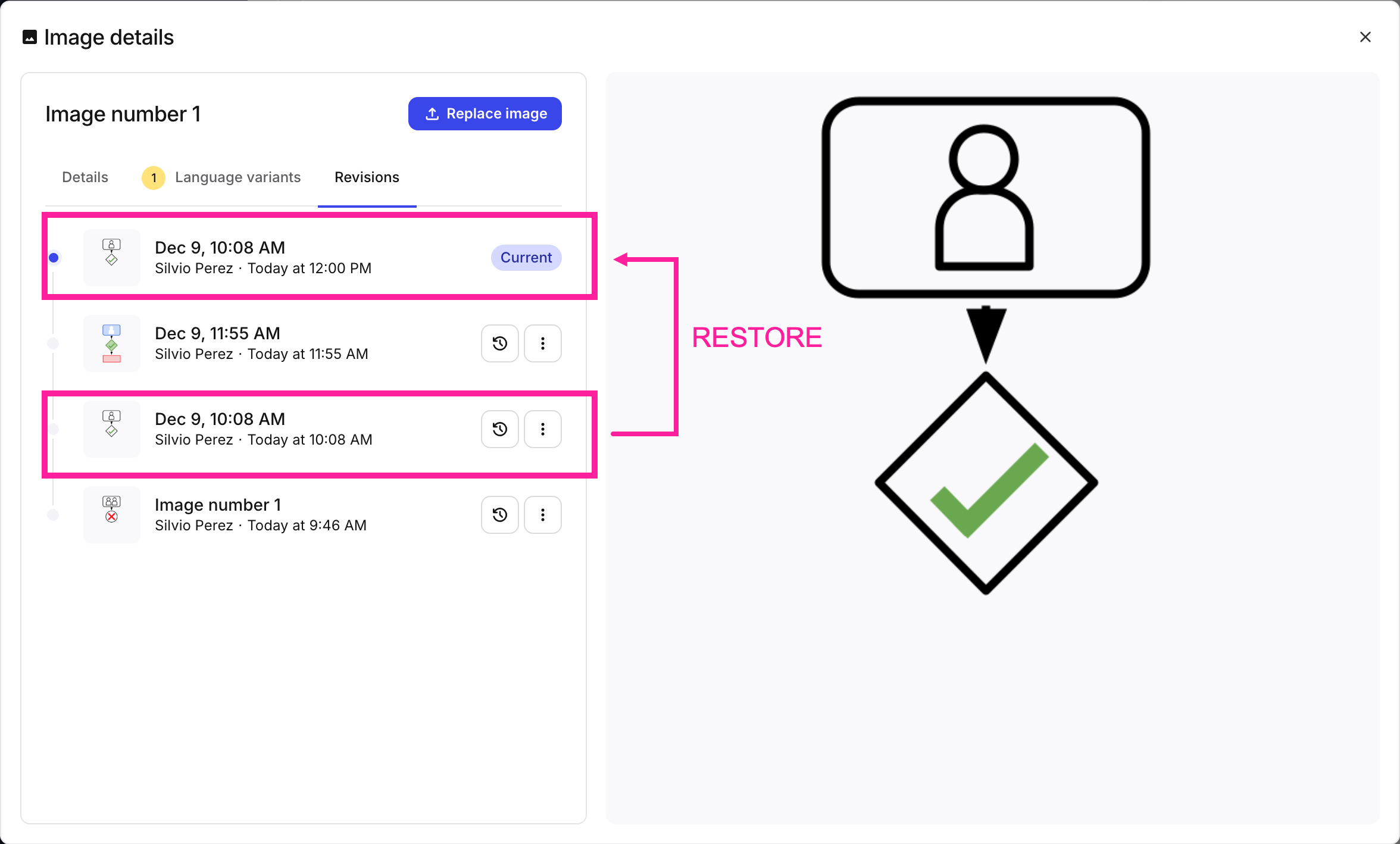
[en] After restoring a previous revision, that revision will be listed twice in the list since the current revision is always displayed at the top.
[en] Close the window.
[en] For more information on image revisions, please refer to [en] Add a new image revision.